
はじめに
WordPressサイトのセキュリティ対策や状態チェックは重要ですが、高機能なセキュリティプラグインを入れるとサイトの動作が重くなったり、設定項目が多くて扱いづらく感じることがあります。
そこで、高度なセキュリティ対策までいかなくとも、主要なファイルの変更やログインの失敗状況などをひと目で確認できる仕組みがあれば十分、というケースも少なくありません。
この記事では、この方法について説明します。
完成イメージ
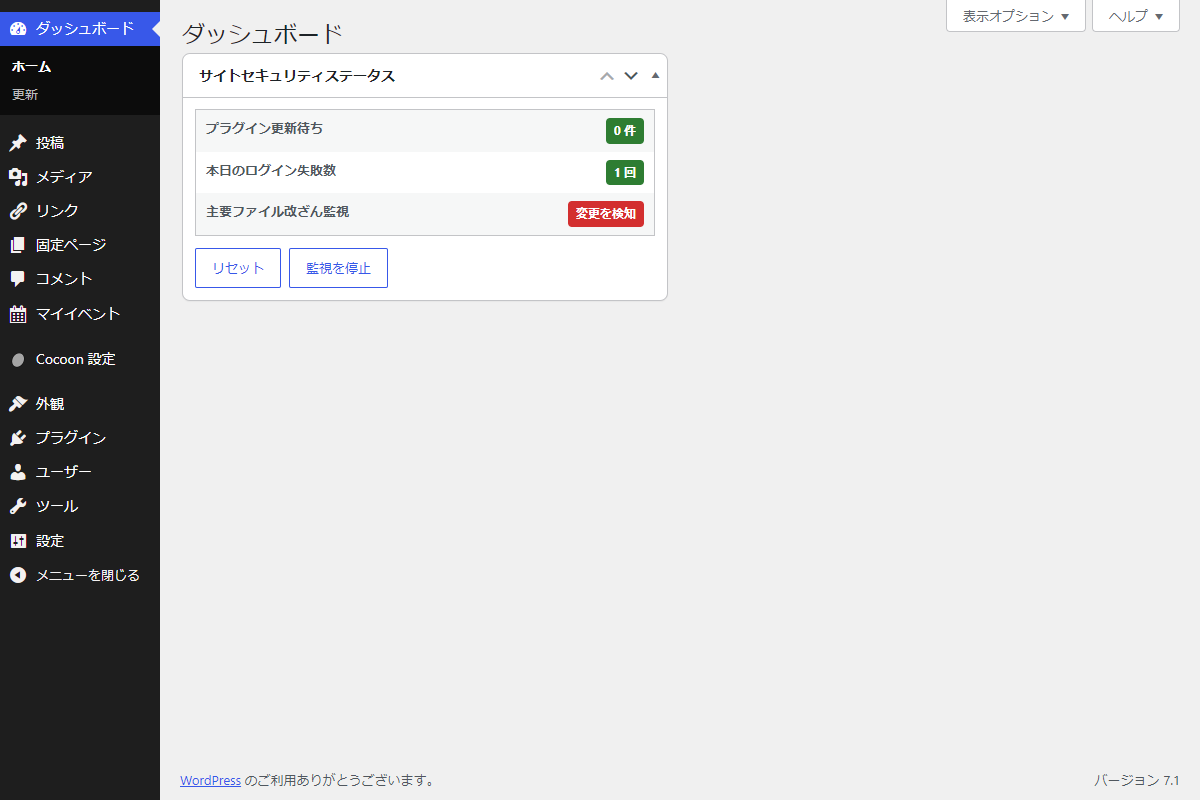
実装手順
以下のコードをfunctions.phpに追加します。
// ダッシュボードウィジェットを追加
add_action('wp_dashboard_setup', function () {
  wp_add_dashboard_widget(
    'custom-security',
    'サイトセキュリティステータス',
    'render_custom_security'
  );
});


/**
 * ダッシュボードにウィジェットを出力
 *
 * @return void
 */
if (!function_exists('render_custom_security')):
function render_custom_security() {
  // プラグイン更新情報を取得するためのファイルを読み込む
  if (!function_exists('get_plugin_updates')) {
    require_once ABSPATH . 'wp-admin/includes/plugin.php';
  }

  // 更新が必要なプラグインの数を取得
  $plugin_updates      = get_plugin_updates();
  $plugin_update_count = count($plugin_updates);

  // 本日の日付とログイン失敗数を取得
  $today       = wp_date('Y-m-d');
  $failed_data = get_option('my_custom_security_failed_logins_data', [
    'date'  => $today,
    'count' => 0,
  ]);

  $failed_logins = ($failed_data['date'] === $today)
    ? (int) $failed_data['count']
    : 0;

  // 改ざん検知状態とCron監視状態を取得
  $tamper_detected = (bool) get_option('my_custom_security_file_tamper_detected', false);

  $cron_enabled = (bool) get_option('my_custom_security_cron_monitoring_enabled', false)
    && (bool) wp_next_scheduled('my_security_daily_file_checksum_event');

  ?>
  <div class="custom-security">
    <table class="widefat striped custom-security__table">
      <tbody>
        <!-- プラグイン更新状況 -->
        <tr>
          <td><strong>プラグイン更新待ち</strong></td>
          <td class="custom-security__text-right">
            <span class="custom-security__status <?php echo esc_attr(
              $plugin_update_count === 0 ? 'custom-security__status--ok' : 'custom-security__status--warn'
            ); ?>">
              <?php echo esc_html($plugin_update_count); ?> 件
            </span>
          </td>
        </tr>

        <!-- ログイン失敗回数 -->
        <tr>
          <td><strong>本日のログイン失敗数</strong></td>
          <td class="custom-security__text-right">
            <span class="custom-security__status <?php echo esc_attr($failed_logins > 10 ? 'custom-security__status--warn' : 'custom-security__status--ok'); ?>">
              <?php echo esc_html($failed_logins); ?> 回
            </span>
          </td>
        </tr>

        <!-- 改ざん監視状態 -->
        <tr>
          <td><strong>主要ファイル改ざん監視</strong></td>
          <td class="custom-security__text-right">
            <?php if (!$cron_enabled) : ?>
              <span class="custom-security__status custom-security__status--disabled">停止中</span>
            <?php elseif ($tamper_detected) : ?>
              <span class="custom-security__status custom-security__status--danger">変更を検知</span>
            <?php else : ?>
              <span class="custom-security__status custom-security__status--ok">監視中(異常なし)</span>
            <?php endif; ?>
          </td>
        </tr>
      </tbody>
    </table>

    <!-- 操作フォーム -->
    <form method="post" class="custom-security__controls">
      <?php wp_nonce_field('custom_security_action', 'custom_security_nonce'); ?>

      <button type="submit" name="custom_security_reset_all_data" value="1" class="button button-secondary" onclick="return confirm('すべてのセキュリティデータをリセットします。よろしいですか?');">
        リセット
      </button>

      <?php if ($cron_enabled) : ?>
        <button type="submit" name="custom_security_toggle_cron" value="1" class="button button-link-delete">
          監視を停止
        </button>
      <?php else : ?>
        <button type="submit" name="custom_security_toggle_cron" value="1" class="button button-primary">
          監視を開始
        </button>
      <?php endif; ?>
    </form>
  </div>
  <?php
}
endif;


// 管理画面からの設定データ更新
add_action('admin_init', function () {
  // 権限チェック
  if (!current_user_can('manage_options')) {
    return;
  }

  // セキュリティデータをリセット
  if (isset($_POST['custom_security_reset_all_data']) && check_admin_referer('custom_security_action', 'custom_security_nonce')) {
    // Cronのスケジュールを解除
    $timestamp = wp_next_scheduled('my_security_daily_file_checksum_event');

    if ($timestamp) {
      wp_unschedule_event($timestamp, 'my_security_daily_file_checksum_event');
    }

    // セキュリティ関連のデータを削除
    delete_option('my_custom_security_failed_logins_data');
    delete_option('my_custom_security_cron_monitoring_enabled');
    delete_option('my_custom_security_file_hashes');
    delete_option('my_custom_security_file_tamper_detected');

    // 処理結果を一時保存
    set_transient('my_admin_notice', [
      'type'    => 'success',
      'message' => 'セキュリティデータをリセットしました。',
    ], 30);

    wp_safe_redirect(admin_url('index.php'));
    exit;
  }

  // Cron監視の開始・停止を切り替え
  if (isset($_POST['custom_security_toggle_cron']) && check_admin_referer('custom_security_action', 'custom_security_nonce')) {
    // Cron監視状態を取得
    $cron_enabled = (bool) get_option('my_custom_security_cron_monitoring_enabled', false);

    // Cronのスケジュールを取得
    $timestamp = wp_next_scheduled('my_security_daily_file_checksum_event');

    if ($timestamp) {
      // Cronのスケジュールを解除
      wp_unschedule_event($timestamp, 'my_security_daily_file_checksum_event');
    }

    if ($cron_enabled) {
      // Cron監視状態を変更
      update_option('my_custom_security_cron_monitoring_enabled', false);

      // 処理結果を一時保存
      set_transient('my_admin_notice', [
        'type'    => 'success',
        'message' => '改ざん監視を停止しました。',
      ], 30);
    } else {
      // 改ざん監視対象を設定
      $targets = [
        ABSPATH . 'index.php',
        ABSPATH . 'wp-config.php',
        ABSPATH . '.htaccess',
      ];

      // 現在の主要ファイルのハッシュ値を取得
      $initial_hashes = [];

      foreach ($targets as $file) {
        if (file_exists($file)) {
          $initial_hashes[$file] = md5_file($file);
        }
      }

      // 基準ハッシュ値を登録
      update_option('my_custom_security_file_hashes', $initial_hashes);

      // 改ざん検知状態を変更
      update_option('my_custom_security_file_tamper_detected', false);

      // 1日1回のCronを登録
      wp_schedule_event(time(), 'daily', 'my_security_daily_file_checksum_event');

      // Cron監視状態を変更
      update_option('my_custom_security_cron_monitoring_enabled', true);

      // 処理結果を一時保存
      set_transient('my_admin_notice', [
        'type'    => 'success',
        'message' => '改ざん監視を開始しました。',
      ], 30);
    }

    // ダッシュボードへ戻す
    wp_safe_redirect(admin_url('index.php'));
    exit;
  }
});


// ログイン失敗回数を記録
add_action('wp_login_failed', function ($username, $error = null) {
  // ユーザー名が空の場合は処理対象外
  if (empty($username)) {
    return;
  }

  // 本日の日付を取得
  $today = wp_date('Y-m-d');

  // ログイン失敗データを取得
  $data = get_option('my_custom_security_failed_logins_data', [
    'date'  => $today,
    'count' => 0,
  ]);

  // 日付が変わった場合は当日のデータに置換
  if ($data['date'] !== $today) {
    $data = [
      'date'  => $today,
      'count' => 1,
    ];
  } else {
    // ログイン失敗回数を変更
    $data['count']++;
  }

  // ログイン失敗データを登録
  update_option('my_custom_security_failed_logins_data', $data, false);
}, 10, 2);


// 改ざんチェックイベント
add_action('my_security_daily_file_checksum_event', function () {
  // 改ざん監視対象を設定
  $targets = [
    ABSPATH . 'index.php',
    ABSPATH . 'wp-config.php',
    ABSPATH . '.htaccess',
  ];

  // 現在のハッシュ値を取得
  $current_hashes = [];

  foreach ($targets as $file) {
    if (file_exists($file)) {
      $current_hashes[$file] = md5_file($file);
    }
  }

  // 保存済みの基準ハッシュ値を取得
  $saved_hashes = get_option('my_custom_security_file_hashes', []);

  // 改ざん検知状態を変更
  if (!empty($saved_hashes) && $saved_hashes !== $current_hashes) {
    update_option('my_custom_security_file_tamper_detected', true);
  } else {
    update_option('my_custom_security_file_tamper_detected', false);
  }
});

// 通知メッセージを出力
add_action('admin_notices', function () {
  if ($notice = get_transient('my_admin_notice')) {
    echo '<div class="notice notice-' . esc_attr($notice['type']) . ' is-dismissible"><p>' . esc_html($notice['message']) . '</p></div>';
    delete_transient('my_admin_notice');
  }
});


// 管理画面用JS・CSSを追加
add_action('admin_enqueue_scripts', function ($hook_suffix) {
  if ($hook_suffix !== 'index.php') {
    return;
  }

  ob_start();
  ?>
  .custom-security__controls {
    display: flex;
    flex-wrap: wrap;
    gap: 8px;
    margin-top: 12px;
  }

  .custom-security__text-right {
    text-align: right;
  }

  .custom-security__status {
    border-radius: 4px;
    color: #fff;
    display: inline-block;
    font-size: 12px;
    font-weight: bold;
    padding: 3px 8px;
  }

  .custom-security__status--danger {
    background-color: #d32f2f;
  }

  .custom-security__status--disabled {
    background-color: #757575;
  }

  .custom-security__status--ok {
    background-color: #2e7d32;
  }

  .custom-security__status--warn {
    background-color: #ed6c02;
  }
  <?php
  wp_add_inline_style('wp-admin', ob_get_clean());
});
解説
保存されるデータ一覧
データベース内の wp_optionsテーブルを開くと、option_nameカラムに以下のキー名で保存されていることが確認できます。
| キー名(option_name) | 保存される内容 | 役割 |
|---|---|---|
| my_failed_logins_data | シリアライズされた配列データ | 本日のログイン失敗回数と記録日付 |
| my_cron_monitoring_enabled | true / false | 改ざん監視Cronのオン・オフ状態 |
| my_file_hashes | シリアライズされた配列データ | 監視対象ファイルのパスとMD5ハッシュ値 |
| my_file_tamper_detected | true / false | 改ざん検知の有無(異常フラグ) |
ファイル改ざん監視の動作仕組み
改ざん監視処理は、以下の流れで自動実行されます。
- 定期実行(Cron)のスケジューリング
ダッシュボードから「監視を開始」ボタンを押すと、WordPressのWP-Cron機能によって1日1回(daily)指定のタスクが自動実行されるよう予約されます。
- ハッシュ値(MD5)による比較
指定した主要ファイル(index.php、wp-config.php、.htaccess)の内容から計算したハッシュ値(MD5値)を取得します。
初回は基準値としてデータベースに保存します。
- 差分の検知
次回以降の自動実行時、記録済みのハッシュ値と「現在のファイル内容から計算したハッシュ値」を比較します。
ファイルが1文字でも書き換えられていればハッシュ値が変わるため、変更を検知してダッシュボードに「変更を検知」という警告ステータスを表示します。
さいごに
今回紹介した方法を使えば、重いプラグインを導入することなく、WordPressサイトの主要なセキュリティ状態をひと目で確認できるようになります。
ログイン失敗の検知や主要ファイルの変更チェックなど、サイト運用に必要な監視ポイントをスマートにカバーできますので、ぜひ導入してみてください。

