
はじめに
スマホ画面の下部に表示される「フッターモバイルボタン」は、ユーザーの回遊率を高め、目的のページへ案内するために欠かせない機能です。

しかし、いざ作ろうとするとアイコン(Font Awesome)のクラス名を調べて手動で入力する必要があり、初心者の方には設定が少し複雑に感じられることも少なくありません。
その結果、デフォルトの「★(星マーク)」アイコンのまま使ってしまっているサイトもよく見かけます。
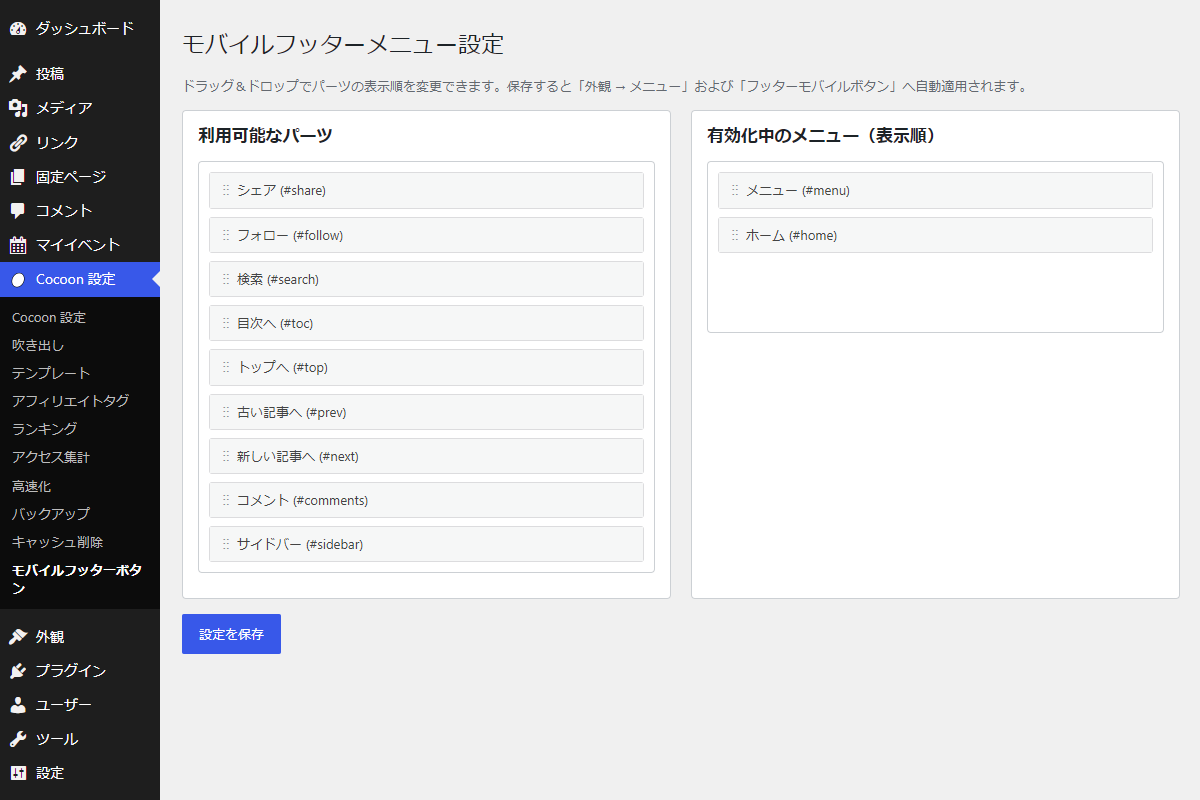
そこで、専用の設定画面を用いて、直感的にモバイルフッターボタンを作成します。
この記事では、この方法について説明します。
完成イメージ
実装手順
以下のコードをfunctions.phpに追加します。
// 管理画面メニューを追加
add_action('admin_menu', function () {
  add_submenu_page(
    THEME_SETTINGS_PAGE,
    'モバイルフッターボタン設定',
    'モバイルフッターボタン',
    'manage_options',
    'custom_footer',
    'render_custom_footer'
  );
}, 99);

/**
 * 管理画面ページを出力
 *
 * @return void
 */
if (!function_exists('render_custom_footer')) :
function render_custom_footer() {
  // Font Awesome 4の使用状況を取得
  $is_fa4 = is_site_icon_font_font_awesome_4();

  $available_parts = [
    'menu' => [
      'label'    => 'メニュー',
      'icon_fa4' => 'fa fa-bars',
      'icon_fa5' => 'fas fa-bars',
      'href'     => '#menu',
    ],
    'home' => [
      'label'    => 'ホーム',
      'icon_fa4' => 'fa fa-home',
      'icon_fa5' => 'fas fa-home',
      'href'     => '#home',
    ],
    'share' => [
      'label'    => 'シェア',
      'icon_fa4' => 'fa fa-share-alt',
      'icon_fa5' => 'fas fa-share-alt',
      'href'     => '#share',
    ],
    'follow' => [
      'label'    => 'フォロー',
      'icon_fa4' => 'fa fa-heart',
      'icon_fa5' => 'fas fa-heart',
      'href'     => '#follow',
    ],
    'search' => [
      'label'    => '検索',
      'icon_fa4' => 'fa fa-search',
      'icon_fa5' => 'fas fa-search',
      'href'     => '#search',
    ],
    'toc' => [
      'label'    => '目次へ',
      'icon_fa4' => 'fa fa-list-ol',
      'icon_fa5' => 'fas fa-list-ol',
      'href'     => '#toc',
    ],
    'top' => [
      'label'    => 'トップへ',
      'icon_fa4' => 'fa fa-arrow-up',
      'icon_fa5' => 'fas fa-arrow-up',
      'href'     => '#top',
    ],
    'prev' => [
      'label'    => '古い記事へ',
      'icon_fa4' => 'fa fa-chevron-left',
      'icon_fa5' => 'fas fa-chevron-left',
      'href'     => '#prev',
    ],
    'next' => [
      'label'    => '新しい記事へ',
      'icon_fa4' => 'fa fa-chevron-right',
      'icon_fa5' => 'fas fa-chevron-right',
      'href'     => '#next',
    ],
    'comments' => [
      'label'    => 'コメント',
      'icon_fa4' => 'fa fa-comments',
      'icon_fa5' => 'fas fa-comments',
      'href'     => '#comments',
    ],
    'sidebar' => [
      'label'    => 'サイドバー',
      'icon_fa4' => 'fa fa-indent',
      'icon_fa5' => 'fas fa-indent',
      'href'     => '#sidebar',
    ],
  ];

  // 設定の保存処理
  if (isset($_POST['custom_footer_save'])) {
    // nonceチェック
    check_admin_referer('custom_footer_action', 'custom_footer_nonce');

    // 権限チェック
    if (!current_user_can('manage_options')) {
      wp_die('設定を保存する権限がありません。');
    }

    $posted = (isset($_POST['footer_items']) && is_array($_POST['footer_items']))
      ? wp_unslash($_POST['footer_items'])
      : [];

    $saved_items = array_values(array_unique(array_filter(
      array_map('sanitize_key', $posted),
      function ($key) use ($available_parts) {
        return isset($available_parts[$key]);
      }
    )));

    update_option('my_custom_footer_items', $saved_items);

    // 「フッターモバイルボタン」を取得し、存在しない場合は新規作成
    $menu_exists = wp_get_nav_menu_object('フッターモバイルボタン');
    if (!$menu_exists) {
      $menu_id = wp_create_nav_menu('フッターモバイルボタン');
    } else {
      $menu_id = $menu_exists->term_id;

      // 既存のメニュー項目を削除
      $menu_items = wp_get_nav_menu_items($menu_id);
      if ($menu_items) {
        foreach ($menu_items as $item) {
          wp_delete_post($item->ID, true);
        }
      }
    }

    if (is_wp_error($menu_id)) {
      echo '<div class="notice notice-error"><p>メニューの作成に失敗しました。</p></div>';
    } else {
      // 保存された並び順でカスタムリンクを登録
      $position = 1;
      foreach ($saved_items as $key) {
        $item = $available_parts[$key];

        // Font Awesomeのバージョンに応じたアイコンクラスを設定
        $icon_class = $is_fa4 ? $item['icon_fa4'] : $item['icon_fa5'];

        wp_update_nav_menu_item($menu_id, 0, [
          'menu-item-title'    => $item['label'],
          'menu-item-url'      => $item['href'],
          'menu-item-classes'  => $icon_class,
          'menu-item-position' => $position++,
          'menu-item-status'   => 'publish',
        ]);
      }

      // フッターモバイルボタンのメニュー位置に割り当て
      if (defined('NAV_MENU_FOOTER_MOBILE_BUTTONS')) {
        $locations = get_theme_mod('nav_menu_locations');
        if (!is_array($locations)) {
          $locations = [];
        }

        $locations[NAV_MENU_FOOTER_MOBILE_BUTTONS] = $menu_id;
        set_theme_mod('nav_menu_locations', $locations);
      }

      echo '<div class="updated"><p>設定を保存しました。</p></div>';
    }
  }

  // 現在設定されているメニュー項目を取得
  $current_items = get_option('my_custom_footer_items', []);
  if (!is_array($current_items)) {
    $current_items = [];
  }

  ?>
  <div class="wrap custom-footer-builder">
    <h1>モバイルフッターメニュー設定</h1>
    <p style="color: #646970;">ドラッグ&ドロップでパーツの表示順を変更できます。保存すると「外観 → メニュー」および「フッターモバイルボタン」へ自動適用されます。</p>

    <form method="post" class="custom-footer-builder__form">
      <?php wp_nonce_field('custom_footer_action', 'custom_footer_nonce'); ?>

      <div class="custom-footer-builder__container">
        <!-- 利用可能なパーツ一覧を表示 -->
        <div class="custom-footer-builder__box">
          <h3>利用可能なパーツ</h3>
          <ul id="available-items" class="custom-footer-builder__list connected-sortable">
            <?php foreach ($available_parts as $key => $item): ?>
              <?php if (!in_array($key, $current_items, true)): ?>
                <li class="custom-footer-builder__item" data-id="<?= esc_attr($key); ?>">
                  <div class="custom-footer-builder__handle">
                    <span class="custom-footer-builder__grip">⋮⋮</span>
                    <?= esc_html($item['label']); ?> (<?= esc_html($item['href']); ?>)
                  </div>
                </li>
              <?php endif; ?>
            <?php endforeach; ?>
          </ul>
        </div>

        <!-- 有効化中のメニュー一覧を表示 -->
        <div class="custom-footer-builder__box">
          <h3>有効化中のメニュー(表示順)</h3>
          <ul id="active-items" class="custom-footer-builder__list connected-sortable">
            <?php foreach ($current_items as $key): ?>
              <?php if (isset($available_parts[$key])): ?>
                <li class="custom-footer-builder__item" data-id="<?= esc_attr($key); ?>">
                  <div class="custom-footer-builder__handle">
                    <span class="custom-footer-builder__grip">⋮⋮</span>
                    <?= esc_html($available_parts[$key]['label']); ?> (<?= esc_html($available_parts[$key]['href']); ?>)
                  </div>
                </li>
              <?php endif; ?>
            <?php endforeach; ?>
          </ul>
        </div>
      </div>

      <div class="custom-footer-builder__actions">
        <input type="submit" name="custom_footer_save" class="button button-primary" value="設定を保存">
      </div>
    </form>
  </div>
  <?php
}
endif;


// 管理画面用JS・CSSを追加
add_action('admin_enqueue_scripts', function () {
  if (($_GET['page'] ?? '') !== 'custom_footer') {
    return;
  }

  ob_start();
  ?>
  .custom-footer-builder {
    margin-top: 20px;
  }

  .custom-footer-builder__container {
    display: flex;
    gap: 20px;
    margin-top: 15px;
  }

  .custom-footer-builder__box {
    background-color: #fff;
    border: 1px solid #ccd0d4;
    border-radius: 4px;
    flex: 1;
    padding: 15px;
  }

  .custom-footer-builder__box h3 {
    margin-top: 0;
  }

  .custom-footer-builder__list {
    background-color: #fff;
    border: 1px solid #ccd0d4;
    border-radius: 4px;
    margin: 10px 0;
    min-height: 150px;
    padding: 10px;
  }

  .custom-footer-builder__item {
    border: 1px solid #dcdcde;
    border-radius: 3px;
    margin-bottom: 8px;
  }

  .custom-footer-builder__item:last-child {
    margin-bottom: 0;
  }

  .custom-footer-builder__handle {
    align-items: center;
    background-color: #f6f7f7;
    cursor: move;
    display: flex;
    padding: 8px 12px;
  }

  .custom-footer-builder__grip {
    color: #8c8f94;
    letter-spacing: -1px;
    margin-right: 8px;
  }

  .custom-footer-builder__list .ui-state-highlight {
    background-color: #f0f6fc;
    border: 1px dashed #2271b1;
    border-radius: 3px;
    height: 36px;
    margin-bottom: 8px;
  }

  .custom-footer-builder__actions {
    align-items: center;
    display: flex;
    gap: 10px;
    margin-top: 15px;
  }
  <?php
  wp_add_inline_style('wp-admin', ob_get_clean());

  ob_start();
  ?>
  jQuery(function ($) {
    $("#available-items, #active-items").sortable({
      connectWith: ".connected-sortable",
      handle: ".custom-footer-builder__handle",
      items: "> .custom-footer-builder__item",
      opacity: 0.7,
      placeholder: "ui-state-highlight",
      forcePlaceholderSize: true
    }).disableSelection();

    $(".custom-footer-builder__form").on("submit", function () {
      var $form = $(this);
      $form.find("input[name='footer_items[]']").remove();

      $("#active-items > .custom-footer-builder__item").each(function () {
        $("<input>", {
          type: "hidden",
          name: "footer_items[]",
          value: $(this).data("id")
        }).appendTo($form);
      });
    });
  });
  <?php

  wp_enqueue_script('jquery-ui-sortable');
  wp_add_inline_script('jquery-ui-sortable', ob_get_clean());
});
さいごに
今回紹介した方法を使えば、Font Awesomeの複雑なクラス名を調べることなく、直感的なドラッグ&ドロップ操作だけでモバイルフッターボタンを簡単に作成できます。
設定の手間を大幅に減らしつつ、デフォルトの「★」マークから脱却してサイトの回遊率アップを目指しましょう。