
はじめに
目次を設定すると、通常、本文上に目次が表示されます。
今回は、CSSのみを使って目次ボタンを作成し、クリック時に目次を表示します。
この記事では、この方法について説明します。
完成イメージ
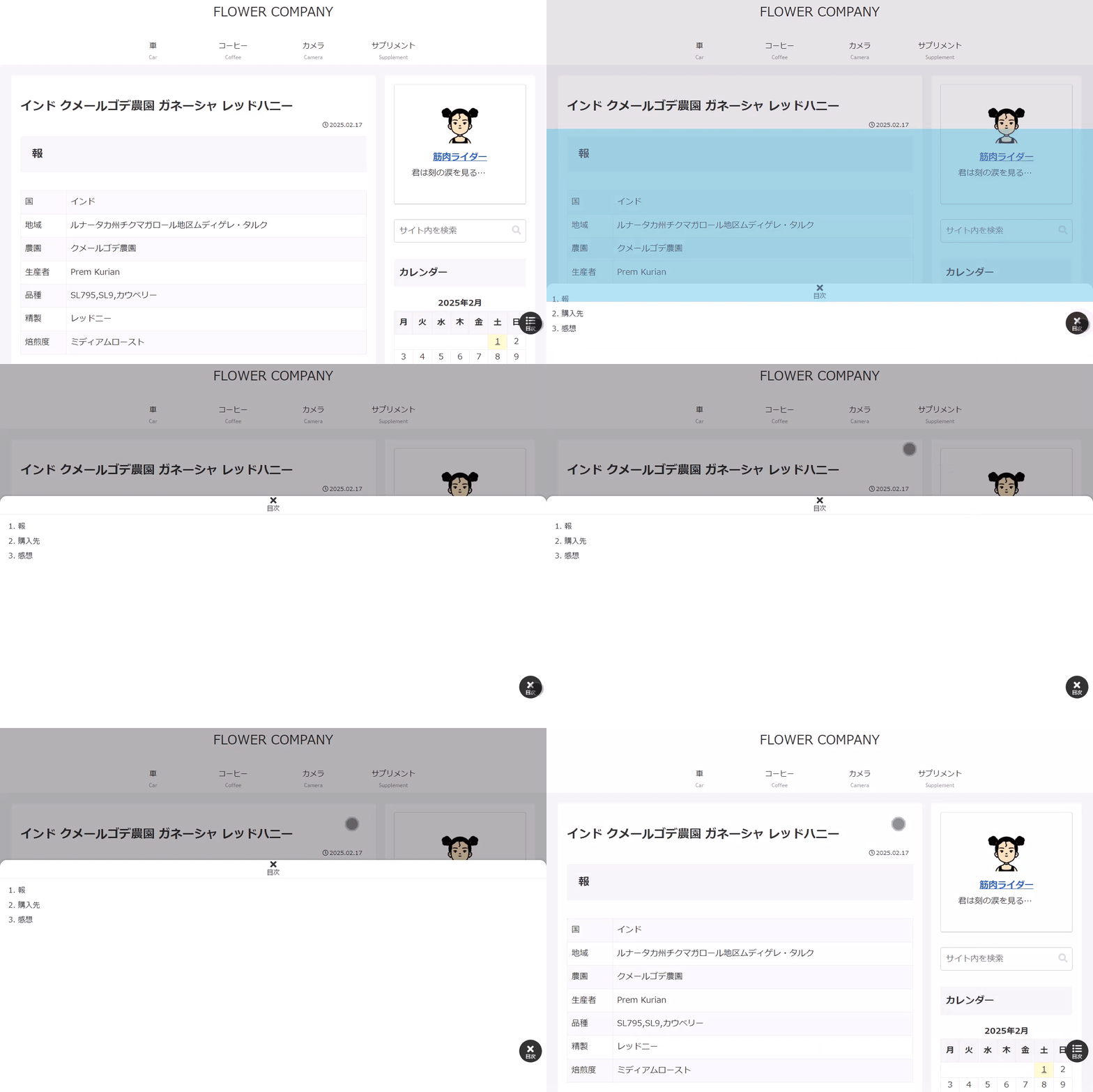
実装手順
以下の手順で実装します。
- ラベルCocoon設定
表1に示す項目を設定をします。
Cocoon設定 設定 大項目 項目 設定値 全体 全体設定 サイトアイコンフォント Font Awesome 5 目次 目次設定 目次を表示する オン 目次の表示切替機能を有効にする オン 最初から目次内容を表示する オフ - ラベルJavaScriptを追加
以下のコードをjavascript.jsに追加します。
jQuery(function ($) { // 目次内のリンククリックの場合 $('.toc a').click(function() { // 目次を閉じる $('.toc-checkbox').prop('checked', false); }); }); - ラベルCSSを追加
以下のコードをstyle.cssに追加します。
.main {
  z-index: 1;
}

.toc-checkbox {
  display: none;
}

/* 目次コンポーネント */
.entry-content .toc {
  border: 0;
  display: block;
  inset: auto 0 0 0;
  margin: 0;
  padding: 0;
  position: fixed;
  width: auto;
  z-index: 1;

  /* 閉じた状態 */
  .toc-content {
    box-shadow: 0 -100vh 0 100vh rgb(0 0 0 / 0%);
    height: 0;
    opacity: 1;
    padding: 0 10px;
    transition: height 0.3s, padding 0.3s, box-shadow 0.3s, visibility 0.3s, opacity 0s 0.3s;
    visibility: hidden;

    /* ヘッダー閉じる用領域 */
    &::before {
      border-bottom: 1px solid #eee;
      border-radius: 15px 15px 0 0;
      content: '\f00d';
      font-family: 'Font Awesome 5 Free';
      font-size: 20px;
      font-weight: 900;
      height: 40px;
      inset: 0;
      line-height: 1;
      position: absolute;
      text-align: center;
    }
  }

  /* 目次ボタン */
  .toc-title {
    align-items: flex-end;
    bottom: 100%;
    box-sizing: content-box;
    display: flex;
    font-size: 14px;
    height: 40px;
    justify-content: center;
    margin: 0 0 -40px;
    padding: 40vh 0 0;
    position: absolute;
    width: 100%;
    z-index: 1;

    &::before,
    &::after {
      bottom: 65px;
      color: #fff;
      display: block;
      position: fixed;
      right: 10px;
    }

    /* ボタンアイコン */
    &::before {
      content: '\f0ca';
      font-family: 'Font Awesome 5 Free';
      font-size: 20px;
      font-weight: 900;
      line-height: 40px;
      margin: 0 0 10px;
      transform: rotate(0);
      transition: transform 0.3s;
      width: 50px;
      z-index: 1;
    }

    &::after {
      background-color: #333;
      border-radius: 50%;
      box-sizing: border-box;
      content: '目次' !important;
      font-size: 11px;
      height: 50px;
      line-height: 1;
      padding: 32px 0 0;
      text-decoration: none;
      width: 50px;
    }
  }

  /* 開いた状態 */
  &:has(.toc-checkbox:checked) {
    .toc-content {
      background-color: #fff;
      border-radius: 15px 15px 0 0;
      box-shadow: 0 -50vh 0 0 rgb(0 0 0 / 30%), 0 0 5px rgb(0 0 0 / 30%);
      height: 60vh;
      opacity: 1;
      overflow-y: auto;
      padding: 50px 20px;
      visibility: visible;
    }

    .toc-title {
      height: 0;
      padding: 0;

      /* ボタンアイコン */
      &::before {
        content: '\f00d';
        transform: rotate(180deg);
      }
    }
  }
}
さいごに
今回紹介した方法を使えば、目次ボタンをクリックすることで目次を表示できるようになり、より使いやすいページに改善できます。

