
はじめに
Gutenbergエディターは、複雑なテーブルを作成するのが難しくなっています。
そのため、クラシックエディターのテーブルを使いたい場合、比較表記号を追加することが求められることがあります。
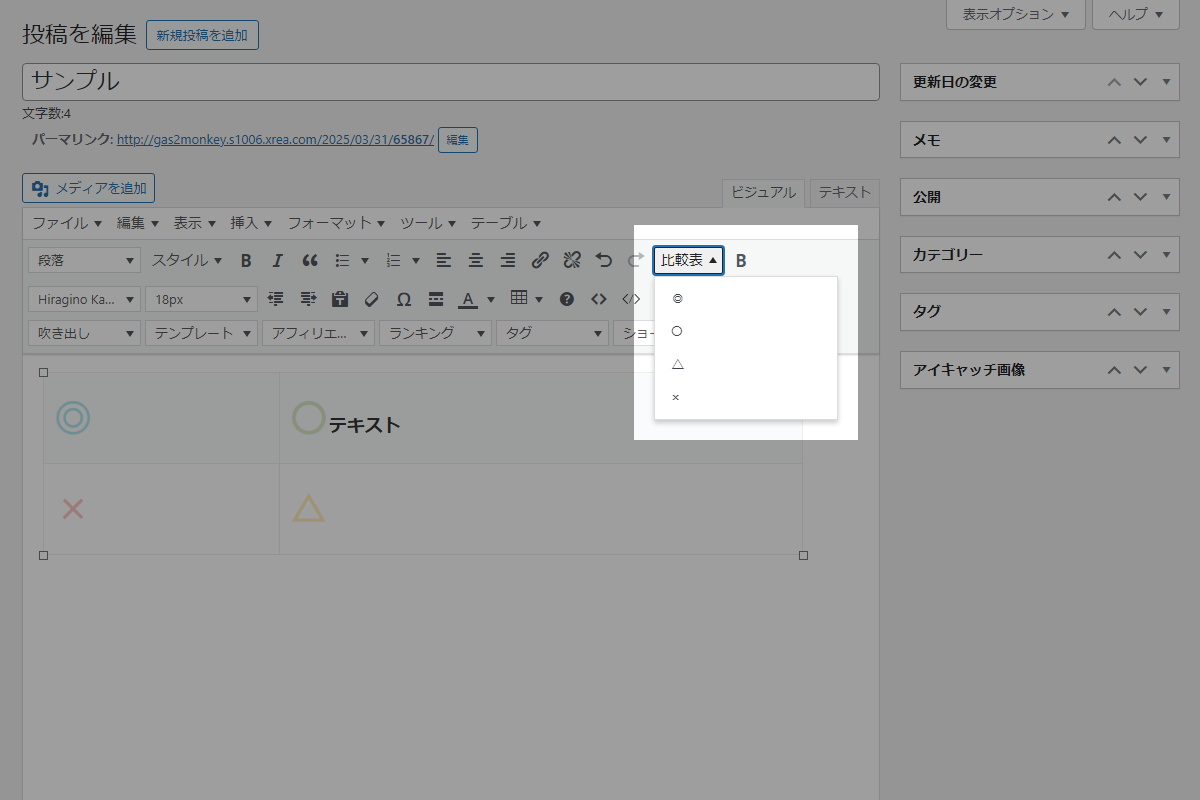
そこで、クラシックエディターのツールバーに比較表記号と、太字用の<span class="bold"></span>を追加します。
この記事では、この方法について説明します。

完成イメージ
実装手順
以下の手順で実装します。
- cocoon-child-master
- assets
- setting-template.js(UTF-8形式)
- functions.php
- style.css
- assets
- ラベルPHPを追加
以下のコードをfunctions.phpに追加します。
// ボタン設定を追加 add_filter('mce_external_plugins', function ($plugin_array) { $plugin_array['original_tinymce_button_plugin'] = get_stylesheet_directory_uri() . '/assets/setting-template.js'; return $plugin_array; }); // ボタンを追加 add_filter('mce_buttons', function ($buttons) { $buttons[] = 'comparison_table_button'; $buttons[] = 'bold_button'; return $buttons; }); - ラベルJavaScriptを追加
以下のコードをsetting-template.jsに追加します。
jQuery(function ($) { tinymce.create('tinymce.plugins.original_tinymce_button', { init: function(ed, url) { // 「太字」のボタンを追加 ed.addButton('bold_button', { title: '太字', icon: 'bold', cmd: 'bold_cmd' }); // 「太字」のコマンド ed.addCommand('bold_cmd', function () { var selected_text = ed.selection.getContent(), return_text = '<span class="bold">' + selected_text + '</span>'; ed.execCommand('mceInsertContent', 0, return_text); }); // 比較表アイコンのメニューを追加 ed.addButton('comparison_table_button', { text: '比較表', type: 'menubutton', menu: [ { text: '◎', onclick: function() { ed.insertContent('<span class="table-icon my-d-circle">◎</span>'); } }, { text: '○', onclick: function() { ed.insertContent('<span class="table-icon my-s-circle">○</span>'); } }, { text: '△', onclick: function() { ed.insertContent('<span class="table-icon my-triangle">△</span>'); } }, { text: '×', onclick: function() { ed.insertContent('<span class="table-icon my-cross">×</span>'); } } ] }); }, createControl: function(n, cm) { return null; }, }); tinymce.PluginManager.add('original_tinymce_button_plugin', tinymce.plugins.original_tinymce_button); }); - ラベルCSSを追加
以下のコードをstyle.cssに追加します。
.entry-content td:has(.table-icon) {
  height: 45px;
  position: relative;
  text-align: center;
  z-index: 1;
}

.entry-content .table-icon {
  left: 50%;
  position: absolute;
  top: 50%;
  transform: translate(-50%, -50%);
}

.table-icon {
  font-family: Osaka, "MS Pゴシック", "MS PGothic", Sans-Serif;
  font-size: 40px;
  opacity: 0.3;
  width: 45px !important;
  z-index: -1;
}

.my-d-circle {
  color: #00bcd4;
}

.my-s-circle {
  color: #8bc34a;
}

.my-triangle {
  color: #ffc107;
}

.my-cross {
  color: #f44336;
}
さいごに
今回紹介した方法を使えば、クラシックエディターのツールバーに比較表記号と太字を簡単に追加できます。
これにより、より効率的に編集作業を行い、視覚的な編集が可能になります。