
はじめに
以下を実現します。

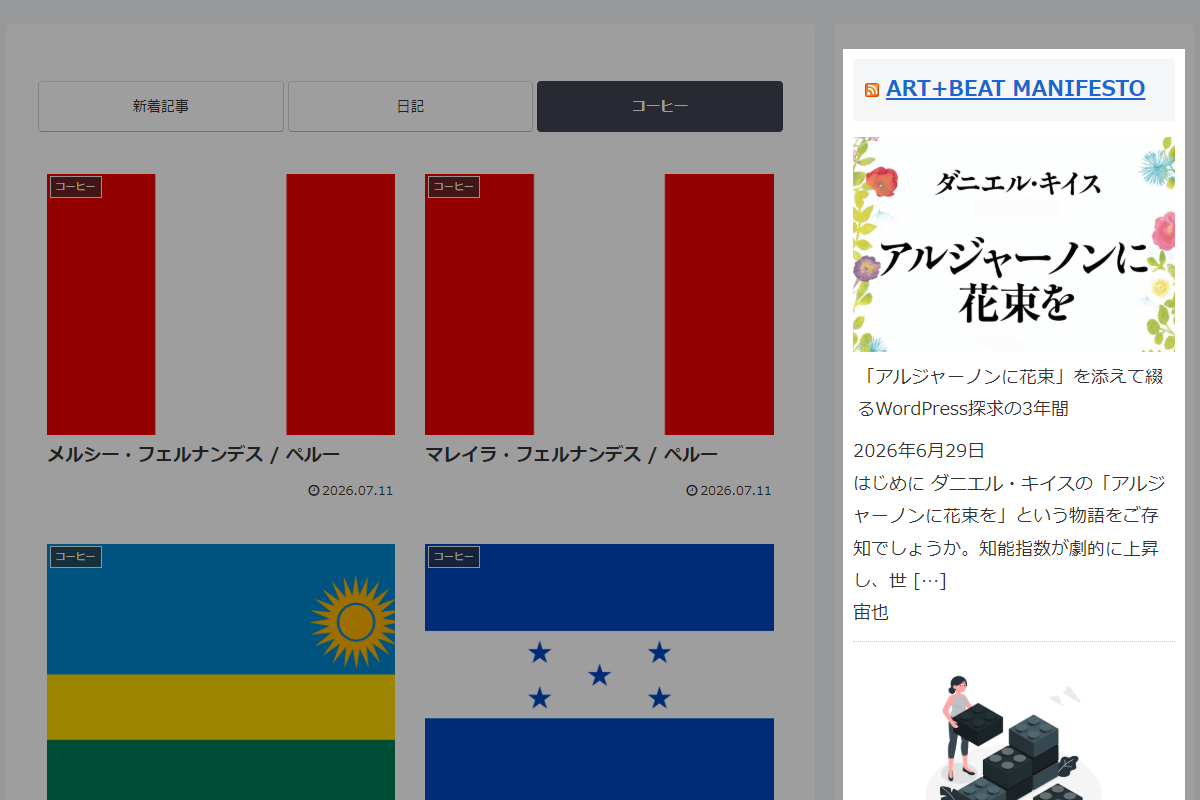
WordPress標準の「RSS」ウィジェットやブロックは、標準機能のままでは記事のタイトルや概要、日付しか表示されず、サムネイル画像が表示されません。
テキストばかりのリストだと、どうしてもユーザーの目を引きにくくなってしまいます。
そこで、RSSで取得したリンク先のHTMLからog:imageを自動で取得し、「RSS」ウィジェットやブロックにサムネイル画像として追加します。
この記事では、この方法について説明します。
完成イメージ
実装手順
以下のコードをfunctions.phpに追加します。
/**
 * RSSの出力HTMLにog:imageを追加
 *
 * @param string $html 元のRSS出力HTML
 * @return string サムネイル構造に変換されたHTML
 */
if (!function_exists('convert_rss_html_to_thumb_layout')):
function convert_rss_html_to_thumb_layout($html) {
  $pattern = '/(<li[^>]*>)(.*?href=["\']([^"\']+)["\'].*?)(?=<\/li>)/is';

  return preg_replace_callback($pattern, function ($matches) {
    $li_start    = $matches[1];
    $all_content = $matches[2];
    $url         = $matches[3];

    $og_image = get_rss_og_image_url($url);

    $image_html = '';
    if ($og_image) {
      $image_html = '<img src="' . esc_url($og_image) . '" alt="" class="rss-widget-thumbnail">';
    }

    // 元のli開始タグを活かしつつ、内部をサムネイルとコンテンツに構造化
    return $li_start . '<div class="rss-item-thumb">' . $image_html . '</div><div class="rss-item-content">' . $all_content . '</div>';
  }, $html);
}
endif;


/**
 * 外部URLからog:imageを取得
 *
 * @param string $url 取得対象の外部サイトのURL
 * @return string 抽出されたog:imageのURL(空の場合は空文字)
 */
if (!function_exists('get_rss_og_image_url')):
function get_rss_og_image_url($url) {
  if (empty($url)) {
    return '';
  }

  // キャッシュデータを取得
  $cache_key = 'og_img_php_' . md5($url);
  $cached_img = get_transient($cache_key);

  if (false !== $cached_img) {
    return $cached_img;
  }

  // APIリクエスト
  $response = wp_remote_get($url, [
    'timeout' => 3,
  ]);

  if (is_wp_error($response)) {
    return '';
  }

  // 取得したレスポンスからHTMLを抽出
  $html = wp_remote_retrieve_body($response);
  if (empty($html)) {
    return '';
  }

  // og:imageを抽出
  $image_url = '';

  if (
    preg_match('/<meta\s+[^>]*property=["\']og:image["\'][^>]*content=["\']([^"\']+)["\']/i', $html, $matches) ||
    preg_match('/<meta\s+[^>]*content=["\']([^"\']+)["\'][^>]*property=["\']og:image["\']/i', $html, $matches)
  ) {
    $image_url = $matches[1];
  }

  // キャッシュデータを保存
  set_transient($cache_key, $image_url, 12 * HOUR_IN_SECONDS);

  return $image_url;
}
endif;


// フロントエンド表示に反映
add_filter('widget_display_callback', function ($instance, $widget, $args) {
  if (!isset($widget->id_base) || $widget->id_base !== 'rss') {
    return $instance;
  }

  ob_start();

  $widget->widget($args, $instance);
  $widget_output = ob_get_clean();

  echo convert_rss_html_to_thumb_layout($widget_output);

  return false;
}, 10, 3);


// 「RSS」ブロックに反映
add_filter('render_block_core/rss', function ($block_content, $block) {
  return convert_rss_html_to_thumb_layout($block_content);
}, 10, 2);


// フロント用JS・CSSを追加
add_action('wp_enqueue_scripts', function() {
  ob_start();
  ?>
  .wp-block-rss li,
  .widget_rss li {
    border-bottom: 1px dotted #ccc;
    max-width: 400px;
    padding: 10px 0;
  }

  .wp-block-rss li:first-child,
  .widget_rss li:first-child {
    padding-top: 0;
  }

  .wp-block-rss li:last-child,
  .widget_rss li:last-child {
    border-bottom: 0;
    padding-bottom: 0;
  }
  <?php

  $handle = 'rss-thumb-layout';

  wp_register_style($handle, false);
  wp_enqueue_style($handle);
  wp_add_inline_style($handle, ob_get_clean());
});
参考:Cocoonでブログカード化する方法
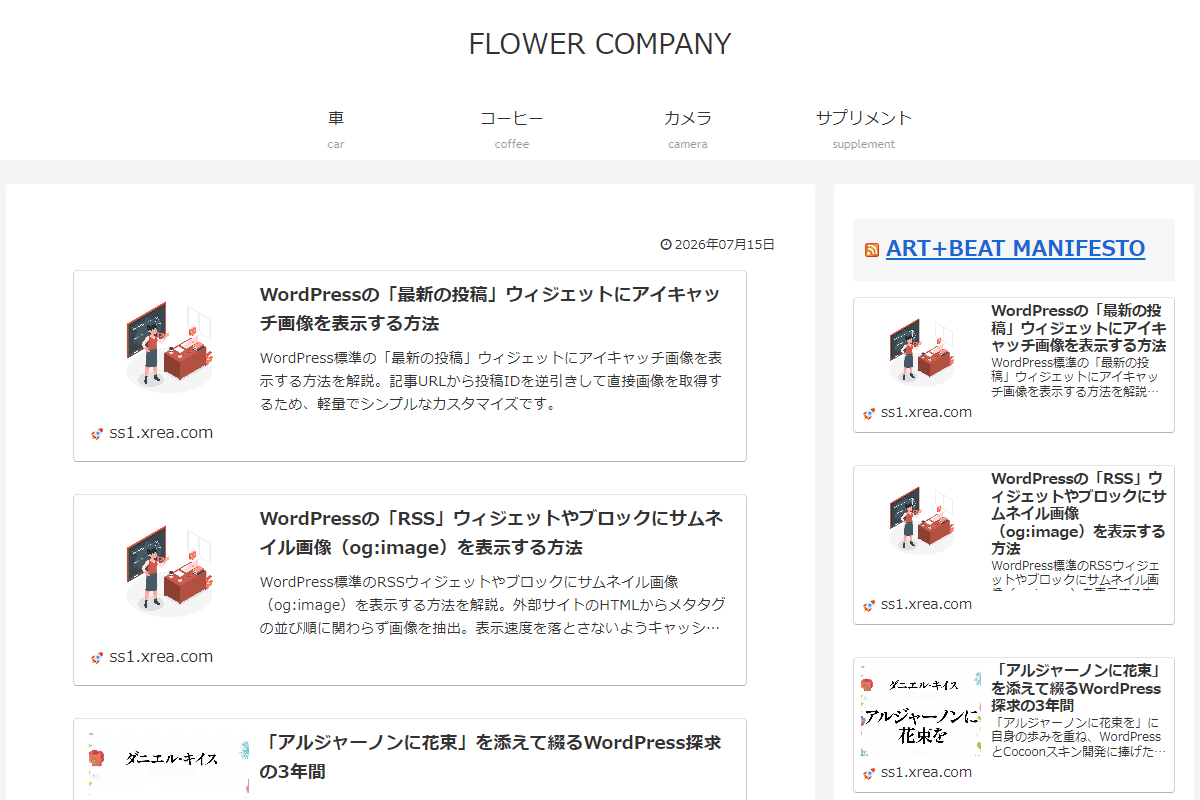
WordPress標準の「RSS」ウィジェットやブロックはテキストのみの表示で、サムネイルが表示されません。
そこで、Cocoonの場合、RSSの各項目をブログカード形式に置換して表示させます。
完成イメージ
実装手順
以下のコードをfunctions.phpに追加します。
/**
 * HTML文字列に含まれるul要素をブログカードに変換
 *
 * @param string $html 変換対象のHTML文字列
 * @return string 置換済みのHTML文字列
 */
if (!function_exists('convert_rss_html_to_thumb_layout')):
function convert_rss_html_to_thumb_layout($html) {
  $dom = new DOMDocument();
  libxml_use_internal_errors(true);
  $dom->loadHTML('<?xml encoding="UTF-8">' . $html);
  libxml_clear_errors();

  $xpath = new DOMXPath($dom);

  // HTML内の全てのulタグを抽出
  $uls = $xpath->query('//ul');
  foreach ($uls as $ul) {
    // ul内の各liに含まれるリンクURLを取得
    $links     = $xpath->query('.//li//a', $ul);
    $blogcards = '';

    foreach ($links as $link) {
      $url = $link->getAttribute('href');
      if ($url) {
        // ブログカードを出力
        $blogcards .= do_shortcode('[blogcard url="' . esc_url($url) . '"]');
      }
    }

    // ul要素をブログカード群に置き換える
    $fragment = $dom->createDocumentFragment();
    $fragment->appendXML($blogcards);
    $ul->parentNode->replaceChild($fragment, $ul);
  }

  // 変更したHTMLを返却
  $result = '';
  foreach ($dom->getElementsByTagName('body')->item(0)->childNodes as $node) {
    $result .= $dom->saveHTML($node);
  }

  return $result;
}
endif;


// フロントエンド表示に反映
add_filter('widget_display_callback', function ($instance, $widget, $args) {
  if (!isset($widget->id_base) || $widget->id_base !== 'rss') {
    return $instance;
  }

  ob_start();

  $widget->widget($args, $instance);
  $widget_output = ob_get_clean();

  echo convert_rss_html_to_thumb_layout($widget_output);

  return false;
}, 10, 3);


// 「RSS」ブロックに反映
add_filter('render_block_core/rss', function ($block_content, $block) {
  return convert_rss_html_to_thumb_layout($block_content);
}, 10, 2);
さいごに
今回紹介した方法を使えば、テキスト主体で地味になりがちだった「RSS」ウィジェットの表示を、一気に視覚的で魅力的なコンテンツへとアップグレードできます。
他サイトの更新情報をサムネイル画像付きで表示することで、ユーザーのクリック率向上も期待できるでしょう。

