
はじめに
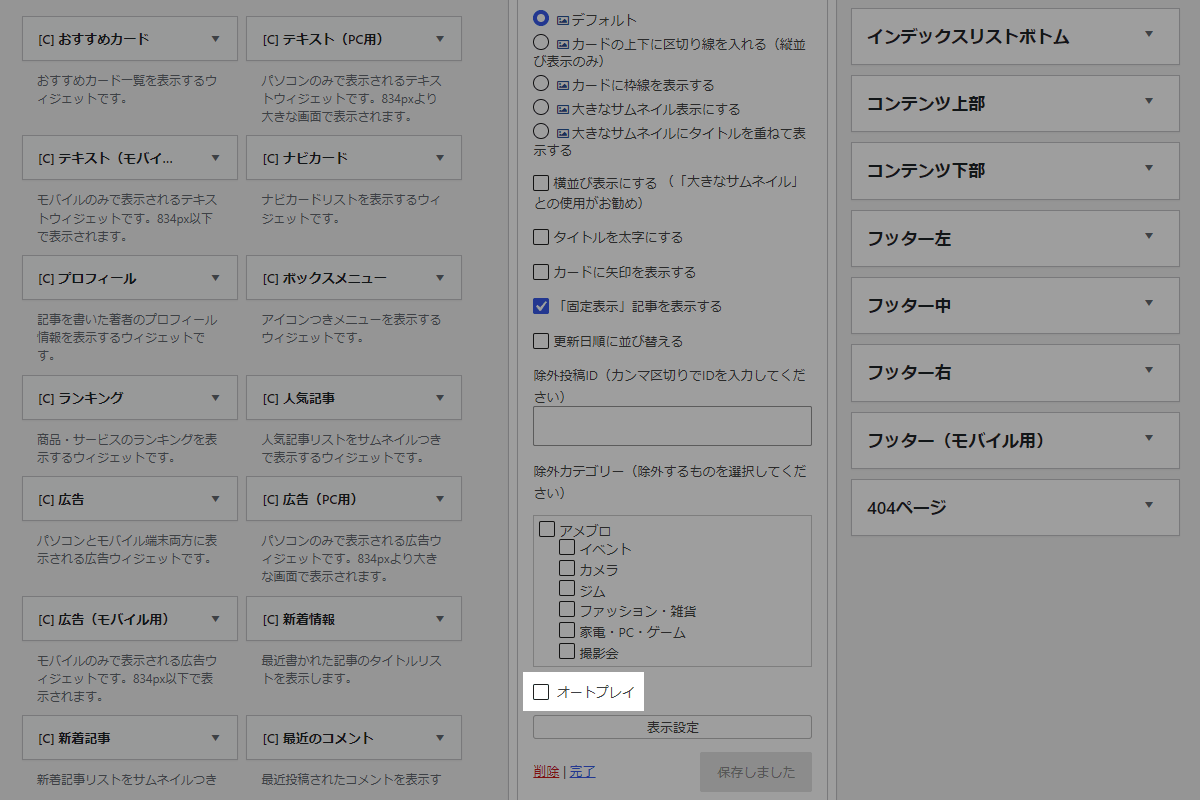
以下のウィジェットに「オートプレイ」オプションを追加します。
- ナビカード
- 人気記事
- 新着記事
- 関連記事
ウィジェットを「横並び表示」に設定した場合、「オートプレイ」をオンにすると、自動再生が有効になります。
この記事では、この方法について説明します。
完成イメージ
実装手順
以下のコードをfunctions.phpに追加します。
// ウィジェットに設定メニューを追加
add_action('in_widget_form', function ($widget, $return, $instance) {
  $cards = ['new_entries', 'popular_entries', 'navi_entries', 'related_entries'];

  if (!in_array($widget->id_base, $cards, true)) {
    return;
  }

  $f_id    = $widget->get_field_id('auto_play');
  $f_name  = $widget->get_field_name('auto_play');
  $checked = checked(!empty($instance['auto_play']), true, false);

  ?>
  <p>
    <label for="<?= esc_attr($f_id); ?>">
      <input type="checkbox" id="<?= esc_attr($f_id); ?>" name="<?= esc_attr($f_name); ?>" value="1" <?= $checked; ?>>
      <?= esc_html('オートプレイ'); ?>
    </label>
  </p>
  <?php
}, 10, 3);


// ウィジェットの入力データを更新
add_filter('widget_update_callback', function ($instance, $new_instance, $old_instance, $widget) {
  $instance['auto_play'] = !empty($new_instance['auto_play']) ? 1 : 0;

  return $instance;
}, 10, 4);


// ウィジェットの出力パラメータを変更
add_action('dynamic_sidebar_params', function ($params) {
  global $wp_registered_widgets;

  $widget_id  = $params[0]['widget_id'];
  $widget_obj = $wp_registered_widgets[$widget_id];
  $widget_opt = get_option($widget_obj['callback'][0]->option_name);
  $widget_num = $widget_obj['params'][0]['number'];

  if (!empty($widget_opt[$widget_num]['auto_play'])) {
    $params[0]['before_widget'] = preg_replace('/class="/', 'class="auto-play ', $params[0]['before_widget']);
  }

  return $params;
});


// テンプレート(カスタムJavaScript)の直後に追加
add_action('cocoon_part_after__tmp/footer-javascript', function () {
  ?>
  <style>
  .auto-play .is-list-horizontal .swiper-button-prev {
    display: flex;
  }
  </style>

  <script>
  jQuery(function ($) {
    $('.auto-play .swiper-button-prev').before('<div class="swiper-pagination">');
    const autoSwiper = new Swiper('.auto-play .swiper', {
      slidesPerView: 'auto',
      spaceBetween: 4,
      loop: true,
      speed: 1000,
      autoplay: {
        delay: 5000,
        disableOnInteraction: false,
      },
      pagination: {
        el: ".auto-play .swiper-pagination",
        clickable: true,
      },
      navigation: {
        prevEl: '.auto-play .swiper-button-prev',
        nextEl: '.auto-play .swiper-button-next',
      },
    });
  });
  </script>
  <?php
});
さいごに
今回紹介した方法を使えば、ウィジェットに「オートプレイ」オプションを追加し、Swiper.js を活用したスライダー表示が可能になります。
これにより、サイトの動きが滑らかになり、ユーザーの興味を引きやすくなります。

