
はじめに
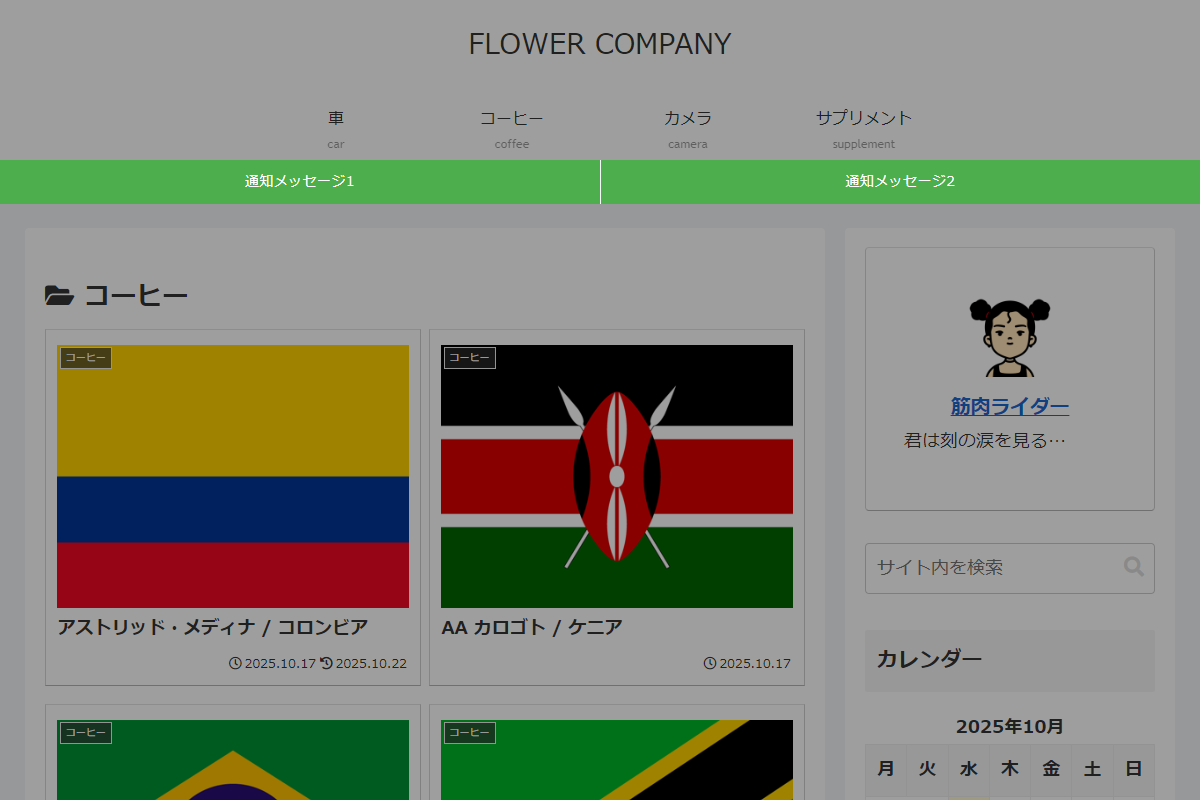
以下では、独自エリアに独自の通知メッセージを固定表示します。

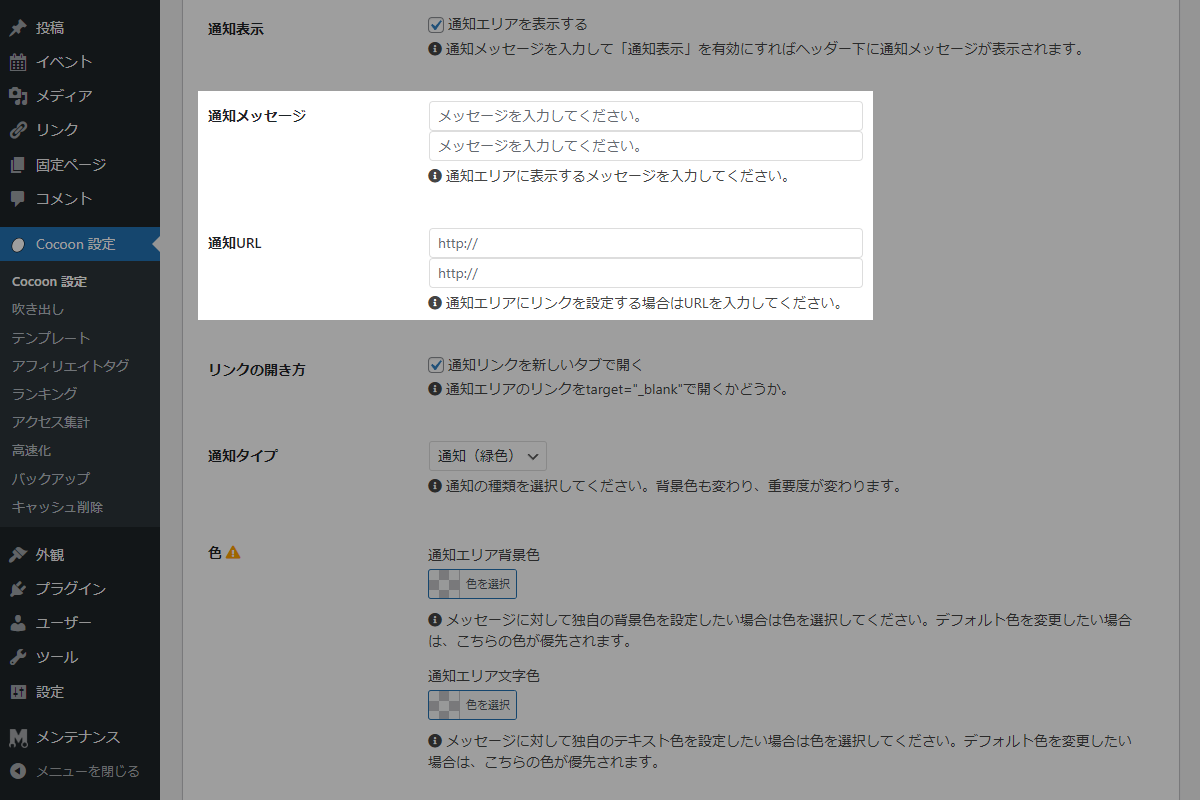
そこで、Cocoon設定→通知から設定できるようにします。
2つ目の通知メッセージが未入力の場合は、通常どおり通知メッセージを1つだけ表示します。
この記事では、この方法について説明します。
完成イメージ
実装手順
以下のコードをfunctions.phpに追加します。
/**
 * オプション設定を管理
 *
 * @return array オプション設定の配列
 */
if (!function_exists('my_cocoon_options')) :
function my_cocoon_options() {
  return [
    'notice_area_message2' => ['default' => '', 'label' => '通知メッセージ2'],
    'notice_area_url2'     => ['default' => '', 'label' => '通知URL2'],
  ];
}
endif;


/**
 * 設定値を取得
 *
 * @param string $key オプションキー名
 * @return mixed 設定値
 */
if (!function_exists('get_my_cocoon_options')) :
function get_my_cocoon_options($key) {
  $options = my_cocoon_options();

  if (!isset($options[$key])) {
    return '';
  }

  return get_theme_option($key, $options[$key]['default']);
}
endif;


// Cocoon設定値を保存
add_action('cocoon_settings_after_save', function () {
  foreach (array_keys(my_cocoon_options()) as $key) {
    update_theme_option($key);
  }
});


// Cocoon設定(通知)に入力フォームを追加
add_filter('admin_input_form_tag', function ($html, $name) {
  // 基準となる既存項目のマッピング情報
  $target_fields = [
    OP_NOTICE_AREA_MESSAGE => [
      'key'         => 'notice_area_message2',
      'placeholder' => 'メッセージを入力してください。',
    ],
    OP_NOTICE_AREA_URL => [
      'key'         => 'notice_area_url2',
      'placeholder' => 'http://',
    ],
  ];

  if (!isset($target_fields[$name])) {
    return $html;
  }

  $target = $target_fields[$name];
  $value  = get_my_cocoon_options($target['key']);

  if ($target['key'] === 'notice_area_message2') {
    $value = stripslashes_deep($value);
  }

  // 入力フォームを追加
  ob_start();
  generate_textbox_tag($target['key'], $value, $target['placeholder']);

  return $html . ob_get_clean();
}, 10, 2);


// テンプレート(通知エリア)を変更
add_filter('cocoon_part__tmp/notice', function ($content) {
  if (!is_notice_area_visible()) {
    return $content;
  }

  $msg2 = stripslashes_deep(get_my_cocoon_options('notice_area_message2'));

  if (empty($msg2)) {
    return $content;
  }

  $url2 = get_my_cocoon_options('notice_area_url2');
  $notice_type = esc_attr(get_notice_type());
  $target = (is_notice_link_target_blank() && $url2) ? ' target="_blank" rel="noopener"' : '';

  ob_start();
  ?>
  <div class="twice-notices">
    <?= $content; ?>
    <?php if ($url2) : ?>
      <a href="<?= esc_url($url2); ?>" id="notice-area-link-2" class="notice-area-link"<?= $target; ?>>
        <div id="notice-area-2" class="notice-area nt-<?= $notice_type; ?>">
          <span class="notice-area-message"><?= esc_html($msg2); ?></span>
        </div>
      </a>
    <?php else : ?>
      <div id="notice-area-2" class="notice-area nt-<?= $notice_type; ?>">
        <span class="notice-area-message"><?= esc_html($msg2); ?></span>
      </div>
    <?php endif; ?>
  </div>
  <?php
  return ob_get_clean();
});


// フロント用JS・CSSを追加
add_action('wp_enqueue_scripts', function () {
  ob_start();
  ?>
  .twice-notices {
    display: flex;
    gap: 1px;
  }

  .twice-notices > * {
    width: 100%;
  }
  <?php

  $handle = 'twice-notices-';

  wp_register_style($handle, false);
  wp_enqueue_style($handle);
  wp_add_inline_style($handle, ob_get_clean());
});
さいごに
今回紹介した方法を使えば、Cocoon設定から 2つの通知メッセージと通知URLを簡単に管理でき、ヘッダー下に横並びで表示可能です。
デザインや背景色もCSSで自由にカスタマイズできます。
