

拡張:アイキャッチ画像のフォーカルポイントを指定・表示する方法
前述の「カバー」ブロックを代用する方法とは異なり、アイキャッチ画像を設定すると「カバー」ブロックのように切り抜き位置(フォーカルポイント)を指定できるようになります。
設定したフォーカルポイントは動的に反映され、ヘッダーカバーとして表示されます。
完成イメージ
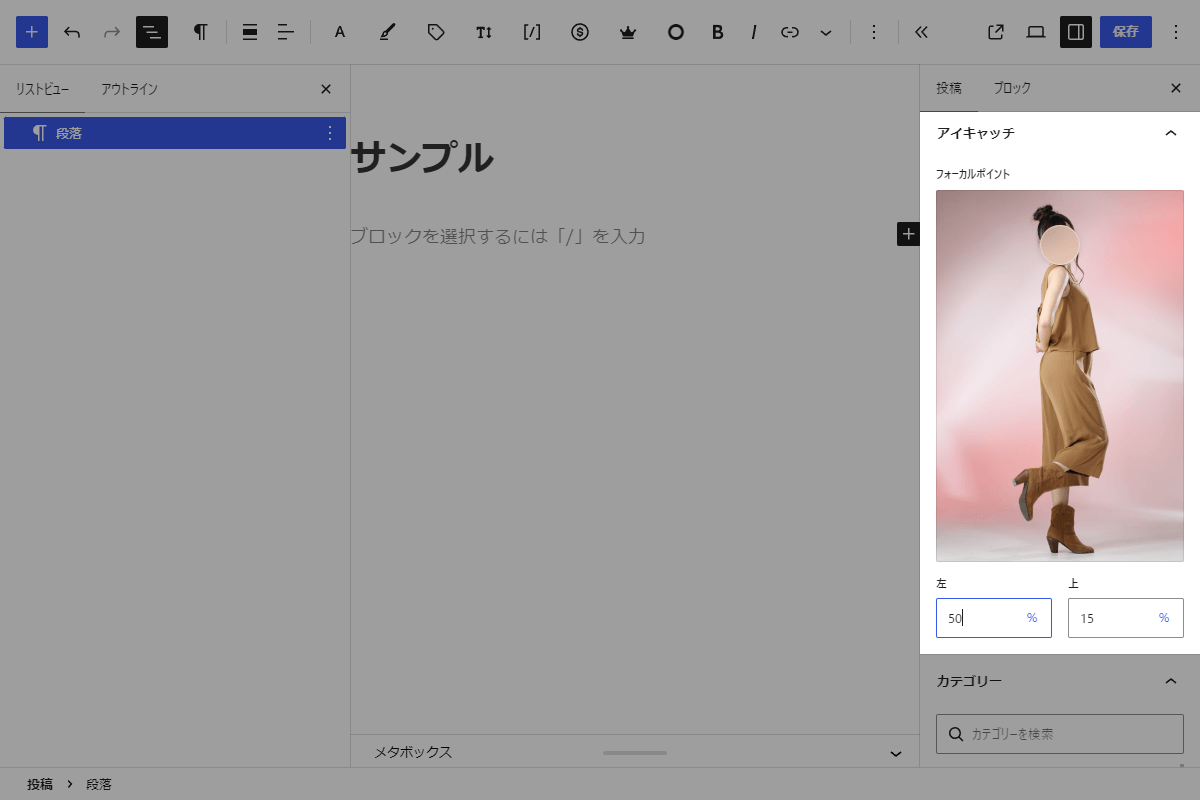
実装手順
以下のコードをfunctions.phpに追加します。
// メタデータを登録
add_action('init', function () {
  // フォーカルポイント
  register_post_meta('', '_featured_image_focus_point', [
    'type'          => 'object',
    'single'        => true,
    'show_in_rest'  => [
      'schema'      => [
        'type'      => 'object',
        'properties'           => [
          'x' => ['type' => 'number'],
          'y' => ['type' => 'number'],
        ],
        'additionalProperties' => false,
      ],
    ],
    'auth_callback' => function () {
      return current_user_can('edit_posts');
    },
  ]);
});


// エディター用パネルを追加
add_action('enqueue_block_editor_assets', function () {
  ob_start();
  ?>
  (function (wp) {
    const { registerPlugin } = wp.plugins;
    const { PluginDocumentSettingPanel } = wp.editor?.PluginDocumentSettingPanel ? wp.editor : wp.editPost;
    const { useSelect, useDispatch } = wp.data;
    const { FocalPointPicker } = wp.components;
    const { createElement: el } = wp.element;
    // メタキーを設定
    const META_KEY = '_featured_image_focus_point';

    const FocusPointPicker = () => {
      // エディタ情報およびメディア情報を取得
      const { imageId, meta, media } = useSelect((select) => {
        const editor = select('core/editor');
        const id = editor.getEditedPostAttribute('featured_media');
        return {
          imageId: id,
          meta: editor.getEditedPostAttribute('meta') || {},
          media: id ? select('core').getMedia(id) : null,
        };
      }, []);
      // 投稿更新用ディスパッチを取得
      const { editPost } = useDispatch('core/editor');

      // アイキャッチ未設定・取得前は表示せず処理対象外
      if (!imageId || !media) return null;

      // フォーカルポイントのメタ値を取得
      const point = meta[META_KEY] || {};

      // パネル要素を作成して設定
      return el(
        PluginDocumentSettingPanel,
        { name: 'featured-image-focus-point', title: 'アイキャッチ' },
        el(FocalPointPicker, {
          url: media.media_details?.sizes?.large?.source_url ?? media.source_url,
          value: { x: point.x ?? 0.5, y: point.y ?? 0.5 },
          label: 'フォーカルポイント',
          // ドラッグ変更時にメタ値を変更
          onChange: (p) => editPost({ meta: { [META_KEY]: { x: p.x, y: p.y } } }),
        })
      );
    };

    registerPlugin('featured-image-focus-point-plugin', { render: FocusPointPicker });
  })(window.wp);
  <?php
  wp_add_inline_script('wp-edit-post', ob_get_clean());
});


// テンプレート(メイン)の直前に追加
add_action('cocoon_part_before__tmp-user/main-before', function () {
  if (!is_singular()) {
    return;
  }

  $post  = get_post();
  $title = esc_html(get_the_title($post));

  // フォーカルポイントのメタ情報を取得
  $fp = get_post_meta($post->ID, '_featured_image_focus_point', true);
  // X座標のパーセンテージ数値を設定
  $x  = (int) round(max(0, min(1, (float) ($fp['x'] ?? 0.5))) * 100);
  // Y座標のパーセンテージ数値を設定
  $y  = (int) round(max(0, min(1, (float) ($fp['y'] ?? 0.5))) * 100);

  // アイキャッチ画像IDを取得
  $img_id = get_post_thumbnail_id($post);
  // 画像URLを取得
  $img_url = $img_id ? wp_get_attachment_image_url($img_id, 'full') : '';

  ?>
  <div class="wp-block-cover my_header">
    <?php if ($img_id) : ?>
      <img class="wp-block-cover__image-background size-full" alt="" src="<?php echo esc_url($img_url); ?>" style="object-position: <?php printf('%d%% %d%%', $x, $y); ?>;" loading="eager" fetchpriority="high" decoding="async">
    <?php endif; ?>
    <span aria-hidden="true" class="wp-block-cover__background has-background-dim"></span>
    <div class="wp-block-cover__inner-container">
      <p class="has-text-align-center has-large-font-size"><?php echo $title; ?></p>
    </div>
  </div>
  <?php
});


// フロント用JS・CSSを追加
add_action('wp_enqueue_scripts', function () {
  if (!is_singular()) {
    return;
  }

  ob_start();
  ?>
  .wp-block-cover.my_header {
    min-height: 200px;
  }

  .body .entry-title,
  .body .eye-catch-wrap,
  .entry-content .my_header {
    display: none;
  }
  <?php

  $handle ='header-cover';

  wp_register_style($handle, false);
  wp_enqueue_style($handle);
  wp_add_inline_style($handle, ob_get_clean());
});
さいごに
今回紹介した方法を使えば、CocoonでもSWELLのように自由度の高いコンテンツヘッダーを手軽に再現できます。
WordPress標準の「カバー」ブロックを活用することで、テーマ本来のカスタマイズ性を損なうことなく、記事ごとに最適な背景画像の配置(フォーカルポイント)を設定することが可能です。
アイキャッチ画像だけでは表現しきれなかったデザイン調整も、直感的に行えるようになります。