
はじめに
独自のショートコードを使用して、特定のカテゴリーに属する子カテゴリーを表示し、リスト形式やドロップダウン形式で表示します。
この記事では、この方法について説明します。
完成イメージ
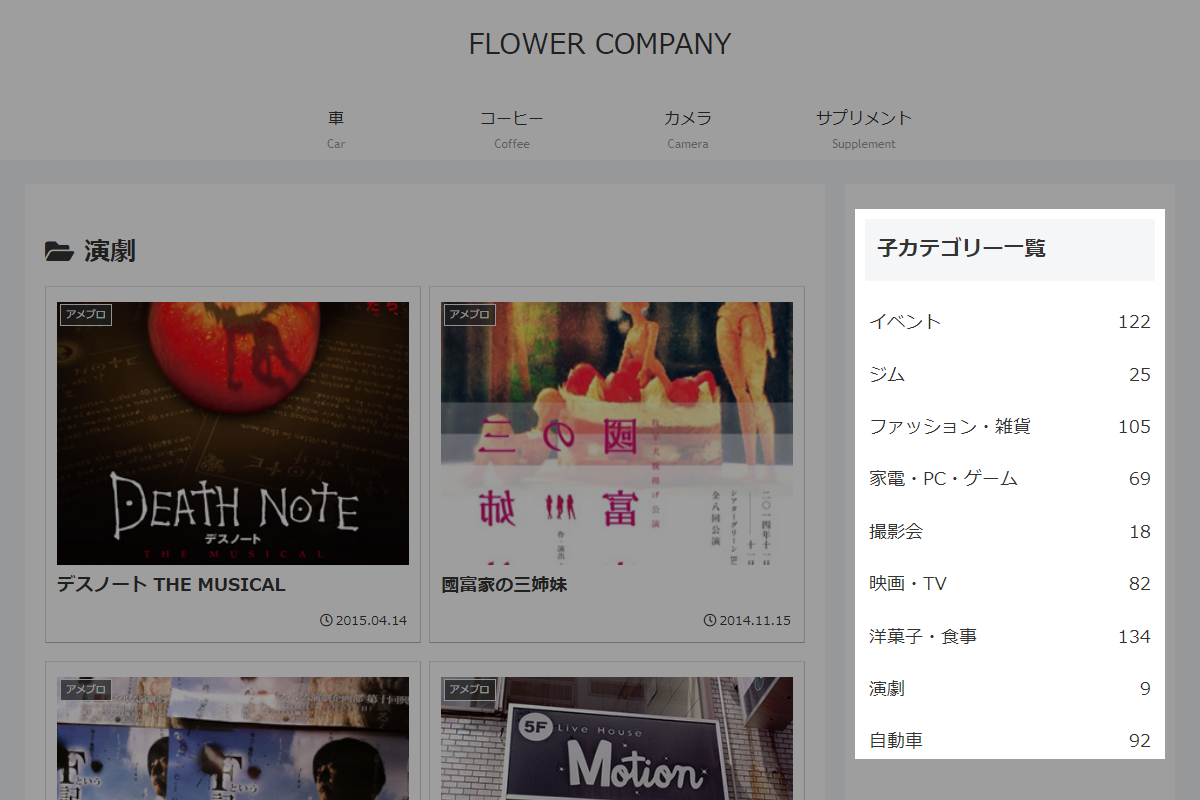
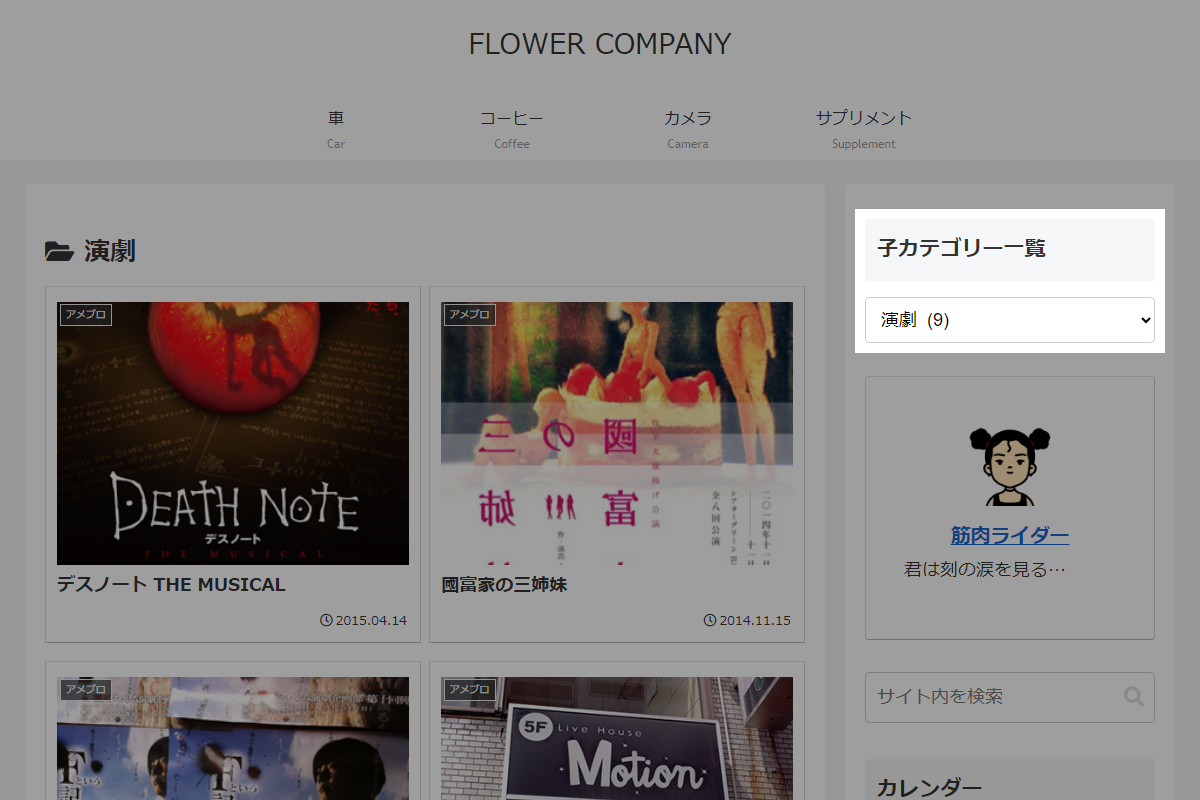
使用方法
以下にショートコードを示します。
[my_child_categories]| オプション | 説明 | 値 | 初期値 |
|---|---|---|---|
| cat | カテゴリーID(必須) | ||
| count | 投稿数を表示 | 0=非表示 / 1=表示 | 0 |
| dropdown | 表示形式 | 0=リスト形式 / 1=ドロップダウン形式 | 0 |
実装手順
以下のコードをfunctions.phpに追加します。
// ショートコードを追加
add_shortcode('my_child_categories', function ($atts) {
  $atts = shortcode_atts([
    'cat'      => '',
    'count'    => 0,
    'dropdown' => 0,
  ], $atts);

  if (empty($atts['cat'])) {
    return '<p>カテゴリーIDが指定されていません。</p>';
  }

  // 表示方式に応じて関数を呼び出し
  $html = !empty($atts['dropdown'])
    ? render_child_categories_dropdown($atts)
    : render_child_categories_list($atts);

  return '<div class="widget_categories">' . $html . '</div>';
});


/**
 * 子カテゴリーをドロップダウン形式で表示
 *
 * @param array $atts ショートコード属性
 * @return string
 */
if (!function_exists('render_child_categories_dropdown')):
function render_child_categories_dropdown($atts) {
  $args = [
    'show_option_none' => 'カテゴリーを選択',
    'child_of'         => (int) $atts['cat'],
    'hide_empty'       => 0,
    'hierarchical'     => true,
    'show_count'       => (int) $atts['count'],
    'echo'             => false,
    'value_field'      => 'term_id',
  ];

  $dropdown = wp_dropdown_categories($args);

  $dropdown = str_replace(
    '<select',
    '<select onchange="if (this.value) { location.href=\'' . esc_url(get_site_url()) . '/?cat=\' + this.value; }"',
    $dropdown
  );

  return $dropdown;
}
endif;


/**
 * 子カテゴリーをリスト形式で表示
 *
 * @param array $atts ショートコード属性
 * @return string
 */
if (!function_exists('render_child_categories_list')):
function render_child_categories_list($atts) {
  $args = [
    'child_of'     => (int) $atts['cat'],
    'hide_empty'   => 0,
    'taxonomy'     => 'category',
    'hierarchical' => true,
    'show_count'   => (int) $atts['count'],
    'title_li'     => '',
    'echo'         => false,
  ];

  return '<ul class="category-list">' . wp_list_categories($args) . '</ul>';
}
endif;
参考:ノーコードで設定する方法
「ナビゲーションメニュー」ウィジェットを利用すれば、ノーコードで子カテゴリーのみを設定したメニューを作成し、子カテゴリーだけを表示することが可能です。
ただし、この方法で表示できる形式はリスト表示のみとなります。