はじめに
作成済みのページは、後から投稿タイプ(投稿/固定ページ)を変更できません。
このため、新しいページを作成して本文を転記するなど、手間が発生します。
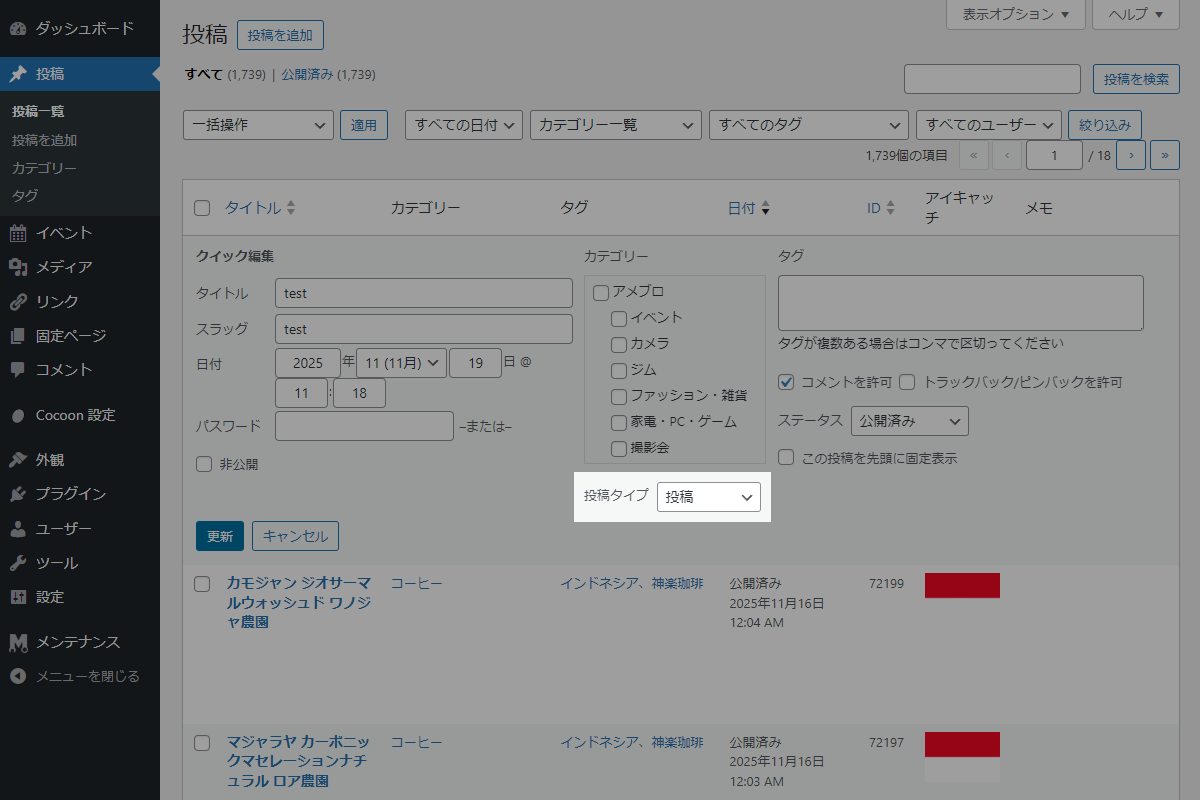
そこで、クイック編集で投稿タイプを選択・変更できるようにします。
この記事では、この方法について説明します。
完成イメージ
実装手順
以下のコードをfunctions.phpに追加します。
// クイック編集画面にカスタムフィールドを追加
add_action('quick_edit_custom_box', function ($column_name, $post_type) {
  // 出力済みの場合は終了
  static $done = false;

  if ($done) {
    return;
  }

  $done = true;

  ob_start();
  wp_nonce_field('inline_post_type_action', 'inline_post_type_nonce');
  ?>
  <fieldset class="inline-edit-col-right" style="margin:0">
    <div class="inline-edit-col">
      <label class="alignleft">
        <span class="title">投稿タイプ</span>
        <select name="inline_post_type" class="inline-post-type">
          <option value="post">投稿</option>
          <option value="page">固定ページ</option>
        </select>
      </label>
    </div>
  </fieldset>

  <script>
  jQuery(function ($) {
    $(document).on('click', '.editinline', function () {
      // 対象の投稿IDを取得
      let post_id = $(this).closest('tr').attr('id').replace('post-', '');

      // インラインデータから投稿タイプを取得
      let post_type = $('#inline_' + post_id + ' .post-type').text();

      // 投稿タイプをセレクトに設定
      $('#edit-' + post_id).find('select.inline-post-type').val(post_type);
    });
  });
  </script>
  <?php
  echo ob_get_clean();
}, 10, 2);


/**
 * 投稿・固定ページのインラインデータを生成
 *
 * @param array   $actions 投稿行アクション配列
 * @param WP_Post $post    投稿オブジェクト
 * @return array 投稿行アクション配列
 */
if (!function_exists('inline_post_type_data')):
function inline_post_type_data($actions, $post) {
  $post_id   = $post->ID;
  $post_type = esc_html($post->post_type);

  ob_start();
  ?>
  <div id="inline_<?= $post_id; ?>" class="hidden">
    <span class="post-type"><?= $post_type; ?></span>
  </div>
  <?php
  $actions['inline_data'] = ob_get_clean();

  return $actions;
}
endif;


// 管理画面一覧にアクションリンクを追加
add_filter('post_row_actions', 'inline_post_type_data', 10, 2);
add_filter('page_row_actions', 'inline_post_type_data', 10, 2);


// 投稿を変更
add_action('save_post', function ($post_id) {
  // nonceチェック
  if (!isset($_POST['inline_post_type_nonce']) || !wp_verify_nonce($_POST['inline_post_type_nonce'], 'inline_post_type_action')) {
    return;
  }

  // 自動保存チェック
  if (defined('DOING_AUTOSAVE') && DOING_AUTOSAVE) {
    return;
  }

  // リビジョン除外チェック
  if (wp_is_post_revision($post_id)) {
    return;
  }

  // 権限チェック
  if (!current_user_can('edit_post', $post_id)) {
    return;
  }

  // 再入防止フラグ
  static $doing = false;

  if ($doing) {
    return;
  }

  $doing = true;

  // クイック編集の値がない場合は終了
  if (!isset($_POST['inline_post_type'])) {
    $doing = false;
    return;
  }

  $new_post_type = sanitize_key($_POST['inline_post_type']);
  $old_post_type = get_post_type($post_id);

  // 投稿タイプに変更がない場合は終了
  if ($new_post_type === $old_post_type) {
    $doing = false;
    return;
  }

  // 投稿タイプを変更
  wp_update_post([
    'ID'        => $post_id,
    'post_type' => $new_post_type,
  ]);

  // 投稿タイプがpostの場合はデフォルトカテゴリーを設定
  if ($new_post_type === 'post') {
    $default_category_id = absint(get_option('default_category'));
    wp_set_post_categories($post_id, [$default_category_id]);
  }

  $doing = false;
});さいごに
今回紹介した方法を使えば、クイック編集画面から直接投稿タイプを変更できるようになります。
投稿や固定ページを誤って作成してしまった場合でも、新規作成や本文の転記といった手間を省くことができ、作業効率を大幅に向上させることが可能です。

