
はじめに
WordPressで wp_schedule_event()などを記述してテストした際、「コードを削除したのに裏で処理が走り続けてしまう」というトラブルはよく発生します。
しかし、WordPress標準の管理画面には現在登録されているWP-Cronのスケジュールやタスクを一覧確認する機能が用意されていません。
そこでWordPressコアのWp-Cron以外をスケジュールトタスクを一覧として表示します。
この記事では、この方法について説明します。
完成イメージ
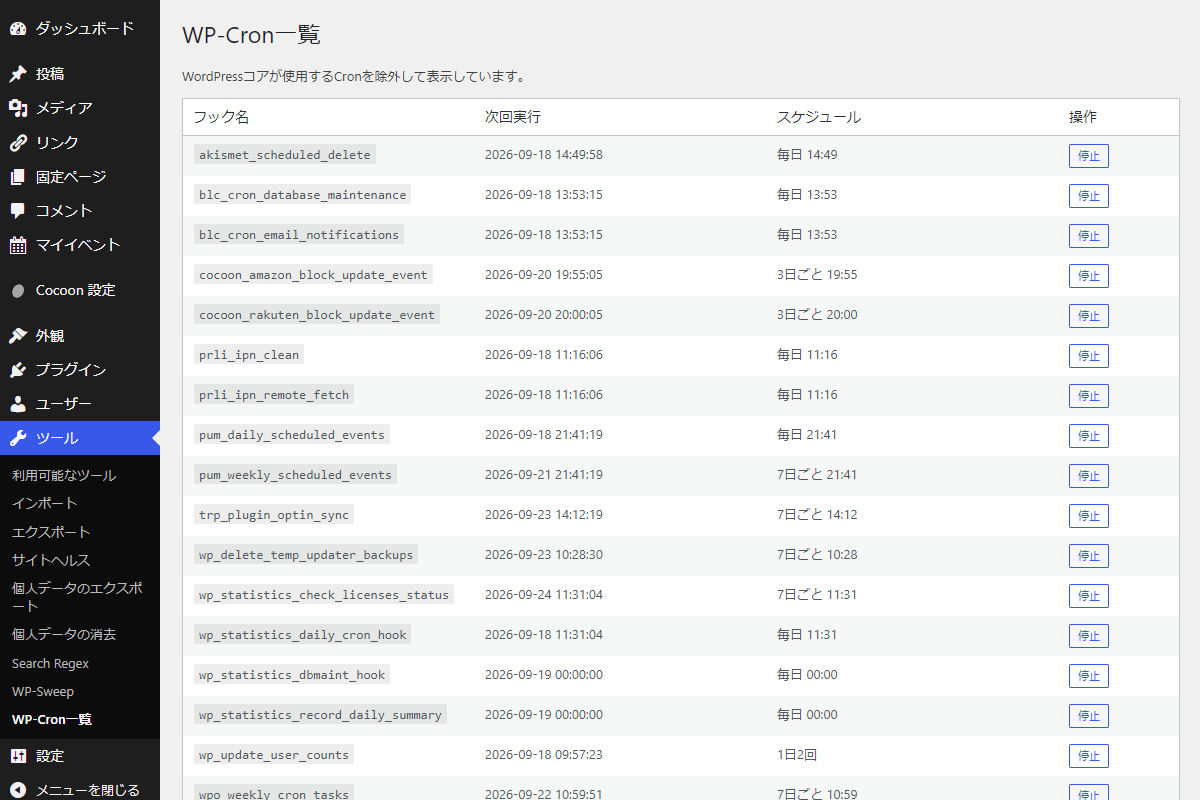
実装手順
以下のコードをfunctions.phpに追加します。
// 管理画面にメニューを追加
add_action('admin_menu', function () {
  add_management_page(
    'WP-Cron一覧',
    'WP-Cron一覧',
    'manage_options',
    'rop-wp-cron',
    'render_rop_wp_cron_page'
  );
});


/**
 * 管理画面ページを出力
 *
 * @return void
 */
if (!function_exists('render_rop_wp_cron_page')):
function render_rop_wp_cron_page() {
  // 停止アクションの実行判定
  handle_rop_wp_cron_actions();

  // カスタムWP-Cronイベント一覧の取得
  $cron_list = get_rop_wp_cron_list();

  // フック名(イベント名)のアルファベット順(A-Z)ソート
  usort($cron_list, function ($a, $b) {
    return strcmp($a['hook'], $b['hook']);
  });

  ?>
  <div class="wrap wp-cron-list">
    <h1 class="wp-cron-list__title">WP-Cron一覧</h1>

    <p class="wp-cron-list__description">WordPressコアが使用するCronを除外して表示しています。</p>

    <table class="wp-list-table widefat fixed striped table-view-list wp-cron-list__table">
      <thead>
        <tr>
          <th scope="col" class="manage-column">フック名</th>
          <th scope="col" class="manage-column">次回実行</th>
          <th scope="col" class="manage-column">スケジュール</th>
          <th scope="col" class="manage-column" style="width: 100px;">操作</th>
        </tr>
      </thead>

      <tbody>
        <?php if ($cron_list): ?>
          <?php foreach ($cron_list as $item): ?>
            <tr>
              <td><code><?= esc_html($item['hook']); ?></code></td>
              <td><?= esc_html($item['datetime']); ?></td>
              <td><?= esc_html($item['schedule_label']); ?></td>
              <td>
                <form method="post" action="" onsubmit="return confirm('このCronイベントを停止しますか?');">
                  <?php wp_nonce_field('rop_unschedule_cron_action', 'rop_wp_cron_nonce'); ?>
                  <input type="hidden" name="rop_wp_cron_action" value="unschedule">
                  <input type="hidden" name="timestamp" value="<?= esc_attr($item['timestamp']); ?>">
                  <input type="hidden" name="hook" value="<?= esc_attr($item['hook']); ?>">
                  <input type="hidden" name="key" value="<?= esc_attr($item['key']); ?>">
                  <button type="submit" class="button button-secondary button-small">停止</button>
                </form>
              </td>
            </tr>
          <?php endforeach; ?>
        <?php else: ?>
          <tr>
            <td colspan="4">表示対象のWP-Cronはありません。</td>
          </tr>
        <?php endif; ?>
      </tbody>
    </table>
  </div>
  <?php
}
endif;


/**
 * 対象のWP-Cronを停止
 *
 * @return void
 */
if (!function_exists('handle_rop_wp_cron_actions')):
function handle_rop_wp_cron_actions() {
  if (!isset($_POST['rop_wp_cron_action']) || $_POST['rop_wp_cron_action'] !== 'unschedule') {
    return;
  }

  // nonceチェック
  check_admin_referer('rop_unschedule_cron_action', 'rop_wp_cron_nonce');

  // 権限チェック
  if (!current_user_can('manage_options')) {
    return;
  }

  $timestamp = isset($_POST['timestamp']) ? (int) $_POST['timestamp'] : 0;
  $hook      = isset($_POST['hook']) ? sanitize_text_field($_POST['hook']) : '';
  $key       = isset($_POST['key']) ? sanitize_text_field($_POST['key']) : '';

  if ($timestamp && $hook && $key) {
    $crons = _get_cron_array();
    if (isset($crons[$timestamp][$hook][$key])) {
      $args = $crons[$timestamp][$hook][$key]['args'];
      // 対象のWP-Cronを停止
      wp_unschedule_event($timestamp, $hook, $args);

      add_action('admin_notices', function () use ($hook) {
        echo '<div class="notice notice-success is-dismissible"><p>Cronイベント「<code>' . esc_html($hook) . '</code>」を停止(削除)しました。</p></div>';
      });
    }
  }
}
endif;


/**
 * 表示対象外とするWordPressコア標準のCronフックリストを取得
 *
 * @return array
 */
if (!function_exists('get_rop_wp_cron_core_hooks')):
function get_rop_wp_cron_core_hooks() {
  // 配列の値をキーに変換(高速判定用)
  return array_flip([
    'delete_expired_transients',
    'recovery_mode_clean_expired_keys',
    'wp_https_detection',
    'wp_maybe_auto_update',
    'wp_privacy_delete_old_export_files',
    'wp_scheduled_auto_draft_delete',
    'wp_scheduled_delete',
    'wp_site_health_scheduled_check',
    'wp_update_https_detection',
    'wp_update_plugins',
    'wp_update_themes',
    'wp_version_check',
  ]);
}
endif;

/**
 * 繰り返しスケジュールの表示ラベルを取得
 *
 * @param array $event イベント情報
 * @param array $schedules 定義済みスケジュール一覧
 * @param int $timestamp 実行タイムスタンプ
 * @return string
 */
if (!function_exists('get_rop_wp_cron_schedule_label')):
function get_rop_wp_cron_schedule_label($event, $schedules, $timestamp) {
  // スケジュール識別子の取得(単発実行時は false)
  $schedule = $event['schedule'] ?? false;

  // 単発実行の判定
  if (!$schedule) {
    return '1回のみ ' . wp_date('H:i', $timestamp);
  }

  // 未定義のスケジュールの判定
  if (!isset($schedules[$schedule])) {
    return $schedule;
  }

  // 実行間隔(秒数)の取得
  $interval = $event['interval'] ?? $schedules[$schedule]['interval'];

  // 24時間単位(日数指定)で割り切れる場合の表記判定
  if ($interval % DAY_IN_SECONDS === 0) {
    $days = (int) ($interval / DAY_IN_SECONDS);
    $label = $days === 1 ? '毎日' : "{$days}日ごと";
    return $label . ' ' . wp_date('H:i', $timestamp);
  }

  // 定義済みの表示名返却
  return $schedules[$schedule]['display'];
}
endif;

/**
 * カスタムWP-Cronイベントの一覧を取得
 *
 * @return array
 */
if (!function_exists('get_rop_wp_cron_list')):
function get_rop_wp_cron_list() {
  // 登録済みCron一覧および定義済みスケジュールの取得
  $crons = _get_cron_array() ?: [];
  $schedules = wp_get_schedules();

  // 除外対象コアフック一覧の取得
  $core_hooks = get_rop_wp_cron_core_hooks();

  // 整形後データ格納用配列の初期化
  $cron_list = [];

  // Cron配列の第1階層(タイムスタンプ)のループ処理
  foreach ($crons as $timestamp => $hooks) {
    // コアフック除外後の有効フック抽出
    $valid_hooks = array_diff_key($hooks, $core_hooks);

    // 表示対象フック不在時のスキップ
    if (empty($valid_hooks)) {
      continue;
    }

    $timestamp = (int) $timestamp;

    // フック単位のループ処理
    foreach ($valid_hooks as $hook => $events) {
      foreach ($events as $key => $event) {
        // スケジュール表示用ラベルの生成
        $schedule_label = get_rop_wp_cron_schedule_label($event, $schedules, $timestamp);

        // 表示用データ配列への追加
        $cron_list[] = [
          'hook'           => $hook,
          'key'            => $key,
          'timestamp'      => $timestamp,
          'datetime'       => wp_date('Y-m-d H:i:s', $timestamp),
          'schedule_label' => $schedule_label,
        ];
      }
    }
  }

  return $cron_list;
}
endif;
WP-Cron が停止しない理由と対処法
原因
functions.phpから登録用のコードを削除してもWP-Cronは止まりません。
スケジュール予約がデータベース(wp_optionsテーブルのcronレコード)に直接保存されているからです。
PHPコードを消しても、データベースに一度記録されたタスク予約は残ったままになります。
そのため、指定の時刻が来るとWordPressは予約通りにフックを呼び出し続けてしまいます。

対策
止めたいフック名(例: my_custom_cron_hook)が分かっている場合は、以下の1行を一時的にfunctions.phpに追記し、管理画面を1回だけ表示(リロード) します。
管理画面を表示した瞬間にデータベースから該当のCronが消去されます。
実行後は、以下のコードをfunctions.phpから削除してください。
// 指定したフックのスケジュール予約をデータベースから削除
wp_unschedule_hook('my_custom_cron_hook');
さいごに
今回紹介した方法を使えば、コードを消しても裏で動き続けてしまう不要なWP-Cronタスクを確実に特定し、データベースから安全に削除することができます。
標準機能では見えにくいタスクを管理画面で可視化・整理することで、サイトの不要な背景処理を減らし、パフォーマンス向上と安定した運用につなげましょう。