
はじめに
WordPressでサイトを長く運営していると、過去に公開した記事が新しい記事に埋もれ、次第に読まれにくくなることがあります。
しかし、過去の記事でも、定期的に見直して再び目立たせることで、ユーザーに再発見してもらい、アクセスにつなげられる可能性があります。
その方法のひとつが、古い投稿を更新記事として扱い、更新日時を新しくすることです。
ただし、更新日時を変更するだけで検索順位が上がるわけではありません。
SEOを目的とする場合は、記事の内容を見直して情報を最新の状態にしたり、必要な情報を追加したりすることが重要です。
そこで、プラグイン「Republish Old Posts」などを使わず、指定した期間更新されていない投稿の更新日時を自動的に変更する、軽量なスケジューラー機能をWordPressに実装します。
この仕組みによって、埋もれてしまった過去記事をサイト内の更新一覧などに再び表示し、ユーザーに見つけてもらうきっかけを作ることができます。
この記事では、この方法について説明します。
完成イメージ
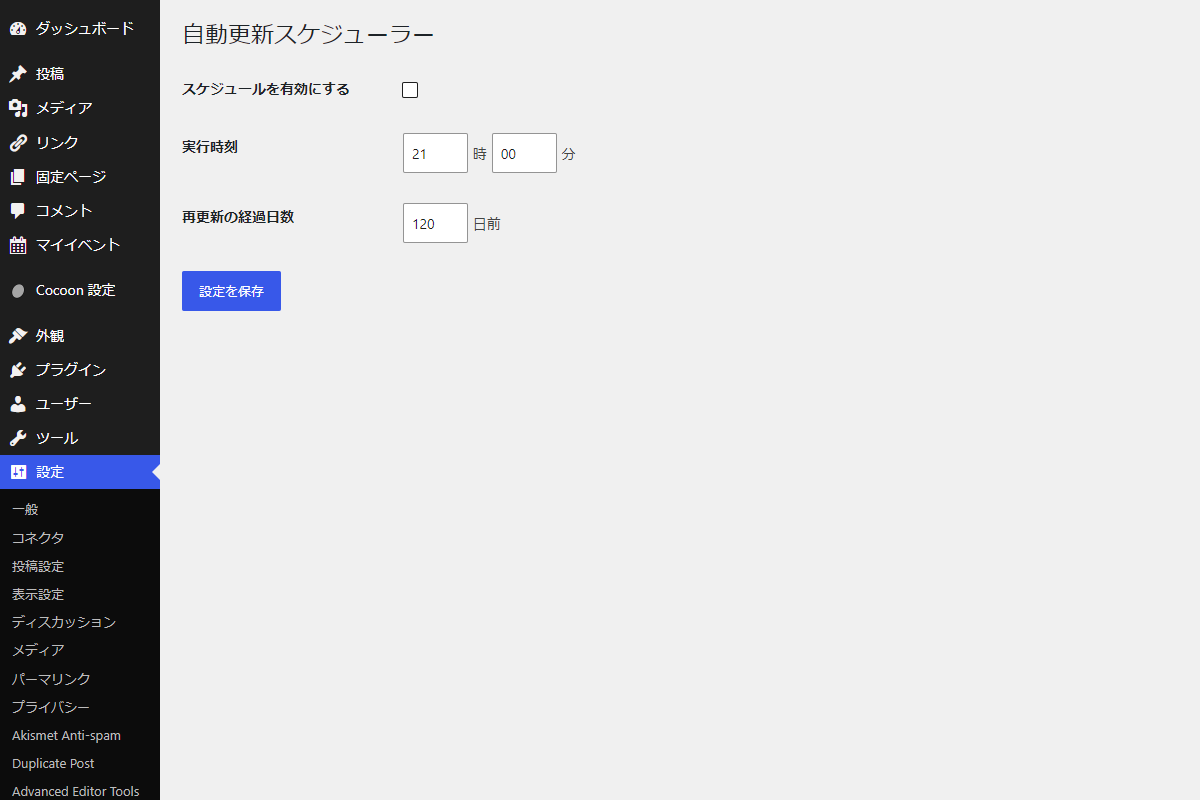
実装手順
以下のコードをfunctions.phpに追加します。
// 管理画面にメニューを追加
add_action('admin_menu', function () {
  add_options_page(
    '更新スケジューラー',
    '更新スケジューラー',
    'manage_options',
    'rop-scheduler',
    'render_rop_schedule'
  );
});


/**
 * 管理画面ページを出力
 *
 * @return void
 */
if (!function_exists('render_rop_schedule')):
function render_rop_schedule() {
  // 権限チェック
  if (!current_user_can('manage_options')) {
    wp_die('権限がありません。');
  }

  // nonceチェック
  if (isset($_POST['rop_submit']) && check_admin_referer('rop_scheduler_action', 'rop_scheduler_nonce')) {
    $enable   = isset($_POST['rop_enable'])   ? 1 : 0;
    $hour     = isset($_POST['rop_hour'])     ? min(23, max(0, intval($_POST['rop_hour']))) : 0;
    $minute   = isset($_POST['rop_minute'])   ? min(59, max(0, intval($_POST['rop_minute']))) : 0;
    $age_days = isset($_POST['rop_age_days']) ? max(1, intval($_POST['rop_age_days'])) : 30;

    // 設定データを登録
    update_option('my_rop_scheduler', [
      'enable'   => $enable,
      'hour'     => $hour,
      'minute'   => $minute,
      'age_days' => $age_days,
    ]);

    // 既存のスケジュールを変更
    wp_clear_scheduled_hook('my_rop_schedule');

    // 有効時のスケジュールを登録
    if ($enable) {
      rop_schedule_event_at_time($hour, $minute);
    }

    add_settings_error('rop_scheduler_messages', 'rop_scheduler_message', '設定を保存しました。', 'updated');
  }

  // 現在の設定値を取得
  $settings = get_option('my_rop_scheduler', []);

  $enable   = isset($settings['enable'])   ? (int) $settings['enable']   : 0;
  $hour     = isset($settings['hour'])     ? (int) $settings['hour']     : 0;
  $minute   = isset($settings['minute'])   ? (int) $settings['minute']   : 0;
  $age_days = isset($settings['age_days']) ? (int) $settings['age_days'] : 30;

  ?>
  <div class="wrap rop-scheduler">
    <h1 class="rop-scheduler__title">自動更新スケジューラー</h1>

    <?php settings_errors('rop_scheduler_messages'); ?>

    <form id="rop-scheduler-form" class="rop-scheduler__form" method="post">
      <?php wp_nonce_field('rop_scheduler_action', 'rop_scheduler_nonce'); ?>

      <table class="form-table rop-scheduler__table">
        <tr class="rop-scheduler__row">
          <th class="rop-scheduler__label" scope="row">スケジュールを有効にする</th>
          <td class="rop-scheduler__field">
            <input type="checkbox" name="rop_enable" value="1" <?= checked(1, $enable, false); ?>>
          </td>
        </tr>

        <tr class="rop-scheduler__row">
          <th class="rop-scheduler__label" scope="row">実行時刻</th>
          <td class="rop-scheduler__field">
            <input type="number" class="small-text rop-scheduler__input" name="rop_hour" min="0" max="23" value="<?= esc_attr($hour); ?>"> 時
            <input type="number" class="small-text rop-scheduler__input" name="rop_minute" min="0" max="59" value="<?= esc_attr($minute); ?>"> 分
          </td>
        </tr>

        <tr class="rop-scheduler__row">
          <th class="rop-scheduler__label" scope="row">再更新の経過日数</th>
          <td class="rop-scheduler__field">
            <input type="number" class="small-text rop-scheduler__input" name="rop_age_days" min="1" value="<?= esc_attr($age_days); ?>"> 日前
          </td>
        </tr>
      </table>

      <p class="rop-scheduler__actions">
        <input type="submit" name="rop_submit" class="button button-primary rop-scheduler__button" value="設定を保存">
      </p>
    </form>
  </div>
  <?php
}
endif;


/**
 * 指定時刻に1日ごとのCronイベントを登録
 *
 * @param int $hour 実行時刻の時間部分(0〜23)
 * @param int $minute 実行時刻の分部分(0〜59)
 */
if (!function_exists('rop_schedule_event_at_time')):
function rop_schedule_event_at_time($hour, $minute = 0) {
  $hour   = min(23, max(0, (int) $hour));
  $minute = min(59, max(0, (int) $minute));

  if (wp_next_scheduled('my_rop_schedule')) {
    return;
  }

  $now = current_datetime();
  $scheduled = $now->setTime($hour, $minute, 0);

  // 指定時刻が現在時刻以前なら翌日に設定
  if ($scheduled <= $now) {
    $scheduled = $scheduled->modify('+1 day');
  }

  wp_schedule_event($scheduled->getTimestamp(), 'daily', 'my_rop_schedule');
}
endif;


// Cronイベントの実行時に処理を設定
add_action('my_rop_schedule', function () {
  $settings = get_option('my_rop_scheduler', []);

  $enable = isset($settings['enable']) ? (int) $settings['enable'] : 0;

  if (!$enable) {
    return;
  }

  $age_days = isset($settings['age_days']) ? max(1, absint($settings['age_days'])) : 30;

  // 更新対象の基準日時を設定
  $threshold = current_datetime()
    ->modify("-{$age_days} days")
    ->format('Y-m-d H:i:s');

  // 更新対象の記事をランダムに取得
  $query = new WP_Query([
    'post_type'      => 'post',
    'post_status'    => 'publish',
    'cat'            => 1,

    'date_query'     => [
      [
        'column'    => 'post_modified',
        'before'    => $threshold,
        'inclusive' => true,
      ],
    ],

    'orderby'        => 'rand',

    'posts_per_page' => 1,
    'no_found_rows'  => true,
    'fields'         => 'ids',
  ]);

  if (empty($query->posts)) {
    return;
  }

  $post_id = (int) $query->posts[0];

  $now = current_datetime();

  $local_time = $now->format('Y-m-d H:i:s');
  $gmt_time   = get_gmt_from_date($local_time);

  wp_update_post([
    'ID'                => $post_id,
    'post_modified'     => $local_time,
    'post_modified_gmt' => $gmt_time,
  ], true);
});
注意点
WP-Cronでは、コードを削除しただけでは登録済みのスケジュールが自動的に削除されるわけではありません。
必ず「スケジューラーを有効にする」をオフにし、登録されたイベントを解除してから削除してください。
さいごに
今回紹介した方法を使えば、プラグインを使わずに、古い投稿を自動的に再更新し、SEO効果を高める仕組みを構築できます。
更新された記事はクローラーにも再認識されやすくなり、検索順位の再評価にもつながります。

