はじめに
WordPressのブロックエディタを利用している際、テーマのfunctions.phpに直接コードを書き込むことなく、手軽に「ブロックスタイル」を追加したり、対応するCSSを反映させたりしたいと考えたことはありませんか?
そこで、WordPressの管理画面に専用のウィジェットを作成し、JSONファイルによるスタイル定義とCSSファイルのアップロードを通じて、動的にブロックスタイルとデザインを管理する仕組みを実装します。
この記事では、この方法について説明します。

完成イメージ
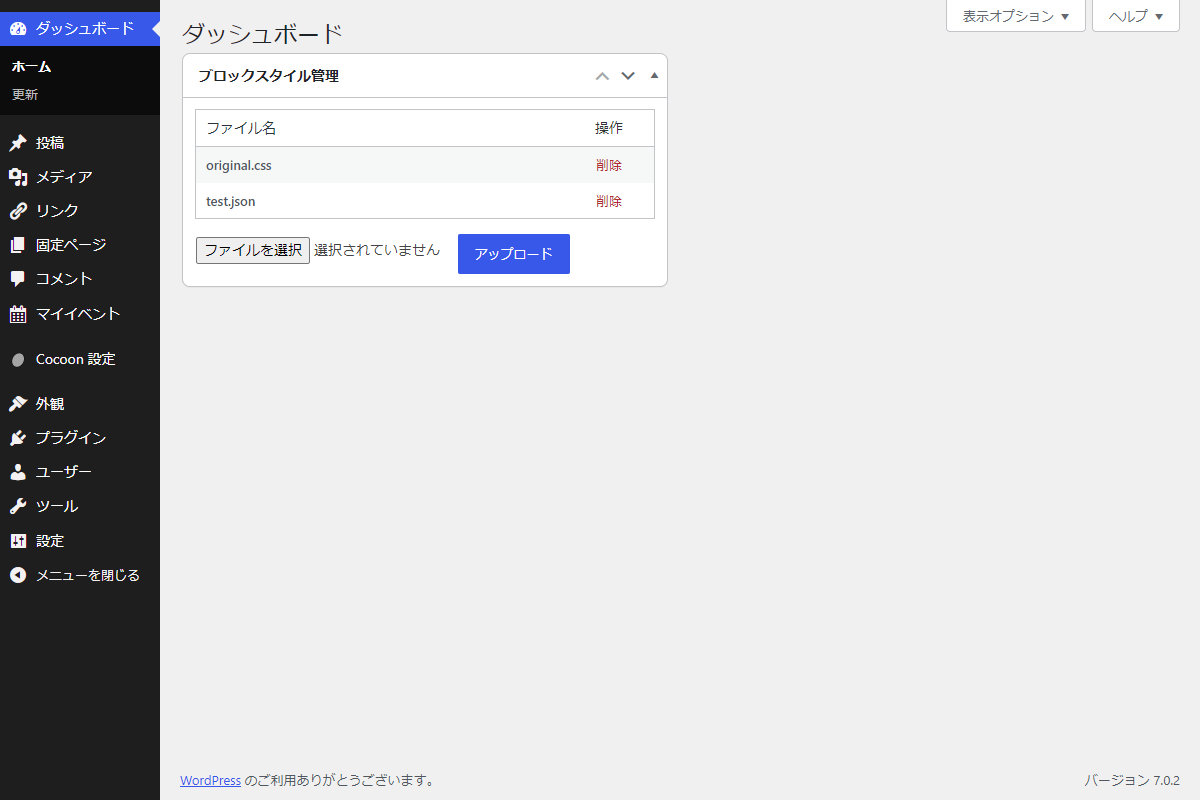
JSONでブロックスタイルを定義
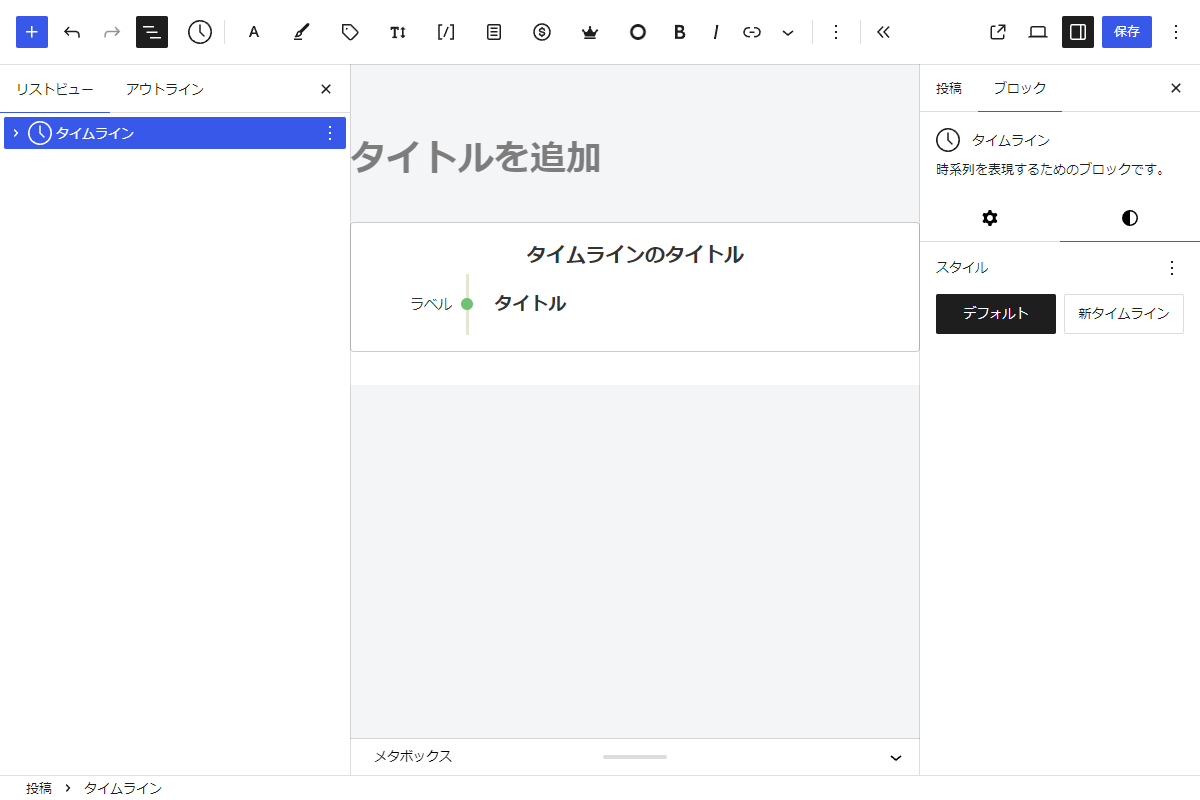
以下にブロックスタイルを定義するJSONファイルの例を示します。
Gutenbergエディターの「タイムライン」ブロックにスタイルボタンが追加されます(図1参照)。
[
  {
    "block_name": "cocoon-blocks/timeline",
    "name": "hvn-timeline",
    "label": "新タイムライン"
  },
  {
    "block_name": "cocoon-blocks/tab",
    "name": "hvn-tab",
    "label": "新タブ"
  }
]- block_name
スタイルを適用したい対象のブロックを指定します。
この例では、Cocoonの「タイムライン」ブロックが指定されています。
- name
ブロックに付与するCSSクラス名です。
この例では、is-style-が自動で付与されis-style-hvn-timelineというCSSクラス名に変換されます。
- label
編集画面のスタイルに表示されるボタン名です。

実装手順
以下のコードをfunctions.phpに追加します。
// ダッシュボードウィジェットを追加
add_action('wp_dashboard_setup', function () {
  wp_add_dashboard_widget(
    'style-manager',
    'ブロックスタイル管理',
    'render_style_manager'
  );
});


/**
 * ダッシュボードにウィジェットを出力
 *
 * @return void
 */
if (!function_exists('render_style_manager')):
function render_style_manager() {
  $target_path = wp_upload_dir()['basedir'] . '/custom-files/';

  // ファイルのアップロード・削除処理
  handle_custom_file_actions($target_path);

  // ファイル一覧を取得
  $files = is_dir($target_path) ? glob($target_path . '*') : [];
  ?>
  <div class="style-manager">
    <div class="style-manager__file-list">
      <table class="wp-list-table widefat fixed striped table-view-list">
        <thead>
          <tr>
            <th scope="col" class="manage-column column-primary">ファイル名</th>
            <th scope="col" class="manage-column">操作</th>
          </tr>
        </thead>
        <tbody>
          <?php if (empty($files)): ?>
            <tr>
              <td colspan="2">ファイルがありません。</td>
            </tr>
          <?php else: ?>
            <?php foreach ($files as $file): ?>
              <?php
              $filename = basename($file);
              $del_url = wp_nonce_url(admin_url('?delete_file=' . urlencode($filename)), 'style_manager_action', 'style_manager_nonce');
              ?>
              <tr>
                <td class="column-primary"><strong><?= esc_html($filename); ?></strong></td>
                <td><a href="<?= esc_url($del_url); ?>" class="style-manager__delete">削除</a></td>
              </tr>
            <?php endforeach; ?>
          <?php endif; ?>
        </tbody>
      </table>
    </div>

    <form class="style-manager__upload-form" method="POST" enctype="multipart/form-data">
      <?php wp_nonce_field('style_manager_action', 'style_manager_nonce'); ?>
      <input type="file" name="custom_upload_file" required>
      <input type="submit" class="button button-primary" value="アップロード">
    </form>
  </div>

  <style>
    .style-manager__delete {
      color: #b32d2e;
      text-decoration: none;
    }

    .style-manager__file-list {
      max-height: 200px;
      overflow-y: auto;
    }

    .style-manager__upload-form {
      align-items: center;
      display: flex;
      gap: 8px;
      margin-top: 11px;
    }
  </style>
  <?php
}
endif;


/**
 * ファイルのアップロード・削除処理
 *
 * @param string $target_path ファイル保存先のディレクトリパス
 * @return void
 */
if (!function_exists('handle_custom_file_actions')):
function handle_custom_file_actions($target_path) {
  // 削除処理
  if (isset($_GET['delete_file']) && check_admin_referer('style_manager_action', 'style_manager_nonce')) {
    $file_to_delete = $target_path . sanitize_file_name($_GET['delete_file']);

    if (file_exists($file_to_delete)) {
      unlink($file_to_delete);
      wp_redirect(admin_url());
      exit;
    }
  }

  // アップロード処理
  if ($_SERVER['REQUEST_METHOD'] === 'POST' && isset($_FILES['custom_upload_file']) && check_admin_referer('style_manager_action', 'style_manager_nonce')) {
    if (!is_dir($target_path)) {
      mkdir($target_path, 0755, true);
    }

    $dest = $target_path . sanitize_file_name($_FILES['custom_upload_file']['name']);

    if (move_uploaded_file($_FILES['custom_upload_file']['tmp_name'], $dest)) {
      echo '<div class="notice notice-success is-dismissible"><p>アップロード完了。</p></div>';
    }
  }
}
endif;


// 対象の処理を実行
add_action('init', function () {
  $json_dir = wp_upload_dir()['basedir'] . '/custom-files/';

  if (!is_dir($json_dir)) {
    return;
  }

  foreach (glob($json_dir . '*.json') as $file) {
    $styles = json_decode(file_get_contents($file), true);

    if (!is_array($styles)) {
      continue;
    }

    foreach ($styles as $style) {
      if (isset($style['block_name'], $style['name'], $style['label'])) {
        register_block_style($style['block_name'], [
          'name' => $style['name'],
          'label' => __($style['label'], 'cocoon'),
        ]);
      }
    }
  }
});


// フロント・エディター共通のCSSを追加
add_action('enqueue_block_assets', function () {
  $css_dir = wp_upload_dir()['basedir'] . '/custom-files/';
  $css_url = wp_upload_dir()['baseurl'] . '/custom-files/';

  if (!is_dir($css_dir)) {
    return;
  }

  foreach (glob($css_dir . '*.css') as $file) {
    $handle = 'style-manager-' . sanitize_title(pathinfo($file, PATHINFO_FILENAME));
    wp_enqueue_style($handle, $css_url . basename($file), [], filemtime($file));
  }
});
さいごに
今回紹介した方法を使えば、テーマファイルを直接編集することなく、JSONとCSSファイルをアップロードするだけで、管理画面から手軽にオリジナルのブロックスタイルやデザインを追加・管理できるようになります。
自分好みのスタイルをJSON形式で定義し、CSSで装飾することで、WordPressのブロックエディタのカスタマイズ性を大きく広げることが可能です。