
はじめに
以下を実現します。

エントリーカード全体が<a>タグで構成されているため、その中に別の<a>タグを入れることはできません。
そのため、カード内にボタンを追加するには工夫が必要です。
この記事では、この方法について説明します。
完成イメージ
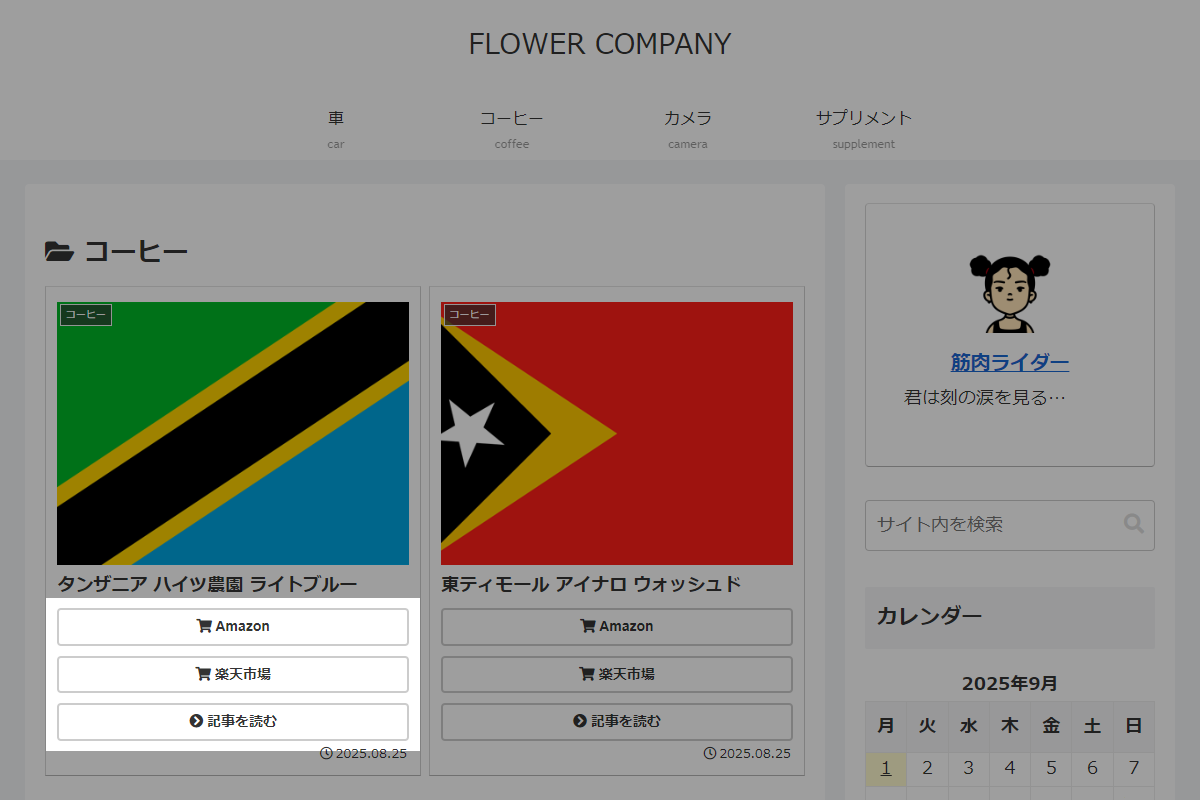
実装手順
以下の手順で実装します。
- ラベルカスタムフィールドを追加
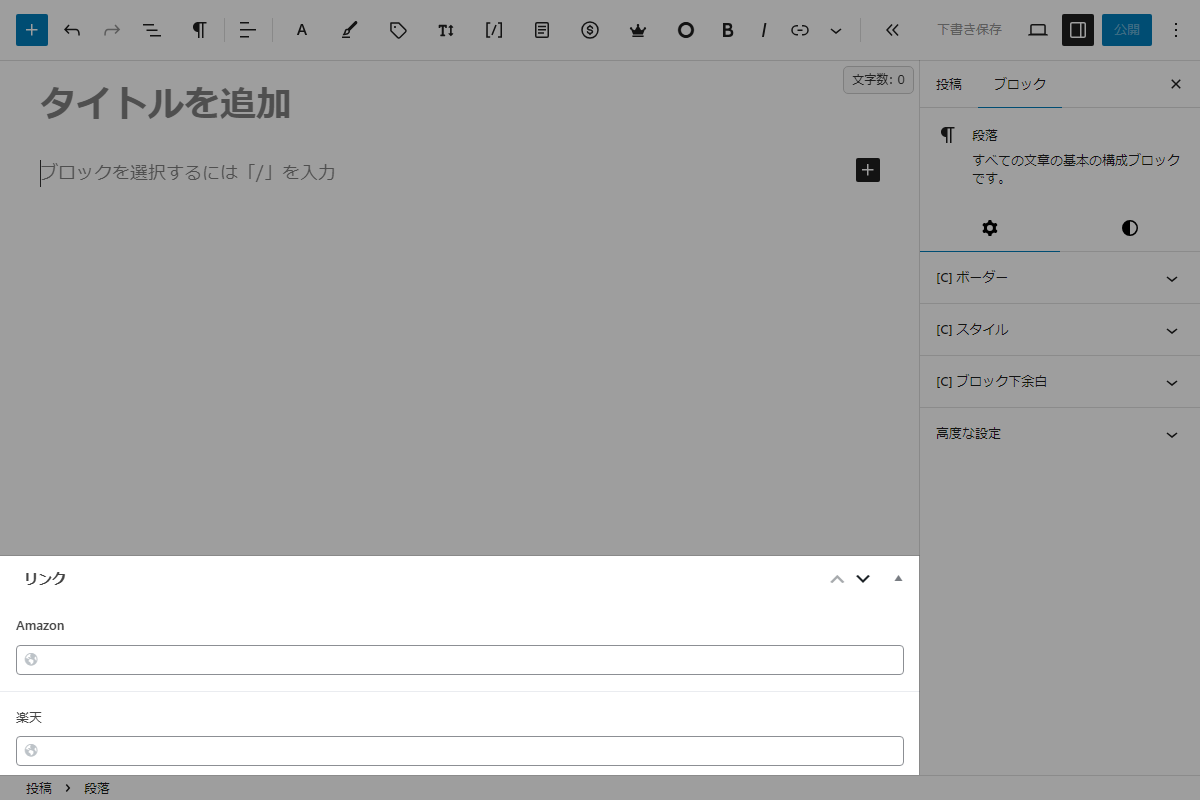
Advanced Custom Fields プラグイン「ACF(Advanced Custom Fields)」を使用して、カスタムフィールドを作成します。
表1に、カスタムフィールド名を示します。カスタムフィールド ラベル名 カスタムフィールド名 Amazon amazon 楽天 rakuten - ラベルPHPを追加
以下のコードをfunctions.phpに追加します。
// エントリーカードにカスタムフィールドの情報を追加
add_action('entry_card_snippet_after', function ($post_id) {
  // カスタムフィールド(ACF)を取得
  $amazon  = get_field('amazon', $post_id);
  $rakuten = get_field('rakuten', $post_id);

  $url = get_the_permalink($post_id);

  ob_start();
  ?>
  <div class="link-buttons">
    <!-- Amazonリンクボタン(設定がある場合のみ表示) -->
    <?php if (!empty($amazon)): ?>
      <button type="button" class="btn" onclick="event.preventDefault();location.href='<?= esc_url($amazon); ?>'">
        <i class="fas fa-shopping-cart"></i> Amazon
      </button>
    <?php endif; ?>

    <!-- 楽天市場リンクボタン(設定がある場合のみ表示) -->
    <?php if (!empty($rakuten)): ?>
      <button type="button" class="btn" onclick="event.preventDefault();location.href='<?= esc_url($rakuten); ?>'">
        <i class="fas fa-shopping-cart"></i> 楽天市場
      </button>
    <?php endif; ?>

    <!-- 記事を読むリンクボタン(URLが取得できる場合のみ表示) -->
    <?php if (!empty($url)): ?>
      <button type="button" class="btn" onclick="event.preventDefault();location.href='<?= esc_url($url); ?>'">
        <i class="fas fa-chevron-circle-right"></i> 記事を読む
      </button>
    <?php endif; ?>
  </div>
  <?php
  echo ob_get_clean();
});


// フロント用JS・CSSを追加
add_action('wp_enqueue_scripts', function () {
  ob_start();
  ?>
  .link-buttons {
    display: flex;
    flex-direction: column;
    gap: 10px;

    .btn {
      --cocoon-custom-background-color: transparent;
      --cocoon-custom-text-color: #333;
      line-height: 1.4;

      &:hover {
        --cocoon-custom-background-color: var(--cocoon-custom-border-color);
      }
    }
  }
  <?php

  $handle = 'entry-card-buttons';

  wp_register_style($handle, false);
  wp_enqueue_style($handle);
  wp_add_inline_style($handle, ob_get_clean());
}, 99);
さいごに
今回紹介した方法を使えば、エントリーカード全体がリンク構造になっていても、内部にAmazonや楽天のリンクボタンを設置することが可能になります。
外部リンクと記事リンクを明確に分けることで、ユーザーが目的に応じて適切な動線を選べるようになり、回遊率やアフィリエイト収益の向上にもつながります。
