
はじめに
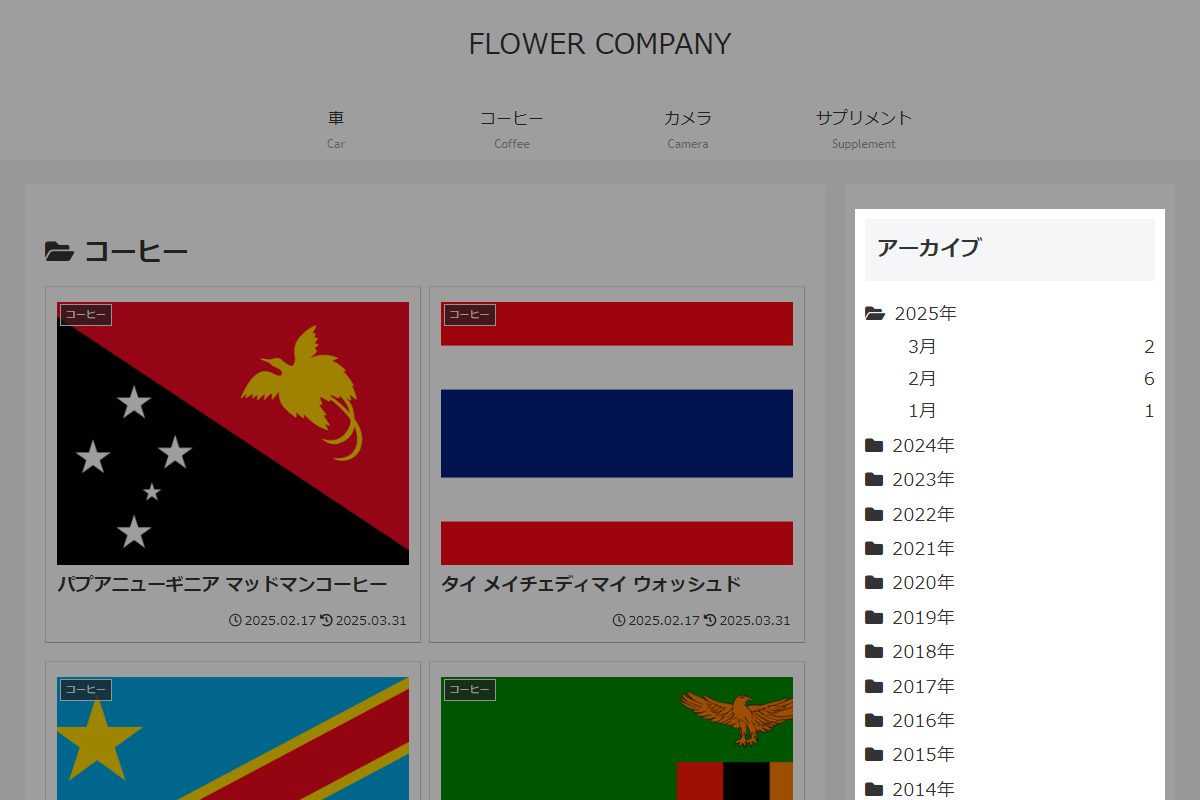
「アーカイブ」ウィジェットを年単位で折りたたみ表示に変更します。
投稿が増えると年月単位での表示ではメニューが長くなり、画面が見づらくなることがあります。
そこで、まずは年ごとにまとめ、年をクリックすると対象の月が表示される仕組みにすることで、アーカイブの構造をすっきり整理して利便性を向上させます。
この記事では、この方法について説明します。
完成イメージ
実装手順
以下の手順で実装します。
- ラベルJavaScriptを追加
以下のコードをjavascript.jsに追加します。
jQuery(function ($) { $('.widget_archive').each(function () { const widget = $(this); const name = widget.attr('id') || 'archive-details'; let html = '<div class="archive">'; let currentYear = ''; let open = ' open'; $('li', widget).each(function () { const li = $(this); const year = li.text().slice(0, 4); // 年が切り替わったら月リストを追加 if (year !== currentYear) { if (currentYear !== '') { html += '</details>'; } currentYear = year; html += `<details class="archive__year" name="${name}"${open}><summary class="archive__summary">${year}年</summary>`; open = ''; } // 年ごとの月リストを作成 html += li.html().replace(/(\d+)年/, ''); }); html += '</details></div>'; $('ul', widget).replaceWith(html); }); }); - ラベルCSSを追加
以下のコードをstyle.cssに追加します。
.archive__summary {
  cursor: pointer;
  list-style: none;

  /* Safari対応 */
  &::-webkit-details-marker {
    display: none;
  }

  &::before {
    content: '\f07b';
    font-family: 'Font Awesome 5 Free';
    font-weight: 900;
    padding-right: 0.5em;

    .archive__year[open] & {
      content: '\f07c';
    }
  }
}

.archive {
  a {
    color: var(--cocoon-text-color);
    display: flex;
    justify-content: space-between;
    text-decoration: none;
  }

  .list-item-caption {
    text-align: right;
    width: 4em;
  }
}
さいごに
今回紹介した方法を使えば、「アーカイブ」ウィジェットを年単位で折りたたみ表示に変更し、投稿が増えても整理されたメニューを提供できます。
訪問者が目的の月や投稿を簡単に見つけられるようにし、サイトの操作性を向上させることが可能です。

