
はじめに
この記事では、スキン「NAGI」の固定CTA機能を例に、以下の2点について説明します。
- 投稿に、独自のメタボックスを作る方法
- 画面下に、固定メニューを表示する方法

投稿に独自のメタボックスを作る方法
プラグイン「Advanced Custom Fields」などを使わずに、投稿画面に独自のメタボックスを追加します。
完成イメージ
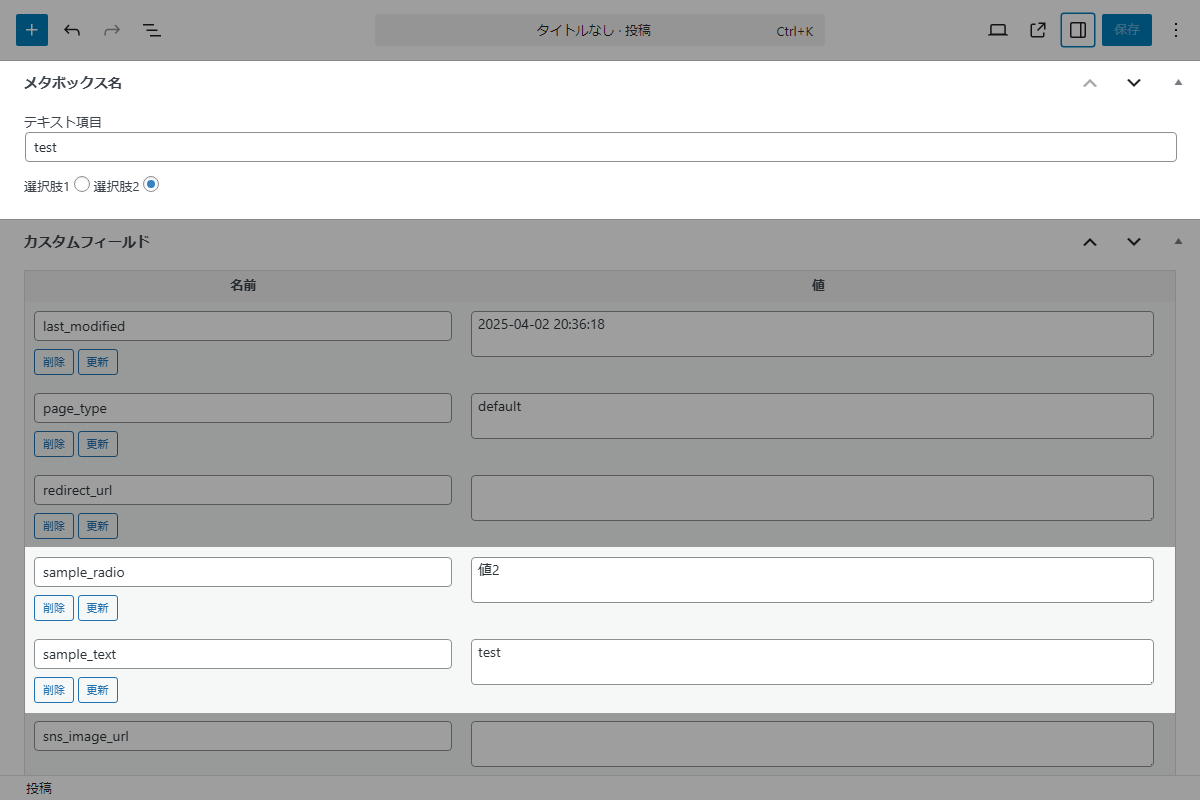
実装手順
以下のコードをfunctions.phpに追加します。
投稿画面に独自のメタボックスを追加し、カスタムフィールドにデータを保存します。
メタボックス作成のコードは定型化されているため、他でも流用が可能です。
// メタボックスを追加
add_action('add_meta_boxes', function () {
add_meta_box(
'custom_fields',
'メタボックス名',
'render_custom_fields',
'post',
'normal',
'default'
);
});
/**
* メタボックスの入力フォームを出力
*
* @param WP_Post $post 現在の投稿オブジェクト
* @return void
*/
if (!function_exists('render_custom_fields')):
function render_custom_fields($post) {
wp_nonce_field('custom_fields_action', 'custom_fields_nonce');
// 既に保存されているメタデータを取得
$sample_text = get_post_meta($post->ID, 'my_sample_text', true);
$sample_radio = get_post_meta($post->ID, 'my_sample_radio', true);
// ラジオボタンの選択肢一覧定義
$radio_array = [
['選択肢1', '値1'],
['選択肢2', '値2']
];
?>
<p>
<label for="my_sample_text">テキスト項目</label><br>
<input id="my_sample_text" type="text" name="my_sample_text" value="<?= esc_attr($sample_text) ?>" class="regular-text">
</p>
<p>
<?php foreach ($radio_array as $index => $radio): ?>
<?php $checked = checked($sample_radio, $radio[1], false); ?>
<label for="my_sample_radio<?= $index ?>">
<input id="my_sample_radio<?= $index ?>" type="radio" name="my_sample_radio" value="<?= esc_attr($radio[1]) ?>" <?= $checked ?>>
<?= esc_html($radio[0]) ?>
</label>
<?php endforeach; ?>
</p>
<?php
}
endif;
// 投稿データを保存
add_action('save_post', function ($post_id) {
// nonceチェック
if (!isset($_POST['custom_fields_nonce']) || !wp_verify_nonce(wp_unslash($_POST['custom_fields_nonce']), 'custom_fields_action')) {
return;
}
// 自動保存チェック
if (defined('DOING_AUTOSAVE') && DOING_AUTOSAVE) {
return;
}
// リビジョンを除外
if (wp_is_post_revision($post_id)) {
return;
}
// 権限チェック
if (!current_user_can('edit_post', $post_id)) {
return;
}
// テキスト項目の値を更新
if (isset($_POST['my_sample_text'])) {
update_post_meta($post_id, 'my_sample_text', sanitize_text_field($_POST['my_sample_text']));
}
// ラジオボタン項目の値を更新
$sample_radio = isset($_POST['my_sample_radio']) ? sanitize_text_field($_POST['my_sample_radio']) : '';
if ($sample_radio !== '') {
update_post_meta($post_id, 'my_sample_radio', $sample_radio);
} else {
delete_post_meta($post_id, 'my_sample_radio');
}
});画面下に固定メニューを表示する方法
完成イメージ
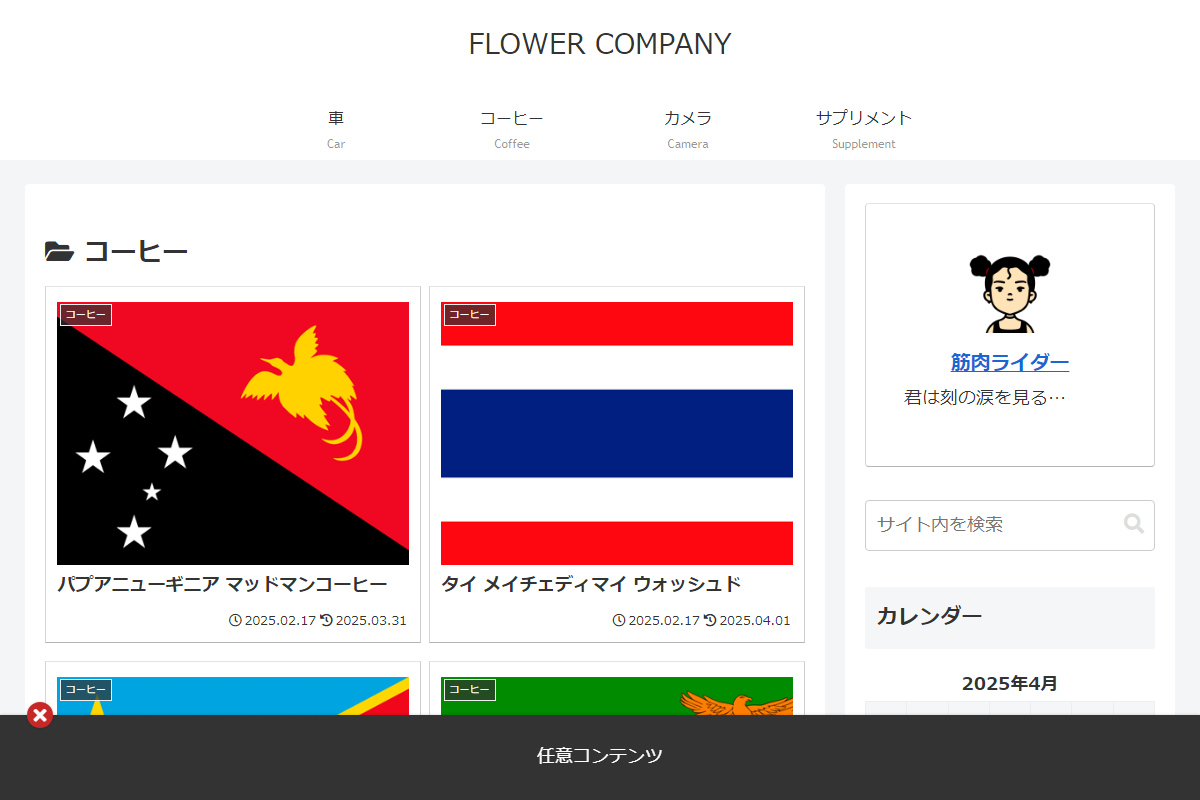
実装手順
以下の手順で実装します。
以下のコードをfunctions.phpに追加します。
// フッター直前に追加
add_action('wp_footer_insert_open', function () {
  ?>
  <div class="fixed-box">
    <input id="fixed-close" type="checkbox">
    <div class="fixed-box__contents">
      <label for="fixed-close" class="fixed-box__close"></label>
      <div class="fixed-box__content">任意コンテンツ</div>
    </div>
  </div>
  <?php
});


// フロント用JS・CSSを追加
add_action('wp_enqueue_scripts', function () {
  ob_start();
  ?>
  :root {
    --my-button-width: 26px;
    --my-fixed-height: 85px;
    --my-shadow-color: 0 0 3px rgb(0 0 0 / 20%);
  }

  body:has(.fixed-box):not(:has(#fixed-close:checked)) #container {
    margin-bottom: var(--my-fixed-height);
  }

  .fixed-box {
    #fixed-close {
      display: none;

      /* 固定メニュー閉じるボタンクリック動作 */
      &:checked ~ .fixed-box__contents {
        transform: translate(0, calc(var(--my-fixed-height) + var(--my-button-width) / 2));
      }
    }

    /* 固定メニュー */
    .fixed-box__contents {
      background-color: #333;
      bottom: 0;
      box-shadow: var(--my-shadow-color);
      color: #fff;
      display: grid;
      height: var(--my-fixed-height);
      left: 0;
      padding: 10px;
      place-content: center;
      position: fixed;
      transform: translate(0, 0);
      transition: all 0.3s ease;
      width: 100%;
      z-index: 1000000;
    }

    /* 固定メニュー閉じるボタン */
    .fixed-box__close::before {
      background-color: #c62828;
      border-radius: 100%;
      box-shadow: var(--my-shadow-color);
      color: #fff;
      content: '\f00d';
      cursor: pointer;
      display: grid;
      font-family: 'Font awesome 5 Free';
      font-weight: 900;
      height: var(--my-button-width);
      left: 1.5em;
      line-height: 1;
      margin: 0;
      place-content: center;
      position: absolute;
      top: calc(var(--my-button-width) / -2);
      width: var(--my-button-width);
      z-index: 9999;
    }
  }
  <?php

  $handle = 'fixed-box';

  wp_register_style($handle, false);
  wp_enqueue_style($handle);
  wp_add_inline_style($handle, ob_get_clean());
});
参考:追従バナーを設置する方法

前述のコードと基本的な構造は共通しており、「どのような情報を表示するか」「どこに配置するか」の違いだけで対応できます。
完成イメージ

実装手順
以下のコードをfunctions.phpに追加します。
// フッター直前に追加
add_action('wp_footer_insert_open', function () {
  ?>
  <div class="fixed-box">
    <a href="リンク先" class="fixed-box__link"><i class="far fa-envelope"></i>お問い合わせ</a>
  </div>
  <?php
});


// フロント用JS・CSSを追加
add_action('wp_enqueue_scripts', function () {
  ob_start();
  ?>
  .fixed-box {
    position: fixed;
    right: 0;
    top: 50%;
    transform: translateY(-50%);

    .fixed-box__link {
      background-color: #333;
      color: #fff;
      display: block;
      padding: 10px;
      text-decoration: none;
      writing-mode: vertical-rl;
    }

    @media (max-width: 1023px) {
      display: none;
    }
  }
  <?php

  $handle = 'fixed-box';

  wp_register_style($handle, false);
  wp_enqueue_style($handle);
  wp_add_inline_style($handle, ob_get_clean());
});
さいごに
今回紹介した方法を使えば、投稿に独自のメタボックスを追加することができます。
メタボックスのコードは定型的なため、コードを流用することで、開発がより簡単になるでしょう。