PyQt5 メモ
2020年12月30日
はじめに
Qt 5.x の Python バインディング PyQt5 (および PySide2) のメモ。
環境
- Windows 7/10、Ubuntu 16.04 LTS
- Anaconda3
PyQt と PySide の違い
Qt の Python バインディングとして PyQt と PySide (Qt for Python) があるが、大きな違いはライセンスで、前者は GPL、後者は LGPL である。PySide は PyQt の GPL を嫌って開発されたものである。Qt 4.x、5.x に対応してそれぞれ PyQt4、PyQt5 あるいは PySide、PySide2 とパッケージが異なっている。両者のライセンスの違いは、Pyinstaller を使う時に問題になるかもしれない (DLL を配布することになるので)。
PySide2 の問題点
オブジェクトの比較問題
PySide2 でオブジェクトの比較ができない場合があるらしい。オブジェクトが同じかどうかを確認したいだけなら、id() 同士を比較すればよい。
参考
Cython 化問題
また、特殊な状況だが、Cython 化するとシグナルで問題が起こる。
RecursionError: maximum recursion depth exceeded while calling a Python object
おまじないを入れれば一応対処できる。
class Main(QMainWindow):
    def __init__(self, parent=None):
        super().__init__(parent)

        doAction = QAction("&Do", self)
        doAction.triggered.connect(self.do)

        setattr(self, "Main.do", self.do) # おまじない
        ...
    def do(self):
        ...
参考
VTK
VTK が PySide2 に対応していないかもしれない。その場合、ちょっと修正すればよい (VTK 8.1.2)。
~/miniconda3/lib/python3.7/site-packages/vtk/qt/QVTKRenderWindowInteractor.py
if PyQtImpl is None:
    # Autodetect the PyQt implementation to use
    try:
        import PyQt5
        PyQtImpl = "PyQt5"
    except ImportError:
        try:
            import PyQt4
            PyQtImpl = "PyQt4"
#        except ImportError:
#            try:
#                import PySide
#                PyQtImpl = "PySide"
#            except ImportError:
#                raise ImportError("Cannot load either PyQt or PySide")
        except ImportError:
            try:
                import PySide2
                PyQtImpl = "PySide2"
            except ImportError:
                try:
                    import PySide
                    PyQtImpl = "PySide"
                except ImportError:
                    raise ImportError("Cannot load either PyQt or PySide")

...

if PyQtImpl == "PyQt5":
    ...
elif PyQtImpl == "PyQt4":
    ...
elif PyQtImpl == "PySide2":
    if QVTKRWIBase == "QGLWidget":
        from PySide2.QtOpenGL import QGLWidget
    from PySide2.QtWidgets import QWidget
    from PySide2.QtWidgets import QSizePolicy
    from PySide2.QtWidgets import QApplication
    from PySide2.QtCore import Qt
    from PySide2.QtCore import QTimer
    from PySide2.QtCore import QObject
    from PySide2.QtCore import QSize
    from PySide2.QtCore import QEvent
インストール
PyQt5
PIP でインストールできる。
$ pip install PyQt5
PySide2
PySide2 は pip ではうまく入らないようで、conda を用いる。
$ conda install -c conda-forge pyside2
PyQt5 とは共存しないようである。
Miniconda3 を移動した場合 (Windows)
変な使い方だが、Windows で Miniconda3 のフォルダをどこかに移動した場合、Qt のパスが変わってしまうため、正しく設定しなおす必要がある。(仮想環境を使っているものとして) env の仮想環境フォルダの直下に、以下のような内容の qt.conf を置く。
[Paths]
Prefix = ./Library
Binaries = ./Library/bin
Libraries = ./Library/lib
Headers = ./Library/include/qt
TargetSpec = win32-msvc
HostSpec = win32-msvc
モジュールのインポート
モジュールのインポートは、できるだけ個別に行うのが望ましいが、めんどくさかったら次のようにすればよい。
from PyQt5.QtWidgets import *
from PyQt5.QtGui import *
from PyQt5.QtCore import *
PySide2 の場合も同様。
from PySide2.QtWidgets import *
from PySide2.QtGui import *
from PySide2.QtCore import *
ウインドウ
window.py
import sys
from PyQt5.QtWidgets import QMainWindow, QApplication, QDesktopWidget


class Main(QMainWindow):
    def __init__(self):
        super().__init__()

        self.setWindowTitle("window")

        self.resize(320, 240)
        self.centerOnScreen()
        self.show()

    def centerOnScreen(self):
        res = QDesktopWidget().screenGeometry()
        self.move((res.width()/2) - (self.frameSize().width()/2),
                  (res.height()/2) - (self.frameSize().height()/2))


if __name__ == "__main__":
    app = QApplication(sys.argv)
    win = Main()
    sys.exit(app.exec_())

マウス
mouse.py
import sys
from PyQt5.QtWidgets import QMainWindow, QApplication, QDesktopWidget
from PyQt5.QtCore import Qt


class Main(QMainWindow):
    def __init__(self):
        super().__init__()

        self.setMouseTracking(True)

        self.setWindowTitle("mouse")
        self.resize(320, 240)
        self.show()

    def mouseButtonKind(self, buttons):
        if buttons & Qt.LeftButton:
            print("LEFT")
        if buttons & Qt.MidButton:
            print("MIDDLE")
        if buttons & Qt.RightButton:
            print("RIGHT")

    def mousePressEvent(self, e):
        print("BUTTON PRESS")
        self.mouseButtonKind(e.buttons())

    def mouseReleaseEvent(self, e):
        print("BUTTON RELEASE")
        self.mouseButtonKind(e.buttons())

    def wheelEvent(self, e):
        print("wheel")
        print("(%d %d)" % (e.angleDelta().x(), e.angleDelta().y()))

    def mouseMoveEvent(self, e):
        print("(%d %d)" % (e.x(), e.y()))


if __name__ == "__main__":
    app = QApplication(sys.argv)
    win = Main()
    sys.exit(app.exec_())

キー入力
key.py
import sys
from PyQt5.QtWidgets import QMainWindow, QApplication, QDesktopWidget
from PyQt5.QtCore import Qt


class Main(QMainWindow):
    def __init__(self):
        super().__init__()

        self.setWindowTitle("key")

        self.resize(320, 240)
        self.show()

    def keyPressEvent(self, e):
        def isPrintable(key):
            printable = [
                Qt.Key_Space,
                Qt.Key_Exclam,
                Qt.Key_QuoteDbl,
                Qt.Key_NumberSign,
                Qt.Key_Dollar,
                Qt.Key_Percent,
                Qt.Key_Ampersand,
                Qt.Key_Apostrophe,
                Qt.Key_ParenLeft,
                Qt.Key_ParenRight,
                Qt.Key_Asterisk,
                Qt.Key_Plus,
                Qt.Key_Comma,
                Qt.Key_Minus,
                Qt.Key_Period,
                Qt.Key_Slash,
                Qt.Key_0,
                Qt.Key_1,
                Qt.Key_2,
                Qt.Key_3,
                Qt.Key_4,
                Qt.Key_5,
                Qt.Key_6,
                Qt.Key_7,
                Qt.Key_8,
                Qt.Key_9,
                Qt.Key_Colon,
                Qt.Key_Semicolon,
                Qt.Key_Less,
                Qt.Key_Equal,
                Qt.Key_Greater,
                Qt.Key_Question,
                Qt.Key_At,
                Qt.Key_A,
                Qt.Key_B,
                Qt.Key_C,
                Qt.Key_D,
                Qt.Key_E,
                Qt.Key_F,
                Qt.Key_G,
                Qt.Key_H,
                Qt.Key_I,
                Qt.Key_J,
                Qt.Key_K,
                Qt.Key_L,
                Qt.Key_M,
                Qt.Key_N,
                Qt.Key_O,
                Qt.Key_P,
                Qt.Key_Q,
                Qt.Key_R,
                Qt.Key_S,
                Qt.Key_T,
                Qt.Key_U,
                Qt.Key_V,
                Qt.Key_W,
                Qt.Key_X,
                Qt.Key_Y,
                Qt.Key_Z,
                Qt.Key_BracketLeft,
                Qt.Key_Backslash,
                Qt.Key_BracketRight,
                Qt.Key_AsciiCircum,
                Qt.Key_Underscore,
                Qt.Key_QuoteLeft,
                Qt.Key_BraceLeft,
                Qt.Key_Bar,
                Qt.Key_BraceRight,
                Qt.Key_AsciiTilde,
            ]

            if key in printable:
                return True
            else:
                return False

        control = False

        if e.modifiers() & Qt.ControlModifier:
            print("Control")
            control = True

        if e.modifiers() & Qt.ShiftModifier:
            print("Shift")

        if e.modifiers() & Qt.AltModifier:
            print("Alt")

        if e.key() == Qt.Key_Delete:
            print("Delete")

        elif e.key() == Qt.Key_Backspace:
            print("Backspace")

        elif e.key() in [Qt.Key_Return, Qt.Key_Enter]:
            print("Enter")

        elif e.key() == Qt.Key_Escape:
            print("Escape")

        elif e.key() == Qt.Key_Right:
            print("Right")

        elif e.key() == Qt.Key_Left:
            print("Left")

        elif e.key() == Qt.Key_Up:
            print("Up")

        elif e.key() == Qt.Key_Down:
            print("Down")

        if not control and isPrintable(e.key()):
            print(e.text())


if __name__ == "__main__":
    app = QApplication(sys.argv)
    win = Main()
    sys.exit(app.exec_())

メニュー
menu.py
import sys
from PyQt5.QtWidgets import QMainWindow, QApplication
from PyQt5.QtWidgets import QAction, qApp


class Main(QMainWindow):
    def __init__(self):
        super().__init__()

        exitAction = QAction("&Exit", self)
        exitAction.setShortcut("Ctrl+Q")
        exitAction.triggered.connect(qApp.quit)

        doAction = QAction("&Do", self)
        doAction.triggered.connect(self.do)

        menubar = self.menuBar()

        fileMenu = menubar.addMenu("&File")
        fileMenu.addAction(doAction)

        subMenu = fileMenu.addMenu("&Sub")
        subMenu.addAction(doAction)

        fileMenu.addSeparator()
        fileMenu.addAction(exitAction)

        self.setWindowTitle("menu")
        self.show()

    def do(self):
        print("Do")


if __name__ == "__main__":
    app = QApplication(sys.argv)
    win = Main()
    sys.exit(app.exec_())

ポップアップメニュー
popup.py
import sys
from PyQt5.QtWidgets import QMainWindow, QApplication, QDesktopWidget
from PyQt5.QtWidgets import QMenu, qApp


class Main(QMainWindow):
    def __init__(self):
        super().__init__()

        self.setWindowTitle("popup")

        self.resize(320, 240)
        self.show()

    def contextMenuEvent(self, e):
        menu = QMenu(self)
        aQuit = menu.addAction("Quit")

        action = menu.exec_(self.mapToGlobal(e.pos()))

        if action == aQuit:
            qApp.quit()


if __name__ == "__main__":
    app = QApplication(sys.argv)
    win = Main()
    sys.exit(app.exec_())

ファイルの選択
file_select.py
import sys
from PyQt5.QtWidgets import QMainWindow, QApplication
from PyQt5.QtWidgets import QAction, qApp, QFileDialog


class Main(QMainWindow):
    def __init__(self):
        super().__init__()

        exitAction = QAction("&Exit", self)
        exitAction.setShortcut("Ctrl+Q")
        exitAction.triggered.connect(qApp.quit)

        openAction = QAction("&Open", self)
        openAction.triggered.connect(self.open)

        saveAction = QAction("&Save", self)
        saveAction.triggered.connect(self.save)

        menubar = self.menuBar()

        fileMenu = menubar.addMenu("&File")
        fileMenu.addAction(openAction)
        fileMenu.addAction(saveAction)

        fileMenu.addSeparator()
        fileMenu.addAction(exitAction)

        self.setWindowTitle("file select")
        self.show()

    def open(self):
        r = QFileDialog.getOpenFileName(self, "Open File",
                None, "Python Files (*.py)")
        filename = r[0]
        print(filename)

    def save(self):
#        r[0] = QFileDialog.getSaveFileName(self, "Save File",
#                None, "Python files (*.py)")
#        filename = r[0]

        dialog = QFileDialog(self)
        dialog.setWindowTitle("Save File")
        dialog.setNameFilters(["Python Files (*.py)", "All Files (*)"])
        dialog.setAcceptMode(QFileDialog.AcceptSave)

        filename = ""
        if dialog.exec_():
            r = dialog.selectedFiles()
            filename = r[0]

        print(filename)


if __name__ == "__main__":
    app = QApplication(sys.argv)
    win = Main()
    sys.exit(app.exec_())

ファイルを選択するダイアログは、QFileDialog.getOpenFileName() などで直接ダイアログを開く方法と、一旦 QFileDialog のオブジェクトを作ってから exec_() で開く方法がある。
ディレクトリを選択する場合は、QFileDialog.getExistingDirectory() を用いる。
path = QFileDialog.getExistingDirectory(self, "Open Directory", "")
第 4 引数として QFileDialog.DontUseNativeDialog を渡すと、ネイティブのダイアログを使わない。場合によってはそうしたほうがよいことがある。
QFileDialog オブジェクトを使って、もっと細かい設定が可能である。たとえば、ディレクトリを開く場合:
        dialog = QFileDialog(self, "Select Directory")
        dialog.setLabelText(QFileDialog.FileName, "Directory name:")
        dialog.setLabelText(QFileDialog.Accept, "Open")
        dialog.setFileMode(QFileDialog.Directory)
        dialog.setAcceptMode(QFileDialog.AcceptOpen)
        dialog.setOptions(QFileDialog.ShowDirsOnly)

        path = ""

        if dialog.exec_():
            r = dialog.selectedFiles()
            path = r[0]
ディレクトリを保存する場合:
        dialog = QFileDialog(self, "Save Directory")
        dialog.setLabelText(QFileDialog.FileName, "Directory name:")
        dialog.setLabelText(QFileDialog.Accept, "Save")
        dialog.setFileMode(QFileDialog.AnyFile)
        dialog.setAcceptMode(QFileDialog.AcceptSave)
        dialog.setOptions(QFileDialog.ShowDirsOnly)

        path = ""

        if dialog.exec_():
            r = dialog.selectedFiles()
            path = r[0]
dialog.setDirectory() でダイアログを開いた時のディレクトリのパスを設定できる。
日付の選択
calendar.py
import sys
from PyQt5.QtWidgets import QDialog, QApplication
from PyQt5.QtWidgets import QCalendarWidget
from PyQt5.QtWidgets import QPushButton, QVBoxLayout


class Main(QDialog):
    def __init__(self, parent=None):
        super().__init__(parent)


        self.calendar = QCalendarWidget()

        button = QPushButton("Check")
        button.clicked.connect(self.buttonClicked)

        layout = QVBoxLayout()
        layout.addWidget(self.calendar)
        layout.addWidget(button)

        self.setLayout(layout)

        self.setWindowTitle("calender")
        self.show()

    def buttonClicked(self):
        date = self.calendar.selectedDate()
        print("%d/%d/%d" % (date.year(), date.month(), date.day()))


if __name__ == "__main__":
    app = QApplication(sys.argv)
    win = Main()
    sys.exit(app.exec_())

別のウインドウからカレンダーを開き、選択した日付を返したい場合、選択された日付をクラスの属性に入れておけばよい。
class DateSelectDialog(QDialog):
    def __init__(self, parent=None):
        super().__init__(parent)

        self.calendar = QCalendarWidget()
        self.date = None

        box = QDialogButtonBox(QDialogButtonBox.Ok | QDialogButtonBox.Cancel)
        box.accepted.connect(self.okButtonClicked)
        box.rejected.connect(self.cancelButtonClicked)

        layout = QVBoxLayout()
        layout.addWidget(self.calendar)
        layout.addWidget(box)

        self.setLayout(layout)

        self.setWindowTitle("Select date")
        self.show()

    def okButtonClicked(self):
        date = self.calendar.selectedDate()
        self.date = "%d/%d/%d" % (date.year(), date.month(), date.day())
        self.close()

    def cancelButtonClicked(self):
        self.close()
たとえば、次のように呼び出す。
    def dateSelectButtonClicked(self):
        w = DateSelectDialog()
        w.exec()
        self.dateEdit.setText(w.date)
ツールバー
tool_bar.py
import sys
from PyQt5.QtWidgets import QMainWindow, QApplication, QDesktopWidget
from PyQt5.QtWidgets import QAction, QStyle
#from PyQt5.QtGui import QIcon


class Main(QMainWindow):
    def __init__(self):
        super().__init__()

        toolbar = self.addToolBar("")

        aButtonIcon = QAction(
                #QIcon("adelie.png"),
                QApplication.style().standardIcon(QStyle.SP_DirOpenIcon),
                "button",
                self)

        #aButtonIcon.setCheckable(True)

        aButtonIcon.triggered.connect(self.buttonIconPress)
        toolbar.addAction(aButtonIcon)

        self.setWindowTitle("tool bar")
        self.resize(320, 240)
        self.show()

    def buttonIconPress(self, active):
        if active:
            print("Active: TRUE")
        else:
            print("Active: FALSE")


if __name__ == "__main__":
    app = QApplication(sys.argv)
    win = Main()
    sys.exit(app.exec_())

QAction() でアイコンを登録するが、自分で用意したアイコンを用いる場合は、QIcon で画像を指定する。Qt で用意されたアイコンを用いるのであれば standardIcon() で指定する。アイコンの種類は こちら の QStyle::StandardPixmap から選ぶ。setCheckable() で On/Off 可能なボタンにできる。
ボタン
button.py
import sys
from PyQt5.QtWidgets import QDialog, QApplication
from PyQt5.QtWidgets import QPushButton, QVBoxLayout


class Main(QDialog):
    def __init__(self, parent=None):
        super().__init__(parent)

        button = QPushButton("Button")
        button.clicked.connect(self.buttonClicked)

        layout = QVBoxLayout()
        layout.addWidget(button)

        self.setLayout(layout)

        self.setWindowTitle("button")
        self.show()

    def buttonClicked(self):
        sender = self.sender()
        print(sender.text())


if __name__ == "__main__":
    app = QApplication(sys.argv)
    win = Main()
    sys.exit(app.exec_())
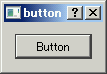
QMainWindow の代りに QDialog を用いている。メニュー同様、ボタンにも "&" でアクセスキーを設定できる。
Enter でボタンを押せるようにするには、次のように設定すればよい。
button.setAutoDefault(True)
ボタンにフォーカスを設定するには、次のようにする。
button.setDefault(True)
Ok/Cancel ボタンが必要であれば、QDialogButtonBox を用いる方法がある。
button_box.py
import sys
from PyQt5.QtWidgets import QDialog, QApplication
from PyQt5.QtWidgets import QDialogButtonBox, QVBoxLayout


class Main(QDialog):
    def __init__(self, parent=None):
        super().__init__(parent)

        box = QDialogButtonBox(QDialogButtonBox.Ok | QDialogButtonBox.Cancel)

        box.accepted.connect(self.okButtonClicked)
        box.rejected.connect(self.cancelButtonClicked)

        layout = QVBoxLayout()
        layout.addWidget(box)

        self.setLayout(layout)

        self.setWindowTitle("button box")
        self.show()

    def okButtonClicked(self):
        print("ok")

    def cancelButtonClicked(self):
        print("cancel")


if __name__ == "__main__":
    app = QApplication(sys.argv)
    win = Main()
    sys.exit(app.exec_())

ダイアログとウインドウ
ダイアログは QDialog で作成できる。たとえば、タイトルのないダイアログを作ることもできる。
dialog = QDialog(parent, Qt.CustomizeWindowHint)
あるいは
dialog = QDialog(parent, Qt.FramelessWindowHint)
QWidget から好きなウインドウタイプを作ることも可能。
dialog = QWidget(self)
dialog.setWindowFlags(Qt.Dialog | Qt.CustomizeWindowHint)
ダイアログのサイズを固定することもできる。
dialog.setFixedSize(dialog.size())
これらを用いてスプラッシュスクリーンを作ることも可能。
メッセージボックス
message_box.py
import sys
from PyQt5.QtWidgets import QDialog, QApplication
from PyQt5.QtWidgets import QPushButton, QVBoxLayout
from PyQt5.QtWidgets import QMessageBox


class Main(QDialog):
    def __init__(self, parent=None):
        super().__init__(parent)

        button = QPushButton("Show message box")
        button.clicked.connect(self.buttonClicked)

        layout = QVBoxLayout()
        layout.addWidget(button)

        self.setLayout(layout)

        self.setWindowTitle("message box")
        self.show()

    def buttonClicked(self):
        reply = QMessageBox.question(self, "Message", "Yes/No?",
                    QMessageBox.Yes | QMessageBox.No, QMessageBox.No)

        if reply == QMessageBox.Yes:
            print("Yes")
        else:
            print("No")


if __name__ == "__main__":
    app = QApplication(sys.argv)
    win = Main()
    sys.exit(app.exec_())

show() の代わりに exec() を用いるとモーダルになる (閉じるまで先に進まない)。
情報を表示するだけなら、次のようにできる。
QMessageBox.information(self, "Information", "message")
エラーメッセージなら、次のようになる。
QMessageBox.critical(self, "Error", "message")
警告。
QMessage.warning(self, "Warning", "message")
プログラムの情報を表示する about。Window にアイコンが設定されていればそれが表示される。
QMessage.about(self, "About", "myprogram v0.1")
アイコンの設定は、ウインドウに対して次のようにする。
from PyQt5.QtGui import QIcon

self.setWindowIcon(QIcon("icon.png"))
チェックボックス
check_box.py
import sys
from PyQt5.QtWidgets import QDialog, QApplication
from PyQt5.QtWidgets import QCheckBox, QPushButton, QVBoxLayout


class Main(QDialog):
    def __init__(self, parent=None):
        super().__init__(parent)

        self.check1 = QCheckBox("Check1")
        self.check2 = QCheckBox("Check2")
        self.check1.setChecked(True)

        button = QPushButton("Check")
        button.clicked.connect(self.buttonClicked)

        layout = QVBoxLayout()
        layout.addWidget(self.check1)
        layout.addWidget(self.check2)
        layout.addWidget(button)

        self.setLayout(layout)

        self.setWindowTitle("check box")
        self.show()

    def buttonClicked(self):
        print("Check1: %d" % self.check1.isChecked())
        print("Check2: %d" % self.check2.isChecked())


if __name__ == "__main__":
    app = QApplication(sys.argv)
    win = Main()
    sys.exit(app.exec_())

ラジオボタン
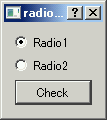
radio_button.py
import sys
from PyQt5.QtWidgets import QDialog, QApplication
from PyQt5.QtWidgets import QRadioButton, QButtonGroup
from PyQt5.QtWidgets import QPushButton, QVBoxLayout


class Main(QDialog):
    def __init__(self, parent=None):
        super().__init__(parent)

        radio1 = QRadioButton("Radio1")
        radio2 = QRadioButton("Radio2")

        self.group = QButtonGroup()
        self.group.addButton(radio1, 1)
        self.group.addButton(radio2, 2)
        radio1.toggle()

        button = QPushButton("Check")
        button.clicked.connect(self.buttonClicked)

        layout = QVBoxLayout()
        layout.addWidget(radio1)
        layout.addWidget(radio2)
        layout.addWidget(button)

        self.setLayout(layout)

        self.setWindowTitle("radio button")
        self.show()

    def buttonClicked(self):
        print("Radio: %d" % self.group.checkedId())


if __name__ == "__main__":
    app = QApplication(sys.argv)
    win = Main()
    sys.exit(app.exec_())
コンボボックス
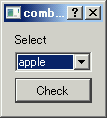
combo_box.py
import sys
from PyQt5.QtWidgets import QDialog, QApplication
from PyQt5.QtWidgets import QLabel, QComboBox
from PyQt5.QtWidgets import QPushButton, QVBoxLayout


class Main(QDialog):
    def __init__(self, parent=None):
        super().__init__(parent)

        label = QLabel("Select")

        self.combo = QComboBox(self)
        self.combo.addItem("apple")
        self.combo.addItem("banana")
        self.combo.addItem("lemon")
        self.combo.addItem("orange")

        button = QPushButton("Check")
        button.clicked.connect(self.buttonClicked)

        layout = QVBoxLayout()
        layout.addWidget(label)
        layout.addWidget(self.combo)
        layout.addWidget(button)

        self.setLayout(layout)

        self.setWindowTitle("combo box")
        self.show()

    def buttonClicked(self):
        print("Combo: %d, %s"
                % (self.combo.currentIndex(), self.combo.currentText()))


if __name__ == "__main__":
    app = QApplication(sys.argv)
    win = Main()
    sys.exit(app.exec_())
指定の項目に設定するには次のようにする。
i = combo.findText(item)
combo.setCurrentIndex(i)
入力
input.py
import sys
from PyQt5.QtWidgets import QDialog, QApplication
from PyQt5.QtWidgets import QLabel, QLineEdit
from PyQt5.QtWidgets import QPushButton, QVBoxLayout


class Main(QDialog):
    def __init__(self, parent=None):
        super().__init__(parent)

        label = QLabel("Input")
        self.edit = QLineEdit()

        button = QPushButton("Check")
        button.clicked.connect(self.buttonClicked)

        layout = QVBoxLayout()
        layout.addWidget(label)
        layout.addWidget(self.edit)
        layout.addWidget(button)

        self.setLayout(layout)

        self.setWindowTitle("input")
        self.show()

    def buttonClicked(self):
        print(self.edit.text())


if __name__ == "__main__":
    app = QApplication(sys.argv)
    win = Main()
    sys.exit(app.exec_())

入力を制限する場合、次のようなものを用意する。
from PyQt5.QtGui import QValidator

class LimitedEdit(QLineEdit):
    def __init__(self, text="", parent=None):
        super().__init__(text, parent)
        self.textChanged.connect(self.textChangedFunc)
        self.valid = False

    def textChangedFunc(self, text):
        if self.validator() is None:
            return

        state = self.validator().validate(text, 0)
        if state[0] == QValidator.Intermediate:
            self.setValid(False)
        else:
            self.setValid(True)

    def setValid(self, b):
        self.valid = b
        if b:
            self.setStyleSheet("QLineEdit {background: white}")
        else:
            self.setStyleSheet("QLineEdit {background: pink}")
もし、入力が正しくない限りフォーカスを移動させたくない場合は、次のメソッドを追加する。
    def focusOutEvent(self, e):
        state = self.validator().validate(self.text(), 0)
        if state[0] == QValidator.Intermediate:
            self.setFocus()
        else:
            super().focusOutEvent(e)
入力を実数に限定する場合は、LimitedEdit を用いて次のように実装できる。
from PyQt5.QtGui import QDoubleValidator

class DoubleEdit(LimitedEdit):
    def __init__(self, text="0", parent=None):
        super().__init__(text, parent)
        self.setValidator(QDoubleValidator())
        self.textChangedFunc(text)

    def setBottom(self, bottom):
        self.validator().setBottom(bottom)
値を 0 以上に限定したい場合は、setBottom() で 0 を設定すればよい。
同様に、入力を整数に限定する場合は、次のようにする。
from PyQt5.QtGui import QIntValidator

class IntEdit(LimitedEdit):
    def __init__(self, text="0", parent=None):
        super().__init__(text, parent)
        self.setValidator(QIntValidator())
        self.textChangedFunc(text)

    def setBottom(self, bottom):
        self.validator().setBottom(bottom)
たとえば、MAC アドレスを受け付ける場合は、次のようにできる。
class MacEdit(LimitedEdit):
    class MacValidator(QValidator):
        def validate(self, arg__1, arg__2):
            if len(arg__1) > 12:
                return (QValidator.Invalid,)

            m = re.match("[\da-f]*", arg__1)

            if m and m.group() == arg__1:
                if len(arg__1) < 12:
                    return (QValidator.Intermediate,)
                else:
                    return (QValidator.Acceptable,)
            else:
                return (QValidator.Invalid,)

    def __init__(self, text="", parent=None):
        super().__init__(text, parent)
        self.setValidator(self.MacValidator())
        self.textChangedFunc(text)
プログラムで入力を設定するには、setText() を使えば良い。
self.edit.setText("text")
編集させないようにするには、setEnabled(False) とするか、setReadOnly(True) とする。見た目が異なる。
テキスト
text.py
import sys
from PyQt5.QtWidgets import QDialog, QApplication
from PyQt5.QtWidgets import QTextEdit, QPushButton, QVBoxLayout


class Main(QDialog):
    def __init__(self, parent=None):
        super().__init__(parent)

        self.text = QTextEdit()

        button = QPushButton("Check")
        button.clicked.connect(self.buttonClicked)

        layout = QVBoxLayout()
        layout.addWidget(self.text)
        layout.addWidget(button)

        self.setLayout(layout)

        self.setWindowTitle("text")
        self.show()

    def buttonClicked(self):
        print(self.text.toPlainText())


if __name__ == "__main__":
    app = QApplication(sys.argv)
    win = Main()
    sys.exit(app.exec_())

テーブル
table.py
import sys
from PyQt5.QtWidgets import QDialog, QApplication
from PyQt5.QtWidgets import QTableWidget, QTableWidgetItem
from PyQt5.QtWidgets import QPushButton, QVBoxLayout


class Main(QDialog):
    def __init__(self, parent=None):
        super().__init__(parent)

        table = QTableWidget(2, 3)
        self.table = table

        header = ["A", "B", "C"]
        data = [["apple", "1", "100"], ["banana", "2", "200"]]

        table.setHorizontalHeaderLabels(header)

        for i in range(len(data)):
            for j in range(len(data[i])):
                table.setItem(i, j, QTableWidgetItem(data[i][j]))

        button = QPushButton("Check")
        button.clicked.connect(self.buttonClicked)

        layout = QVBoxLayout()
        layout.addWidget(table)
        layout.addWidget(button)

        self.setLayout(layout)

        self.setWindowTitle("table")
        self.show()

    def buttonClicked(self):
        for i in range(self.table.rowCount()):
            for j in range(self.table.columnCount()):
                print(self.table.item(i, j).text(), end=" ")
            print()


if __name__ == "__main__":
    app = QApplication(sys.argv)
    win = Main()
    sys.exit(app.exec_())

リスト
list.py
import sys
from PyQt5.QtWidgets import QDialog, QApplication
from PyQt5.QtWidgets import QListWidget, QPushButton, QVBoxLayout


class Main(QDialog):
    def __init__(self, parent=None):
        super().__init__(parent)

        listWidget = QListWidget()
        self.listWidget = listWidget

        listWidget.addItem("apple")
        listWidget.addItem("banana")
        listWidget.addItem("lemon")
        listWidget.addItem("orenge")

        button = QPushButton("Check")
        button.clicked.connect(self.buttonClicked)

        layout = QVBoxLayout()
        layout.addWidget(listWidget)
        layout.addWidget(button)

        self.setLayout(layout)

        self.setWindowTitle("list")
        self.show()

    def buttonClicked(self):
        for i in range(self.listWidget.count()):
            print(self.listWidget.item(i).text())

if __name__ == "__main__":
    app = QApplication(sys.argv)
    win = Main()
    sys.exit(app.exec_())

ツリー
ツリーを作るには QTreeWidget を用いる。
tree.py
import sys
from PyQt5.QtWidgets import QDialog, QApplication
from PyQt5.QtWidgets import QTreeWidget, QTreeWidgetItem
from PyQt5.QtWidgets import QPushButton, QVBoxLayout
from PyQt5.QtCore import Qt


class Main(QDialog):
    def __init__(self, parent=None):
        super().__init__(parent)

        tree_widget = QTreeWidget()
        self.tree_widget = tree_widget
        tree_widget.setAlternatingRowColors(True)

        branch1 = QTreeWidgetItem()
        branch1.setText(0, "branch1")

        branch2 = QTreeWidgetItem()
        branch2.setText(0,"branch2")

        def addItem(branch, name, num, num2):
            item = QTreeWidgetItem(branch)
            item.setFlags(item.flags() | Qt.ItemIsEditable)
            item.setText(0, name)
            item.setText(1, str(num))
            item.setText(2, str(num2))

        addItem(branch1, "apple", 1, 100)
        addItem(branch1, "banana", 2, 200)
        addItem(branch2, "lemon", 3, 300)
        addItem(branch2, "orange", 4, 400)

        tree_widget.addTopLevelItem(branch1)
        tree_widget.addTopLevelItem(branch2)

        tree_widget.setColumnCount(3)
        tree_widget.setHeaderLabels(["A", "B", "C"])

        branch1.setExpanded(True)
        branch2.setExpanded(True)

        button = QPushButton("Check")
        button.clicked.connect(self.buttonClicked)

        layout = QVBoxLayout()
        layout.addWidget(tree_widget)
        layout.addWidget(button)

        self.setLayout(layout)

        self.setWindowTitle("tree")
        self.show()

    def buttonClicked(self):
        for i in range(self.tree_widget.topLevelItemCount()):
            branch = self.tree_widget.topLevelItem(i)
            print(branch.text(0))
            for j in range(branch.childCount()):
                item = branch.child(j)
                print("  ", end="")
                for k in range(item.columnCount()):
                    print(item.text(k), end=" ")
                print()

        print("find: lemon")
        items = self.tree_widget.findItems("lemon", Qt.MatchRecursive)
        item = items[0]
        print("  ", end="")
        for k in range(item.columnCount()):
            print(item.text(k), end=" ")
        print()


if __name__ == "__main__":
    app = QApplication(sys.argv)
    win = Main()
    sys.exit(app.exec_())

ヘッダーを非表示にしたい場合は、次のようにする。
treeWidget.setHeaderHidden(True)
あるいは
treeWidget.header().hide()
アイテムを編集できるようにしたい場合は、次のようにする。
item.setFlags(item.flags() | Qt.ItemIsEditable)
QTreeWidget オブジェクトのトップレベルのアイテム数を得たい場合は、topLevelItemCount() を使えばよい。アイテムは takeTopLevelItem(0) で 1 つ消せる。clear() ですべて消せる。
チェックボックス付きツリー
check_tree.py
import sys
from PyQt5.QtWidgets import QDialog, QApplication
from PyQt5.QtWidgets import QTreeWidget, QTreeWidgetItem
from PyQt5.QtWidgets import QVBoxLayout
from PyQt5.QtWidgets import QMenu, qApp
from PyQt5.QtCore import Qt


class Main(QDialog):
    def __init__(self, parent=None):
        super().__init__(parent)

        tree_widget = QTreeWidget()
        self.tree_widget = tree_widget

        tree_widget.setContextMenuPolicy(Qt.CustomContextMenu)
        tree_widget.customContextMenuRequested.connect(self.contextMenu)

        branch1 = QTreeWidgetItem()
        branch1.setData(0, Qt.CheckStateRole, Qt.Checked)
        branch1.setText(0, "branch1")

        branch2 = QTreeWidgetItem()
        branch2.setData(0, Qt.CheckStateRole, Qt.Checked)
        branch2.setText(0,"branch2")

        def addItem(branch, name, num, num2):
            item = QTreeWidgetItem(branch)
            item.setData(0, Qt.CheckStateRole, Qt.Checked)
            item.setText(0, name)
            item.setText(1, str(num))
            item.setText(2, str(num2))

        addItem(branch1, "apple", 1, 100)
        addItem(branch1, "banana", 2, 200)
        addItem(branch2, "lemon", 3, 300)
        addItem(branch2, "orange", 4, 400)

        tree_widget.addTopLevelItem(branch1)
        tree_widget.addTopLevelItem(branch2)

        tree_widget.setColumnCount(3)
        tree_widget.setHeaderLabels(["A", "B", "C"])

        tree_widget.itemClicked.connect(self.selectItem)
        tree_widget.itemChanged.connect(self.changeItem)

        branch1.setExpanded(True)
        branch2.setExpanded(True)

        layout = QVBoxLayout()
        layout.addWidget(tree_widget)

        self.setLayout(layout)

        self.setWindowTitle("check_tree")
        self.show()

    def selectItem(self):
        if self.tree_widget.selectedItems() == []:
            return
        item = self.tree_widget.selectedItems()[0]
        print(item.text(0))

    def changeItem(self, item, column):
        if item.childCount() > 0:
            self.checkBranch(item, item.checkState(0))

        for i in range(self.tree_widget.topLevelItemCount()):
            branch = self.tree_widget.topLevelItem(i)
            print(branch.text(0))
            for j in range(branch.childCount()):
                item = branch.child(j)
                if item.checkState(0):
                    print("  ", end="")
                    for k in range(item.columnCount()):
                        print(item.text(k), end=" ")
                    print()

    def checkBranch(self, branch, check=2):
        for i in range(branch.childCount()):
            item = branch.child(i)
            item.setCheckState(0, check)

    def checkAll(self, check=2):
        for i in range(self.tree_widget.topLevelItemCount()):
            branch = self.tree_widget.topLevelItem(i)
            branch.setCheckState(0, check)
            self.checkBranch(branch, check)

    def contextMenu(self, point):
        menu = QMenu(self)
        check_all = menu.addAction("Check all")
        uncheck_all = menu.addAction("Uncheck all")

        action = menu.exec_(self.mapToGlobal(point))

        if action == check_all:
            self.checkAll()
        elif action == uncheck_all:
            self.checkAll(0)


if __name__ == "__main__":
    app = QApplication(sys.argv)
    win = Main()
    sys.exit(app.exec_())

アイテムにチェックボックスをつけたい場合は、次のようにする。
item.setData(0, Qt.CheckStateRole, Qt.Checked)
上の例では、親のチェックに応じて子のチェックを切り替えるようにしている。またポップアップメニューで全選択・解除を実行できるようにしている。
QTreeView
QTreeWidget の代わりに QTreeView でもツリーを作ることができる。
tree2.py
import sys
from PyQt5.QtWidgets import QDialog, QApplication
from PyQt5.QtWidgets import QPushButton, QVBoxLayout
from PyQt5.QtWidgets import QTreeView
from PyQt5.QtGui import QStandardItemModel, QStandardItem
from PyQt5.QtCore import Qt


class Main(QDialog):
    def __init__(self, parent=None):
        super().__init__(parent)

        model = QStandardItemModel(0, 3, self)
        self.tree_model = model

        root = model.invisibleRootItem()
        branch1 = QStandardItem("branch1")
        branch2 = QStandardItem("branch2")

        def addItem(branch, name, num, num2):
            item_name = QStandardItem(name)
            item_num = QStandardItem(str(num))
            item_num2 = QStandardItem(str(num2))

            item_name.setEditable(False)
            item_num.setEditable(True)
            item_num2.setEditable(True)

            branch.appendRow([item_name, item_num, item_num2])

        addItem(branch1, "apple", 1, 100)
        addItem(branch1, "banana", 2, 200)
        addItem(branch2, "lemon", 3, 300)
        addItem(branch2, "orange", 4, 400)

        root.appendRow(branch1)
        root.appendRow(branch2)

        model.setHeaderData(0, Qt.Horizontal, "A")
        model.setHeaderData(1, Qt.Horizontal, "B")
        model.setHeaderData(2, Qt.Horizontal, "C")

        tree_view = QTreeView()
        self.tree_view = tree_view

        tree_view.setModel(model)
        tree_view.setAlternatingRowColors(True)
        tree_view.expandAll()

        button = QPushButton("Check")
        button.clicked.connect(self.buttonClicked)

        layout = QVBoxLayout()
        layout.addWidget(tree_view)
        layout.addWidget(button)

        self.setLayout(layout)

        self.setWindowTitle("tree")
        self.show()

    def buttonClicked(self):
        model = self.tree_model
        for i in range(model.rowCount()):
            branch = model.index(i, 0)
            print(branch.data())
            for j in range(branch.model().rowCount()):
                print("  ", end="")
                for k in range(branch.model().columnCount()):
                    print(branch.child(j, k).data(), end=" ")
                print()


if __name__ == "__main__":
    app = QApplication(sys.argv)
    win = Main()
    sys.exit(app.exec_())
ファイルシステムの表示
TreeView を使うと、ファイルシステムの表示などができる。
filesystem.py
import sys
from PyQt5.QtWidgets import QDialog, QApplication
from PyQt5.QtWidgets import QVBoxLayout
from PyQt5.QtWidgets import QTreeView, QFileSystemModel
from PyQt5.QtCore import QDir


class Main(QDialog):
    def __init__(self, parent=None):
        super().__init__(parent)

        model = QFileSystemModel()
        index = model.setRootPath(QDir.currentPath())

        tree_view = QTreeView()
        tree_view.setModel(model)
        tree_view.setRootIndex(index)

        layout = QVBoxLayout()
        layout.addWidget(tree_view)
        self.setLayout(layout)

        self.setWindowTitle("filesystem")
        self.resize(640, 480)
        self.show()


if __name__ == "__main__":
    app = QApplication(sys.argv)
    win = Main()
    sys.exit(app.exec_())

タブ
tab.py
import sys
from PyQt5.QtWidgets import QWidget, QApplication
from PyQt5.QtWidgets import QHBoxLayout, QTabWidget
from PyQt5.QtWidgets import QRadioButton, QButtonGroup
from PyQt5.QtWidgets import QCheckBox, QLabel, QComboBox
from PyQt5.QtWidgets import QPushButton, QVBoxLayout


class RadioWidget(QWidget):
    def __init__(self, parent=None):
        super().__init__(parent)

        radio1 = QRadioButton("Radio1")
        radio2 = QRadioButton("Radio2")

        self.group = QButtonGroup()
        self.group.addButton(radio1, 1)
        self.group.addButton(radio2, 2)
        radio1.toggle()

        button = QPushButton("Check")
        button.clicked.connect(self.buttonClicked)

        layout = QVBoxLayout()
        layout.addWidget(radio1)
        layout.addWidget(radio2)
        layout.addWidget(button)

        self.setLayout(layout)

    def buttonClicked(self):
        print("Radio: %d" % self.group.checkedId())


class CheckWidget(QWidget):
    def __init__(self, parent=None):
        super().__init__(parent)

        self.check1 = QCheckBox("Check1")
        self.check2 = QCheckBox("Check2")
        self.check1.setChecked(True)

        button = QPushButton("Check")
        button.clicked.connect(self.buttonClicked)

        layout = QVBoxLayout()
        layout.addWidget(self.check1)
        layout.addWidget(self.check2)
        layout.addWidget(button)

        self.setLayout(layout)

    def buttonClicked(self):
        print("Check1: %d" % self.check1.isChecked())
        print("Check2: %d" % self.check2.isChecked())


class ComboWidget(QWidget):
    def __init__(self, parent=None):
        super().__init__(parent)

        label = QLabel("Select")

        self.combo = QComboBox(self)
        self.combo.addItem("apple")
        self.combo.addItem("banana")
        self.combo.addItem("lemon")
        self.combo.addItem("orange")

        button = QPushButton("Check")
        button.clicked.connect(self.buttonClicked)

        layout = QVBoxLayout()
        layout.addWidget(label)
        layout.addWidget(self.combo)
        layout.addWidget(button)

        self.setLayout(layout)

    def buttonClicked(self):
        print("Combo: %d, %s"
                % (self.combo.currentIndex(), self.combo.currentText()))


class Main(QWidget):
    def __init__(self):
        super().__init__()

        widget1 = RadioWidget(self)
        widget2 = CheckWidget(self)
        widget3 = ComboWidget(self)

        tab = QTabWidget()
        tab.addTab(widget1, "radio")
        tab.addTab(widget2, "check")
        tab.addTab(widget3, "combo")

        layout = QHBoxLayout(self)
        layout.addWidget(tab)

        self.setLayout(layout)

        self.setWindowTitle("tab")
        self.show()


if __name__ == "__main__":
    app = QApplication(sys.argv)
    win = Main()
    sys.exit(app.exec_())

タブのラベルを横にすることもできる。
tab2.py (抜粋)
...

from PyQt5.QtWidgets import QTabBar, QStylePainter,QStyleOptionTab, QStyle
from PyQt5.QtCore import QRect, QPoint

...

class TabBar(QTabBar):
    def tabSizeHint(self, index):
        s = QTabBar.tabSizeHint(self, index)
        s.transpose()
        return s

    def paintEvent(self, event):
        painter = QStylePainter(self)
        opt = QStyleOptionTab()

        for i in range(self.count()):
            self.initStyleOption(opt, i)
            painter.drawControl(QStyle.CE_TabBarTabShape, opt)
            painter.save()

            s = opt.rect.size()
            s.transpose()
            r = QRect(QPoint(), s)
            r.moveCenter(opt.rect.center())
            opt.rect = r

            c = self.tabRect(i).center()
            painter.translate(c)
            painter.rotate(90)
            painter.translate(-c)
            painter.drawControl(QStyle.CE_TabBarTabLabel, opt);
            painter.restore()

class Main(QWidget):
    def __init__(self):
        super().__init__()

        widget1 = RadioWidget(self)
        widget2 = CheckWidget(self)
        widget3 = ComboWidget(self)

        tab = QTabWidget()
        tab.setTabBar(TabBar(self))
        tab.setTabPosition(QTabWidget.West)

        tab.addTab(widget1, "radio")
        tab.addTab(widget2, "check")
        tab.addTab(widget3, "combo")
        ...

ウインドウの分割
splitter.py
import sys
from PyQt5.QtWidgets import QWidget, QApplication
from PyQt5.QtWidgets import QHBoxLayout, QFrame, QSplitter
from PyQt5.QtWidgets import QRadioButton, QButtonGroup
from PyQt5.QtWidgets import QCheckBox, QLabel, QComboBox
from PyQt5.QtWidgets import QPushButton, QVBoxLayout
from PyQt5.QtCore import Qt


class RadioFrame(QFrame):
    def __init__(self, parent=None):
        super().__init__(parent)

        radio1 = QRadioButton("Radio1")
        radio2 = QRadioButton("Radio2")

        self.group = QButtonGroup()
        self.group.addButton(radio1, 1)
        self.group.addButton(radio2, 2)
        radio1.toggle()

        button = QPushButton("Check")
        button.clicked.connect(self.buttonClicked)

        layout = QVBoxLayout()
        layout.addWidget(radio1)
        layout.addWidget(radio2)
        layout.addWidget(button)

        self.setLayout(layout)

    def buttonClicked(self):
        print("Radio: %d" % self.group.checkedId())


class CheckFrame(QFrame):
    def __init__(self, parent=None):
        super().__init__(parent)

        self.check1 = QCheckBox("Check1")
        self.check2 = QCheckBox("Check2")
        self.check1.setChecked(True)

        button = QPushButton("Check")
        button.clicked.connect(self.buttonClicked)

        layout = QVBoxLayout()
        layout.addWidget(self.check1)
        layout.addWidget(self.check2)
        layout.addWidget(button)

        self.setLayout(layout)

    def buttonClicked(self):
        print("Check1: %d" % self.check1.isChecked())
        print("Check2: %d" % self.check2.isChecked())


class ComboFrame(QFrame):
    def __init__(self, parent=None):
        super().__init__(parent)

        label = QLabel("Select")

        self.combo = QComboBox(self)
        self.combo.addItem("apple")
        self.combo.addItem("banana")
        self.combo.addItem("lemon")
        self.combo.addItem("orange")

        button = QPushButton("Check")
        button.clicked.connect(self.buttonClicked)

        layout = QVBoxLayout()
        layout.addWidget(label)
        layout.addWidget(self.combo)
        layout.addWidget(button)

        self.setLayout(layout)

    def buttonClicked(self):
        print("Combo: %d, %s"
                % (self.combo.currentIndex(), self.combo.currentText()))


class Main(QWidget):
    def __init__(self):
        super().__init__()

        hbox = QHBoxLayout(self)

        frame1 = RadioFrame(self)
        frame1.setFrameShape(QFrame.Panel)

        frame2 = CheckFrame(self)
        frame2.setFrameShape(QFrame.Panel)

        splitter1 = QSplitter(Qt.Horizontal)
        splitter1.addWidget(frame1)
        splitter1.addWidget(frame2)
        splitter1.setHandleWidth(10)

        frame3 = ComboFrame(self)
        frame3.setFrameShape(QFrame.Panel)

        splitter2 = QSplitter(Qt.Vertical)
        splitter2.addWidget(splitter1)
        splitter2.addWidget(frame3)

        hbox.addWidget(splitter2)
        self.setLayout(hbox)

        self.setWindowTitle("splitter")
        self.show()


if __name__ == "__main__":
    app = QApplication(sys.argv)
    win = Main()
    sys.exit(app.exec_())

QSplitter オブジェクトのサイズの指定は、次のようにする。
splitter.setSizes(
    [0.23*window_width, 0.27*window_width, 0.5*window_width]
)
ステータスバー
status_bar.py
import sys
from PyQt5.QtWidgets import QMainWindow, QApplication, QDesktopWidget
from PyQt5.QtWidgets import QStatusBar


class Main(QMainWindow):
    def __init__(self):
        super().__init__()

        statusBar = QStatusBar(self)
        statusBar.showMessage("status bar")
        self.setStatusBar(statusBar)

        self.setWindowTitle("status bar")

        self.resize(320, 240)
        self.show()


if __name__ == "__main__":
    app = QApplication(sys.argv)
    win = Main()
    sys.exit(app.exec_())

ドック
dock.py
import sys
from PyQt5.QtWidgets import QMainWindow, QApplication, QDesktopWidget
from PyQt5.QtWidgets import QDockWidget, QWidget
from PyQt5.QtWidgets import QHBoxLayout, QTabWidget
from PyQt5.QtWidgets import QRadioButton, QButtonGroup
from PyQt5.QtWidgets import QCheckBox, QLabel, QComboBox
from PyQt5.QtWidgets import QPushButton, QVBoxLayout
from PyQt5.QtCore import Qt


class RadioWidget(QWidget):
    def __init__(self, parent=None):
        super().__init__(parent)

        radio1 = QRadioButton("Radio1")
        radio2 = QRadioButton("Radio2")

        self.group = QButtonGroup()
        self.group.addButton(radio1, 1)
        self.group.addButton(radio2, 2)
        radio1.toggle()

        button = QPushButton("Check")
        button.clicked.connect(self.buttonClicked)

        layout = QVBoxLayout()
        layout.addWidget(radio1)
        layout.addWidget(radio2)
        layout.addWidget(button)

        self.setLayout(layout)

    def buttonClicked(self):
        print("Radio: %d" % self.group.checkedId())


class CheckWidget(QWidget):
    def __init__(self, parent=None):
        super().__init__(parent)

        self.check1 = QCheckBox("Check1")
        self.check2 = QCheckBox("Check2")
        self.check1.setChecked(True)

        button = QPushButton("Check")
        button.clicked.connect(self.buttonClicked)

        layout = QVBoxLayout()
        layout.addWidget(self.check1)
        layout.addWidget(self.check2)
        layout.addWidget(button)

        self.setLayout(layout)

    def buttonClicked(self):
        print("Check1: %d" % self.check1.isChecked())
        print("Check2: %d" % self.check2.isChecked())


class ComboWidget(QWidget):
    def __init__(self, parent=None):
        super().__init__(parent)

        label = QLabel("Select")

        self.combo = QComboBox(self)
        self.combo.addItem("apple")
        self.combo.addItem("banana")
        self.combo.addItem("lemon")
        self.combo.addItem("orange")

        button = QPushButton("Check")
        button.clicked.connect(self.buttonClicked)

        layout = QVBoxLayout()
        layout.addWidget(label)
        layout.addWidget(self.combo)
        layout.addWidget(button)

        self.setLayout(layout)

    def buttonClicked(self):
        print("Combo: %d, %s"
                % (self.combo.currentIndex(), self.combo.currentText()))


class Main(QMainWindow):
    def __init__(self):
        super().__init__()

        dock1 = QDockWidget("dock1", self)
        dock1.setWidget(RadioWidget(self))
        self.addDockWidget(Qt.LeftDockWidgetArea, dock1)

        dock2 = QDockWidget("dock2", self)
        dock2.setWidget(CheckWidget(self))
        self.addDockWidget(Qt.RightDockWidgetArea, dock2)

        self.setCentralWidget(ComboWidget(self))

        self.setWindowTitle("dock")
        self.resize(640, 480)
        self.show()


if __name__ == "__main__":
    app = QApplication(sys.argv)
    win = Main()
    sys.exit(app.exec_())

ドックは取り外し可能で、移動したり、再度別の場所に組み込んだり、ドック同士を重ねたりできる。
グリッドレイアウト
QVBoxLayout、QHBoxLayout の他に、グリッド状に部品を配置する QGridLayout もある。
grid_layout.py
import sys
from PyQt5.QtWidgets import QDialog, QApplication
from PyQt5.QtWidgets import QLabel, QLineEdit
from PyQt5.QtWidgets import QPushButton, QGridLayout
from PyQt5.QtCore import Qt


class Main(QDialog):
    def __init__(self, parent=None):
        super().__init__(parent)

        label = QLabel("Input")
        self.edit = QLineEdit()

        button = QPushButton("Check")
        button.clicked.connect(self.buttonClicked)

        layout = QGridLayout()
        layout.setSpacing(10)
        layout.addWidget(label, 0, 0)
        layout.addWidget(self.edit, 0, 1)
        layout.addWidget(button, 1, 0, 1, 2)

        self.setLayout(layout)

        self.setWindowTitle("grid_layout")
        self.show()

    def buttonClicked(self):
        print(self.edit.text())


if __name__ == "__main__":
    app = QApplication(sys.argv)
    win = Main()
    sys.exit(app.exec_())

グリッドレイアウトをボックスレイアウトに入れてしまってもよい。
        grid = QGridLayout()
        grid.setSpacing(10)
        grid.addWidget(label, 0, 0)
        grid.addWidget(self.edit, 0, 1)
        grid.addWidget(button, 1, 0, 1, 2)

        layout = QVBoxLayout()
        layout.addLayout(grid)
        layout.addStretch(1)
最後の addStretch() は詰め物である。
スペースを作るには、QSpacerItem をアイテムとして追加すればよい。
from PyQt5.QtWidgets import QSpacerItem

layout.addItem(QSpacerItem(100, 10), 2, 0, 1, 2)
単純に QLabel("") を入れるのでもよいかもしれない。
いろいろ
セパレータ
GUI の飾りとして使うセパレータは、次のように作成できる。
separator = QFrame()
separator.setFrameShape(QFrame.HLine)
separator.setFrameShadow(QFrame.Sunken)
ウインドウにアクセスする
widget のクラスの中でウインドウにアクセスしたい場合は、次のようにすればよい。
self.window()
ウインドウを表に出す
ウインドウを表に出すには、フォーカスを設定すればよい。
self.setFocus()
ウインドウを常に表に出す
ウインドウを常に表に出しておきたい場合は、次のようにフラグを設定する。
self.setWindowFlags(Qt.WindowStaysOnTopHint)
カーソルの変更
たとえば、処理待ちのカーソルを表示するには次のようにする。
QApplication.setOverrideCursor(Qt.WaitCursor)
...
QApplication.restoreOverrideCursor()
タブストップの順番の設定
たとえば、同じウインドウに属するウィジット a から b に移動する順番にしたい場合は、以下のようにする。
QWidget.setTabOrder(a, b)
ウィジットの削除
ウィジットを削除したい場合は、次のようにする (box は ボックスレイアウト)。
self.box.removeWidget(separator)
separator.deleteLater()
終了確認
アプリケーションの終了確認をしたい場合は、ウインドウの closeEvent() を拾えばよい。
    def closeEvent(self, e):
        r = QMessageBox.question(self,
                program_name, "Quit the application?",
                QMessageBox.Ok | QMessageBox.Cancel, QMessageBox.Cancel)

        if r == QMessageBox.Cancel:
            e.ignore()
メニューの終了処理も、quit ではなく close と接続する。
        quit_action = QAction("&Quit", self)
        quit_action.setShortcut("Ctrl+Q")
        #quit_action.triggered.connect(qApp.quit)
        quit_action.triggered.connect(self.close)
ラベルの文字サイズの設定
from PyQt5.QtGui import QFont

label = QLabel("text")
font = QFont()
font.setPointSize(32)
label.setFont(font)
全文字サイズの設定
スタイルシートを用いると、全文字サイズを設定できる。
app = QApplication(sys.argv)
app.setStyleSheet("*{font-size: 11pt;}")
ただ、これをやってしまうと、setFont() の設定が効かなくなるので、こちらもスタイルシートを用いる必要がある。
label = QLabel("test")
#font = QFont()
#font.setPointSize(32)
#label.setFont(font)
label.setStyleSheet("QLabel{font-size: 32pt;}")
レイアウトの隙間
部品の外側の隙間の設定は、次のようにする。引数はそれぞれ left、top、right、bottom。
layout.setContentsMargins(0, 0, 0, 0)
部品間の隙間の設定は次のようにする。
layout.setSpacing(10)
レイアウトへのウィジットの追加と削除
layout.addLayout(widget)
layout.removeItem(widget)
レイアウト内でのウィジット配置の調整
上に寄せる。
layout.setAlignment(Qt.AlignTop)
絵の描画
絵の描画
draw.py
import sys
from PyQt5.QtWidgets import QMainWindow, QApplication, QDesktopWidget
from PyQt5.QtGui import QPainter, QColor, QFont, QPen
from PyQt5.QtCore import Qt


class Main(QMainWindow):
    def __init__(self):
        super().__init__()

        self.setWindowTitle("draw")

        self.resize(320, 240)
        self.centerOnScreen()
        self.show()

    def centerOnScreen(self):
        res = QDesktopWidget().screenGeometry()
        self.move((res.width()/2) - (self.frameSize().width()/2),
                  (res.height()/2) - (self.frameSize().height()/2))

    def paintEvent(self, e):
        w = self.frameSize().width()
        h = self.frameSize().height()
        painter = QPainter(self)
        painter.setPen(Qt.white)
        painter.setBrush(Qt.white)
        painter.drawRect(0, 0, w, h)

        pen = QPen(Qt.black)
        pen.setWidth(2)
        painter.setPen(pen)
        for y in range(0, int(240/5)):
            painter.drawPoint(20, y*5)

        painter.setPen(Qt.red)
        painter.setBrush(Qt.red)
        painter.drawRect(50, 50, 100, 50)

        painter.setPen(QColor(0, 0, 255))
        painter.setBrush(QColor(0, 0, 255, 128))
        painter.drawRect(80, 80, 100, 60)

        pen = QPen(Qt.DashLine | Qt.black)
        pen.setWidth(2)
        painter.setPen(pen)
        painter.setBrush(QColor(0, 0, 0, 0))
        painter.drawEllipse(130, 156, 100, 50)

        painter.setPen(Qt.black)
        painter.setFont(QFont("Serif", 24))
        painter.drawText(200, 100, "Text")


if __name__ == "__main__":
    app = QApplication(sys.argv)
    win = Main()
    sys.exit(app.exec_())

絵の描画するには painEvent() をオーバーライドする。
マウスでクリックして線を引く
draw_line.py
import sys
from PyQt5.QtWidgets import QMainWindow, QApplication, QDesktopWidget
from PyQt5.QtGui import QPainter, QPen
from PyQt5.QtCore import Qt


class Main(QMainWindow):
    def __init__(self):
        super().__init__()

        self.setMouseTracking(True)

        self.x0, self.y0 = 0, 0
        self.x1, self.y1 = 0, 0
        self.press_count = 0

        self.setWindowTitle("draw line")

        self.resize(320, 240)
        self.centerOnScreen()
        self.show()

    def centerOnScreen(self):
        res = QDesktopWidget().screenGeometry()
        self.move((res.width()/2) - (self.frameSize().width()/2),
                  (res.height()/2) - (self.frameSize().height()/2))

    def mousePressEvent(self, e):
        if self.press_count == 0:
            self.x0, self.y0 = e.x(), e.y()
            self.x1, self.y1 = e.x(), e.y()
            self.press_count = 1
        else:
            self.x1, self.y1 = e.x(), e.y()
            self.press_count = 0

        self.update()

    def paintEvent(self, e):
        w = self.frameSize().width()
        h = self.frameSize().height()
        painter = QPainter(self)
        painter.setPen(Qt.white)
        painter.setBrush(Qt.white)
        painter.drawRect(0, 0, w, h)

        pen = QPen(Qt.black)
        pen.setWidth(2)
        painter.setPen(pen)
        painter.drawLine(self.x0, self.y0, self.x1, self.y1)


if __name__ == "__main__":
    app = QApplication(sys.argv)
    win = Main()
    sys.exit(app.exec_())

マウスをクリックしたあとに再描画させるには、update() を呼び出す。
箱をクリックして色を変える
select_box.py
import sys
from PyQt5.QtWidgets import QMainWindow, QApplication, QDesktopWidget
from PyQt5.QtGui import QPainter, QPen
from PyQt5.QtCore import Qt
import numpy as np


class Box():
    def __init__(self, x0, y0, nx, ny, dx):
        self.x0 = x0
        self.y0 = y0
        self.nx = nx
        self.ny = ny
        self.dx = dx
        self.data = np.zeros([self.nx, self.ny])

    def get_index(self, x, y):
        i = int((x - self.x0)/self.dx + 1) - 1
        j = int((y - self.y0)/self.dx + 1) - 1
        if i < 0 or i >= self.nx:
            i = -1
        if j < 0 or j >= self.ny:
            j = -1
        return i, j


class Main(QMainWindow):
    def __init__(self):
        super().__init__()

        self.setMouseTracking(True)

        self.box = Box(20, 40, 60, 40, 10)

        self.setWindowTitle("select box")

        self.resize(640, 480)
        self.centerOnScreen()
        self.show()

    def centerOnScreen(self):
        res = QDesktopWidget().screenGeometry()
        self.move((res.width()/2) - (self.frameSize().width()/2),
                  (res.height()/2) - (self.frameSize().height()/2))

    def mousePressEvent(self, e):
        i, j = self.box.get_index(e.x(), e.y())

        if i >= 0 and j >= 0:
            if self.box.data[i][j] == 1:
                self.box.data[i][j] = 0.
            else:
                self.box.data[i][j] = 1.
        self.update()

    def paintEvent(self, e):
        w = self.frameSize().width()
        h = self.frameSize().height()
        painter = QPainter(self)
        painter.setPen(Qt.white)
        painter.setBrush(Qt.white)
        painter.drawRect(0, 0, w, h)

        painter.setPen(Qt.black)
        for j in range(0, self.box.ny):
            for i in range(0, self.box.nx):
                if self.box.data[i][j] == 1.:
                    painter.setBrush(Qt.red)
                else:
                    painter.setBrush(Qt.white)

                x = i*self.box.dx + self.box.x0
                y = j*self.box.dx + self.box.y0
                painter.drawRect(x, y, self.box.dx, self.box.dx)


if __name__ == "__main__":
    app = QApplication(sys.argv)
    win = Main()
    sys.exit(app.exec_())

クリックした位置が含まれる箱のインデックスを以下のように計算している。
        i = int((x - self.x0)/self.dx + 1) - 1
        j = int((y - self.y0)/self.dx + 1) - 1
これは、小さい側にはみ出したときにインデックスが負になるようにしている。
画像の表示
"image.png" を読み込んで表示する。
image.py
import sys
from PyQt5.QtWidgets import *
from PyQt5.QtGui import *


class Main(QDialog):
    def __init__(self, parent=None):
        super().__init__(parent)

        image = QImage("image.png")

        label = QLabel()
        label.setPixmap(QPixmap.fromImage(image))

        layout = QVBoxLayout()
        layout.addWidget(label)

        self.setLayout(layout)

        self.setWindowTitle("image")
        self.show()


if __name__ == "__main__":
    app = QApplication(sys.argv)
    win = Main()
    sys.exit(app.exec_())
タイマー
timer.py
import sys
from PyQt5.QtWidgets import QMainWindow, QApplication, QDesktopWidget
from PyQt5.QtCore import QTimer


class Main(QMainWindow):
    def __init__(self):
        super().__init__()

        self.timer = QTimer(self)
        self.timer.timeout.connect(self.update)
        self.timer.start(1000) # msec

        self.resize(320, 240)
        self.centerOnScreen()
        self.show()

    def update(self):
        print("*")


if __name__ == "__main__":
    app = QApplication(sys.argv)
    win = Main()
    sys.exit(app.exec_())
matplotlib の利用
plot.py
import sys
from PyQt5.QtWidgets import QDialog, QApplication, QVBoxLayout

import matplotlib
matplotlib.use("Qt5Agg")

from matplotlib.backends.backend_qt5agg \
    import FigureCanvasQTAgg as FigureCanvas
from matplotlib.figure import Figure
import numpy as np

import seaborn as sns
sns.set()


class Main(QDialog):
    def __init__(self, parent=None):
        super().__init__(parent)

        fig = Figure(figsize=(8, 6), dpi=80)
        axes = fig.add_subplot(111)

        axes.set_xlabel("x")
        axes.set_ylabel("y")

        x  = np.arange(0, 2.*np.pi, 0.1)
        y  = np.sin(x)
        axes.plot(x, y)

        canvas = FigureCanvas(fig)

        layout = QVBoxLayout()
        layout.addWidget(canvas)

        self.setLayout(layout)

        self.setWindowTitle("plot")

        self.show()


if __name__ == "__main__":
    app = QApplication(sys.argv)
    win = Main()
    sys.exit(app.exec_())

実行時、次のようなエラーが出ることがある。
from PyQt5.QtCore import (QLineF, QPointF, QRectF, Qt, QTimer)
RuntimeError: the PyQt5.QtCore and PyQt4.QtCore modules both wrap the QObject class
これは PyQt4 と PyQt5 が両方あるときに matplotlib 側が出すエラーのようで、これを避けるために以下を追加している。これはその下に続く matplotlib 関連のモジュールのインポートに先立って設定する必要がある。
import matplotlib
matplotlib.use("Qt5Agg")
アニメーション
タイマーを使えばアニメーションさせることができる。
plot_anime.py
import sys
from PyQt5.QtWidgets import QDialog, QApplication, QVBoxLayout
from PyQt5.QtCore import QTimer

import matplotlib
matplotlib.use("Qt5Agg")

from matplotlib.backends.backend_qt5agg \
    import FigureCanvasQTAgg as FigureCanvas
from matplotlib.figure import Figure
import numpy as np

import seaborn as sns
sns.set()


class Main(QDialog):
    def __init__(self, parent=None):
        super().__init__(parent)

        fig = Figure(figsize=(8, 6), dpi=80)

        axes = fig.add_subplot(111)
        self.axes = axes

        axes.set_xlabel("x")
        axes.set_ylabel("y")

        self.xmax = 0.

        x  = np.arange(0, self.xmax, 0.1)
        y  = np.sin(x)
        self.lines, = axes.plot(x, y, "o")

        canvas = FigureCanvas(fig)
        self.canvas = canvas

        layout = QVBoxLayout()
        layout.addWidget(canvas)

        self.setLayout(layout)

        self.timer = QTimer(self)
        self.timer.timeout.connect(self.updatePlot)
        self.timer.start(100) # msec

        self.setWindowTitle("plot_anime")
        self.show()

    def updatePlot(self):
        self.xmax += 0.1
        x  = np.arange(0, self.xmax, 0.1)
        y  = np.sin(x)
        self.lines.set_data(x, y)
        self.axes.relim()
        self.axes.autoscale_view()
        self.canvas.draw()


if __name__ == "__main__":
    app = QApplication(sys.argv)
    win = Main()
    sys.exit(app.exec_())

複数のデータをプロットする場合は、上記の self.lines を複数に (あるいはリストに) 必すればよい。
VTK の利用
qtvtk.py
import sys
from PyQt5.QtWidgets import QMainWindow, QApplication, QDesktopWidget
from PyQt5.QtWidgets import QFrame, QVBoxLayout

import vtk
from vtk.util.colors import tomato
from vtk.qt.QVTKRenderWindowInteractor import QVTKRenderWindowInteractor


class MouseInteractorStyle(vtk.vtkInteractorStyleTrackballCamera):
    def __init__(self, parent=None):
        self.AddObserver("LeftButtonPressEvent", self.leftButtonPressEvent)

    def leftButtonPressEvent(self, obj, event):
        self.OnLeftButtonDown()


class Main(QMainWindow):
    def __init__(self):
        super().__init__()

        # source
        cylinder = vtk.vtkCylinderSource()
        cylinder.SetResolution(20)

        # mapper
        mapper = vtk.vtkPolyDataMapper()
        mapper.SetInputConnection(cylinder.GetOutputPort())

        # actor
        actor = vtk.vtkActor()
        actor.SetMapper(mapper)
        actor.GetProperty().SetColor(tomato)
        actor.RotateX(30.)
        actor.RotateY(-45.)

        # renderer
        ren = vtk.vtkRenderer()
        ren.AddActor(actor)
        ren.SetBackground(0.1, 0.2, 0.4)

        # interactor
        frame = QFrame()
        inter = QVTKRenderWindowInteractor(frame)
        inter.Initialize()
        inter.SetInteractorStyle(MouseInteractorStyle())

        ren_win = inter.GetRenderWindow()
        ren_win.AddRenderer(ren)

        ren.ResetCamera()
        ren.GetActiveCamera().Zoom(1.5)

        ren_win.Render()

        layout = QVBoxLayout()
        layout.addWidget(inter)
        frame.setLayout(layout)
        self.setCentralWidget(frame)

        self.setWindowTitle("qtvtk")
        self.resize(320, 240)
        self.centerOnScreen()
        self.show()

    def centerOnScreen(self):
        res = QDesktopWidget().screenGeometry()
        self.move((res.width()/2) - (self.frameSize().width()/2),
                  (res.height()/2) - (self.frameSize().height()/2))


if __name__ == "__main__":
    app = QApplication(sys.argv)
    win = Main()
    sys.exit(app.exec_())

pythonOCC の利用
occ.py
import sys
from PyQt5.QtWidgets import QMainWindow, QApplication, QDesktopWidget

from OCC.Display.backend import load_backend


class Main(QMainWindow):
    def __init__(self):
        super().__init__()

        load_backend("qt-pyqt5")
        from OCC.Display.qtDisplay import qtViewer3d

        canvas = qtViewer3d(self)
        canvas.resize(640, 480)

        canvas.InitDriver()
        display = canvas._display

        display.set_bg_gradient_color(153, 204, 255, 250, 252, 255)

        from OCC.BRepPrimAPI import BRepPrimAPI_MakeSphere, \
                BRepPrimAPI_MakeBox

        display.DisplayShape(
            BRepPrimAPI_MakeBox(1, 1, 1).Shape(),
            update=True
        )

        self.setCentralWidget(canvas)

        self.setWindowTitle("pythonOCC")

        self.resize(640, 480)
        self.centerOnScreen()
        self.show()

    def centerOnScreen(self):
        res = QDesktopWidget().screenGeometry()
        self.move((res.width()/2) - (self.frameSize().width()/2),
                  (res.height()/2) - (self.frameSize().height()/2))


if __name__ == "__main__":
    app = QApplication(sys.argv)
    win = Main()
    sys.exit(app.exec_())
