
はじめに
プラグイン「WP Reading Progress」などを使用せずに、記事の読書進捗を示すバーを表示します。
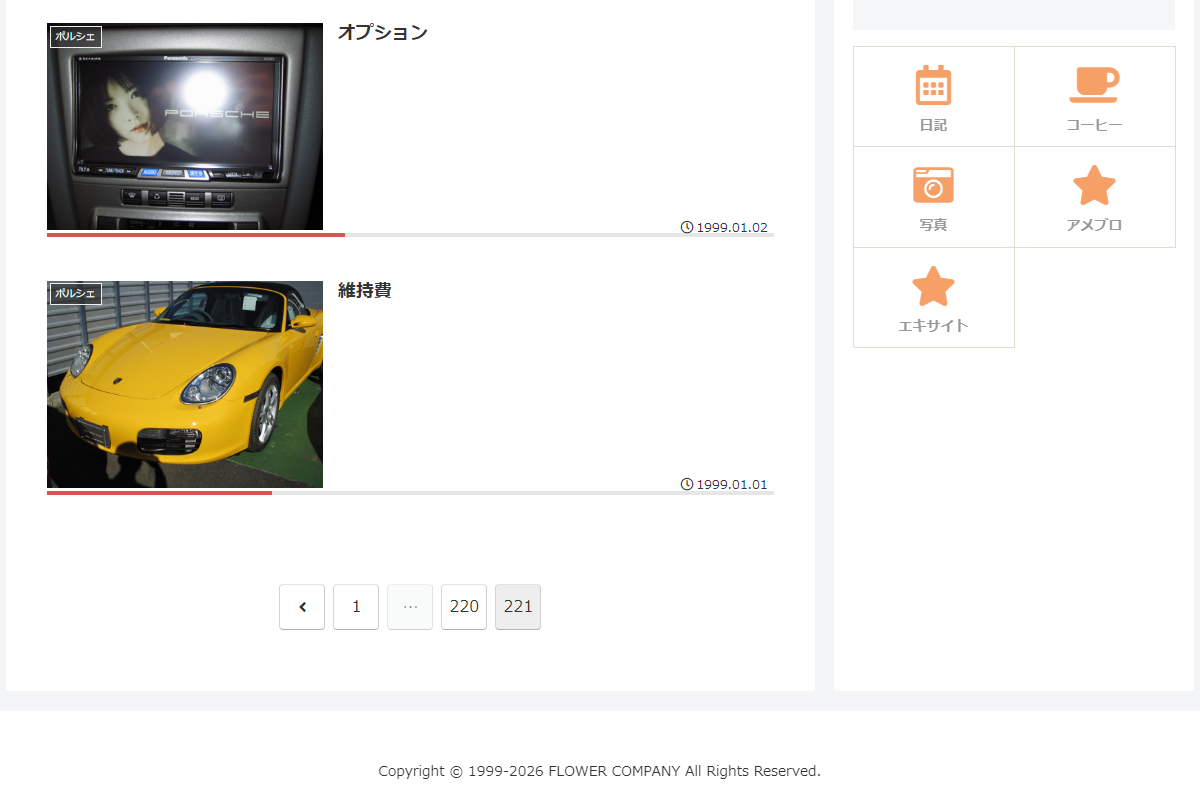
記事ページ上部の進捗バーに加え、エントリーカードにも過去の読書進捗を表示できます。
また、再度投稿ページを開く際には、前回の読書進捗位置に自動的にジャンプして、続きから読み進められます。
読書進捗はブラウザのローカルストレージに保存され、最後に読んでから90日が過ぎた記事の進捗は自動的に破棄されます。
この記事では、この方法について説明します。
完成イメージ
実装手順
以下のコードをfunctions.phpに追加します。
add_action('wp_enqueue_scripts', function () {
  ob_start();
  ?>
  .reading-progress,
  .entry-card-progress {
    background-image: linear-gradient(#d9534f, #d9534f);
    background-repeat: no-repeat;
    background-size: var(--p, 0%) 100%;
    height: 4px;
    left: 0;
    pointer-events: none;
    width: 100%;
  }

  .reading-progress {
    background-color: rgba(128, 128, 128, .2);
    position: fixed;
    top: 0;
    z-index: 99999;
  }

  .entry-card-progress {
    bottom: 0;
    position: absolute;
    z-index: 5;

    &.has-progress {
      background-color: rgba(128, 128, 128, .2);
    }
  }

  .entry-card-wrap.is-read {
    opacity: .6;

    &:hover {
      opacity: 1;
    }
  }
  <?php

  $handle = 'my-reading-progress';

  wp_register_style($handle, false);
  wp_enqueue_style($handle);
  wp_add_inline_style($handle, ob_get_clean());

  ob_start();
  ?>
  jQuery(function ($) {
    // ローカルストレージの保存キー
    const KEY = 'my-reading-progress';

    // windowのjQueryオブジェクト
    const $win = $(window);

    // 進捗の有効期限(90日, ミリ秒)
    const TTL = 90 * 24 * 60 * 60 * 1000;

    // 読了とみなす進捗率
    const READ = 0.95;

    /**
     * ローカルストレージから読書進捗データを取得
     * 更新日時が有効期限を過ぎたデータは除外
     *
     * @returns {Object<string, {p: number, t: number}>} 投稿IDをキーとした進捗データ(p: 進捗率0〜1, t: 更新日時)
     */
    const load = () => {
      try {
        const now = Date.now();
        const data = JSON.parse(localStorage.getItem(KEY)) || {};
        return Object.fromEntries(Object.entries(data).filter(([, v]) => now - v.t < TTL));
      } catch (e) {
        return {};
      }
    };

    /**
     * 指定した記事の進捗を保存(更新日時の新しい順に最大200件まで)
     *
     * @param {number} id 投稿ID
     * @param {number} p 進捗率(0〜1)
     * @returns {void}
     */
    const save = (id, p) => {
      const data = load();
      data[id] = { p, t: Date.now() };
      const entries = Object.entries(data).sort((a, b) => b[1].t - a[1].t).slice(0, 200);
      try { localStorage.setItem(KEY, JSON.stringify(Object.fromEntries(entries))); } catch (e) {}
    };

    // 記事カードに保存済みの進捗(%)を反映し、読了済みにはクラスを付与
    const data = load();
    $('.entry-card-progress').each(function () {
      const p = data[$(this).data('post-id')]?.p || 0;

      $(this)
        .css('--p', p * 100 + '%')
        .toggleClass('has-progress', p > 0)
        .closest('.entry-card-wrap')
        .toggleClass('is-read', p >= READ);
    });

    // 以降は記事ページのみ
    const $top = $('.reading-progress');
    const content = document.querySelector('.entry-content');
    if (!$top.length || !content) return;

    // 現在の投稿ID
    const postId = $top.data('post-id');

    /**
     * 現在のスクロール進捗率を取得
     *
     * @returns {number} 進捗率(0〜1)
     */
    const progress = () => {
      const r = content.getBoundingClientRect();
      return Math.max(0, Math.min(1, -r.top / (r.height - innerHeight))) || 0;
    };

    /**
     * 上部バーの幅を現在の進捗率に更新
     *
     * @returns {void}
     */
    const update = () => $top.css('--p', progress() * 100 + '%');

    /**
     * 現在の進捗を保存(3%未満は保存しない)
     *
     * @returns {void}
     */
    const savePosition = () => {
      const p = progress();
      if (p >= 0.03) save(postId, p);
    };

    // スクロール・リサイズ時にバー更新、離脱時・非表示時に保存
    $win.on('scroll resize', update).on('pagehide', savePosition);
    $(document).on('visibilitychange', () => document.hidden && savePosition());
    update();

    // 前回保存した進捗率
    const saved = data[postId]?.p;
    if (saved >= 0.03 && saved < 0.99 && !location.hash) {
      /**
       * 保存された進捗率の位置までスクロール
       *
       * @returns {void}
       */
      const restore = () => setTimeout(() => {
        const r = content.getBoundingClientRect();
        const range = r.height - innerHeight;
        if (range > 0) scrollBy(0, r.top + saved * range);
        update();
      }, 100);

      document.readyState === 'complete' ? restore() : $win.one('load', restore);
    }
  });
  <?php
  wp_add_inline_script('jquery', ob_get_clean());
});


// エントリーカードに読書進捗バーを追加
add_action('entry_card_snippet_after', function ($post_id) {
  ?>
  <div class="entry-card-progress" data-post-id="<?= (int) $post_id; ?>" aria-hidden="true"></div>
  <?php
});


// 投稿ページ上部に読書進捗バーを追加
add_action('wp_body_open', function () {
  if (!is_singular()) {
    return;
  }

  ?>
  <div class="reading-progress" data-post-id="<?= (int) get_queried_object_id(); ?>" aria-hidden="true"></div>
  <?php
});
さいごに
今回紹介した方法を使えば、プラグインを使わずに、投稿ページ上部やエントリーカードに読書進捗バーを表示できます。
ブラウザーに進捗を保存することで、再度投稿ページを開いた際に前回の読書位置へジャンプし、続きから読み進められます。
長文の記事でも、読者が読み進めやすい環境を整えたい場合に活用できます。