
目次
拡張:Cocoon設定のヘッダーに独自項目を追加する方法
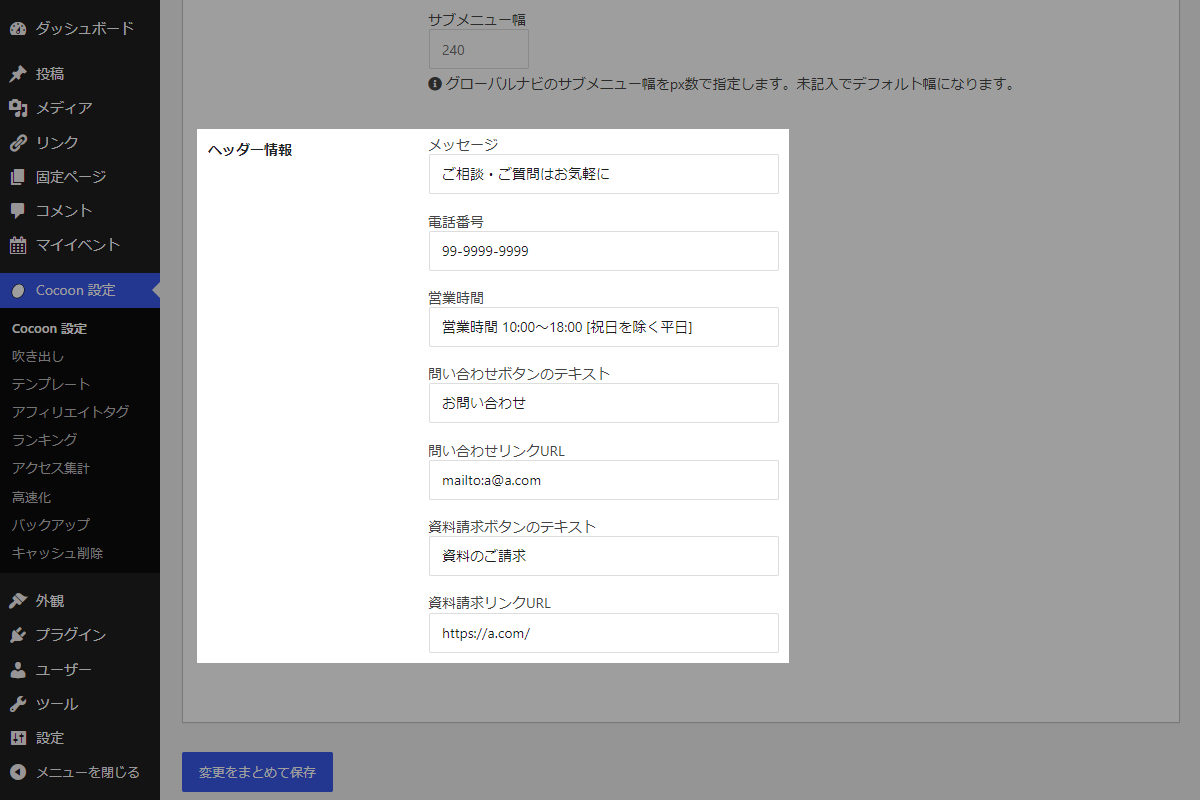
Cocoon設定→ヘッダーに、独自の設定項目「ヘッダー情報」を追加します。
ここで入力した内容を、サイトのヘッダーエリアに表示します。
完成イメージ
実装手順
以下のコードをfunctions.phpに追加します。
/**
 * Cocoonオプション設定一覧を管理
 *
 * @return array オプション設定の配列
 */
if (!function_exists('my_cocoon_options')):
function my_cocoon_options() {
  return [
    'my_custom_message'             => ['default' => '', 'label' => 'メッセージ'],
    'my_custom_phone'               => ['default' => '', 'label' => '電話番号'],
    'my_custom_business_hours'      => ['default' => '', 'label' => '営業時間'],
    'my_custom_button_text'         => ['default' => '', 'label' => '問い合わせボタンのテキスト'],
    'my_custom_button_url'          => ['default' => '', 'label' => '問い合わせリンクURL'],
    'my_custom_request_button_text' => ['default' => '', 'label' => '資料請求ボタンのテキスト'],
    'my_custom_request_button_url'  => ['default' => '', 'label' => '資料請求リンクURL'],
  ];
}
endif;


/**
 * Cocoonオプション設定値を取得
 *
 * @param string $key オプションキー名
 * @return mixed 設定された値(未設定の場合はデフォルト値)
 */
if (!function_exists('my_get_cocoon_option')):
function my_get_cocoon_option($key) {
  $options = my_cocoon_options();

  return get_theme_option($key, $options[$key]['default']);
}
endif;


// Cocoon設定値を保存
add_action('cocoon_settings_after_save', function () {
  foreach (array_keys(my_cocoon_options()) as $key) {
    update_theme_option($key);
  }
});


// Cocoon設定にメニューを追加
add_action('admin_menu', function () {
  $page_hook = get_plugin_page_hookname('theme-settings', '');

  if ($page_hook) {
    add_action($page_hook, 'add_header_fields');
  }
}, 99);


/**
 * Cocoon設定(ヘッダー)のメニュー項目を追加
 *
 * @return void
 */
if (!function_exists('add_header_fields')):
function add_header_fields() {
  $options = my_cocoon_options();

  ob_start();
  ?>
  <tr>
    <th scope="row">
      <label>ヘッダー情報設定</label>
    </th>
    <td>
      <?php foreach ($options as $key => $option): ?>
        <?php
          $value = my_get_cocoon_option($key);
          echo esc_html($option['label']) . '<br>';
          generate_textbox_tag($key, $value, '');
          echo '<br><br>';
        ?>
      <?php endforeach; ?>
    </td>
  </tr>
  <?php
  $html = ob_get_clean();
  ?>
  <script>
  jQuery(function ($) {
    $('#header .form-table tbody').append(<?php echo json_encode($html); ?>);
  });
  </script>
  <?php
}
endif;


// ヘッダーロゴ後に追加
add_action('wp_header_logo_after_open', function () {
  echo custom_header_output();
});


/**
 * ヘッダー情報を出力
 *
 * @return string 生成されたHTML文字列
 */
if (!function_exists('custom_header_output')):
function custom_header_output() {
  $opts = [];

  foreach (array_keys(my_cocoon_options()) as $key) {
    $opts[$key] = my_get_cocoon_option($key);
  }

  if (empty($opts['my_custom_message'])) {
    return '';
  }

  ob_start();
  ?>
  <div class="my-header">
    <div class="my-box">
      <!-- お問い合わせ案内 -->
      <div class="my-message"><?= esc_html($opts['my_custom_message']); ?></div>

      <!-- 電話番号 -->
      <?php if (!empty($opts['my_custom_phone'])): ?>
        <?php $tel_num = preg_replace('/[^0-9]/', '', $opts['my_custom_phone']); ?>
        <div class="my-phone">
          <a href="tel:<?= esc_attr($tel_num); ?>">
            <i class="fas fa-phone-square-alt" aria-hidden="true"></i> <?= esc_html($opts['my_custom_phone']); ?>
          </a>
        </div>
      <?php endif; ?>

      <!-- 営業時間 -->
      <?php if (!empty($opts['my_custom_business_hours'])): ?>
        <div class="my-hour"><?= esc_html($opts['my_custom_business_hours']); ?></div>
      <?php endif; ?>
    </div>

    <!-- お問い合わせボタン -->
    <?php if (!empty($opts['my_custom_button_text']) && !empty($opts['my_custom_button_url'])): ?>
      <div class="btn-wrap">
        <a href="<?= esc_url($opts['my_custom_button_url']); ?>"><i class="fas fa-envelope" aria-hidden="true"></i> <?= esc_html($opts['my_custom_button_text']); ?></a>
      </div>
    <?php endif; ?>

    <!-- 資料請求ボタン -->
    <?php if (!empty($opts['my_custom_request_button_text']) && !empty($opts['my_custom_request_button_url'])): ?>
      <div class="btn-wrap">
        <a href="<?= esc_url($opts['my_custom_request_button_url']); ?>"><i class="fas fa-book" aria-hidden="true"></i> <?= esc_html($opts['my_custom_request_button_text']); ?></a>
      </div>
    <?php endif; ?>
  </div>
  <?php
  return ob_get_clean();
}
endif;
拡張:「お問い合わせ情報」ウィジェットを追加する方法
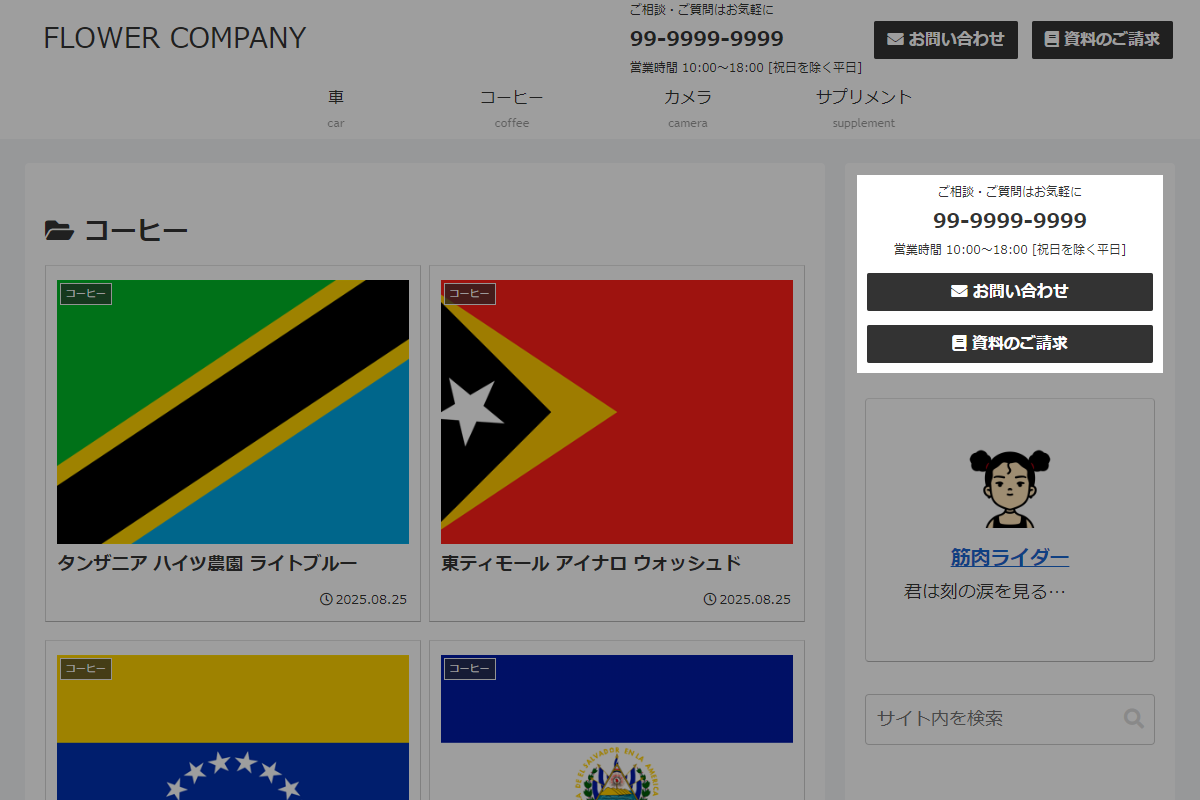
プラグイン「VK All in One Expansion Unit」などを使わずに、お問い合わせ先情報を表示する機能を追加します。

Cocoon設定→ヘッダー→ヘッダー情報で入力した設定内容を、ウィジェットおよびショートコードを使ってサイト上の任意の場所に表示します。
完成イメージ

使用方法
以下にショートコードを示します。
[my_contact_info]実装手順
以下の手順で実装します。
- ラベルPHPを追加
以下のコードをfunctions.phpに追加します。
// ウィジェットを追加 add_action('widgets_init', function () { register_widget('Contact_Info_Widget'); }); /** * ウィジェットクラスを定義 */ class Contact_Info_Widget extends WP_Widget { public function __construct() { parent::__construct( 'contact_info_widget', 'お問い合わせ情報', ['description' => 'カスタムヘッダー情報を表示します。'] ); } /** * ウィジェットを表示 * * @param array $args ウィジェット引数 * @param array $instance 保存された値 * @return void */ public function widget($args, $instance) { echo $args['before_widget']; echo custom_header_output(); echo $args['after_widget']; } } // ショートコードを追加 add_shortcode('my_contact_info', function ($atts) { return '<div class="widget_contact_info_widget">' . custom_header_output() . '</div>'; }); - ラベルCSSを追加
以下のコードをstyle.cssに追加します。
.widget_contact_info_widget {
  .my-header {
    flex-direction: column;
  }

  .my-box {
    text-align: center;
  }

  .btn-wrap,
  a {
    width: 100%;
  }
}
さいごに
今回紹介した方法を使えば、フックを利用することで、ヘッダーに電話番号と問い合わせリンクを簡単に追加できます。
これにより、ユーザーが手軽に連絡を取れるようになり、サイトの利便性が向上します。

