
はじめに
「アーカイブ」ウィジェットは、標準では投稿タイプを選べず、通常の投稿のみが対象になります。
しかし、複数の投稿タイプを使っている場合は、カスタム投稿タイプごとにアーカイブを表示したいこともあるでしょう。
この記事では、その方法について説明します。
完成イメージ
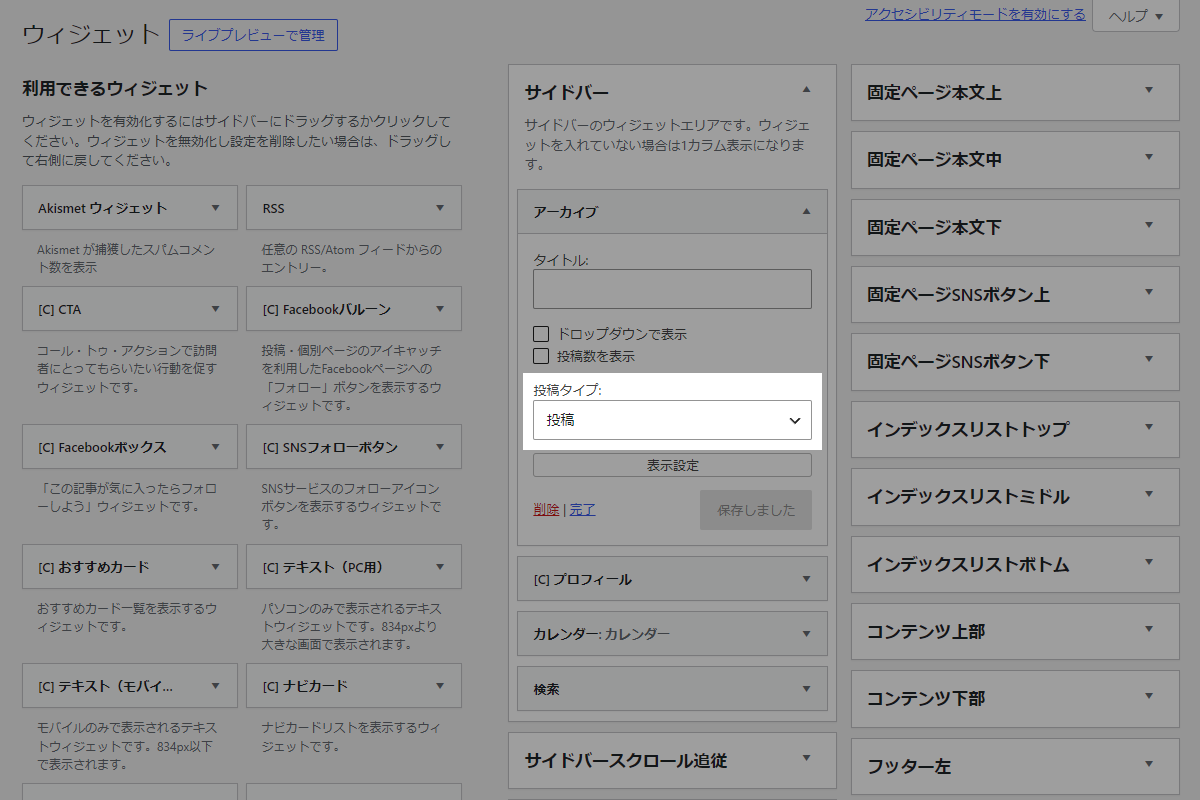
実装手順
以下のコードをfunctions.phpに追加します。
// ウィジェットに設定メニューを追加
add_action('in_widget_form', function ($widget, $return, $instance) {
  if ($widget->id_base !== 'archives') {
    return;
  }

  $post_type = !empty($instance['post_type']) ? $instance['post_type'] : '';

  // 公開されているカスタム投稿タイプを取得
  $custom_post_types = array_filter(get_post_types(['public' => true], 'objects'), function ($pt) {
    return !in_array($pt->name, ['post', 'page', 'attachment'], true);
  });

  ?>
  <p>
    <label>投稿タイプ:</label><br>
    <select class="widefat" name="<?= esc_attr($widget->get_field_name('post_type')); ?>">
      <option value=""><?= esc_html('投稿'); ?></option>
      <?php foreach ($custom_post_types as $pt): ?>
        <option value="<?= esc_attr($pt->name); ?>" <?php selected($post_type, $pt->name); ?>>
          <?= esc_html($pt->label); ?>
        </option>
      <?php endforeach; ?>
    </select>
  </p>
  <?php
}, 10, 3);


// ウィジェットの入力データを更新
add_filter('widget_update_callback', function ($instance, $new_instance, $old_instance, $widget) {
  if ($widget->id_base !== 'archives') {
    return $instance;
  }

  $instance['post_type'] = sanitize_text_field($new_instance['post_type'] ?? '');
  $instance['dropdown'] = !empty($new_instance['dropdown']) ? 1 : 0;

  return $instance;
}, 10, 4);


/**
 * アーカイブウィジェットの投稿タイプを設定
 *
 * @param array $args ウィジェットに渡される既定の引数
 * @param array $instance ウィジェットのインスタンス
 * @return array カスタマイズ後の引数
 */
if (!function_exists('custom_archives_args')):
function custom_archives_args($args, $instance) {
  $post_type = !empty($instance['post_type']) ? $instance['post_type'] : 'post';
  $args['post_type'] = $post_type;

  return $args;
}
endif;


// アーカイブウィジェットのクエリを変更
add_filter('widget_archives_args', 'custom_archives_args', 10, 2);
add_filter('widget_archives_dropdown_args', 'custom_archives_args', 10, 2);
さいごに
今回紹介した方法を使えば、「アーカイブ」ウィジェットでカスタム投稿タイプを簡単に表示できるようになります。
標準では対応していないため、複数の投稿タイプを運用しているサイトでは非常に便利です。
ウィジェットに投稿タイプ選択を追加することで、投稿ごとにアーカイブを切り替えて表示でき、サイト訪問者にとっても見やすいアーカイブページを提供できます。
