
はじめに
Cocoonには、SWELLのような目次ボタンが備わっていません。
そこで、PC表示の場合に、SWELLと同様に画面右下へ目次ボタンを追加します。
この記事では、この方法について説明します。
完成イメージ
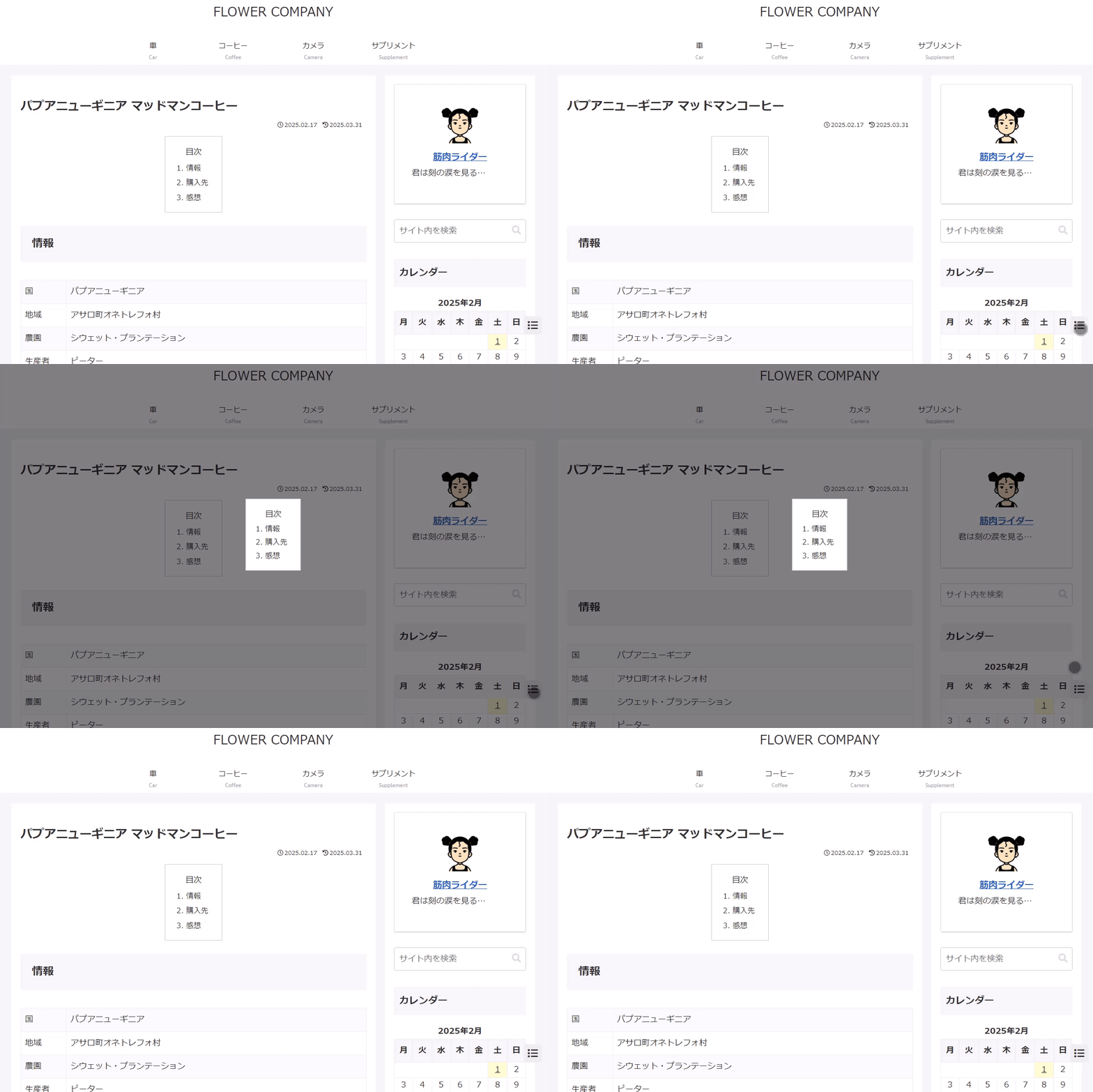
実装手順
以下の手順で実装します。
- ラベルCocoon設定
表1に示す項目を設定をします。
Cocoon設定 設定 大項目 項目 設定値 目次 目次設定 目次を表示する オン - ラベルPHPを追加
以下のコードをfunctions.phpに追加します。
add_action('cocoon_part_after__tmp/button-go-to-top', function () {
  $html = do_shortcode('[toc]');

  ?>
  <div id="toc-modal" class="toc-modal">
    <label for="toc-modal__open" class="toc-modal__button go-to-top-button">
      <i class="fas fa-list"></i>
    </label>

    <input type="radio" id="toc-modal__close" class="display-none toc-modal__trigger" name="toc-modal__trigger">
    <input type="radio" id="toc-modal__open" class="display-none toc-modal__trigger" name="toc-modal__trigger">

    <div class="toc-modal__modal">
      <div class="toc-modal__content">
        <?= $html; ?>
      </div>

      <label for="toc-modal__close">
        <div class="toc-modal__background"></div>
      </label>
    </div>
  </div>
  <?php
});


// フロント用JS・CSSを追加
add_action('wp_enqueue_scripts', function () {
  ob_start();
  ?>
  /* 目次ボタン */
  .toc-modal__button {
    bottom: 65px;
    position: fixed;
    right: 10px;
    visibility: hidden;
  }

  .toc-modal__button.active {
    visibility: visible;
  }

  /* 目次 modal */
  .toc-modal__modal {
    display: none;
    height: 100%;
    left: 0;
    position: fixed;
    top: 0;
    width: 100%;
    z-index: 99999;
  }

  .toc-modal__content {
    left: 50%;
    position: absolute;
    top: 50%;
    transform: translate(-50%, -50%);
    z-index: 2;
  }

  .toc-modal__content .toc {
    background-color: #fff;
    margin: 0;
  }

  #toc-modal__open:checked + .toc-modal__modal {
    animation: toc-modal-fade-in 0.3s;
    display: block;
  }

  @keyframes toc-modal-fade-in {
    0% {
      opacity: 0;
    }

    100% {
      opacity: 1;
    }
  }

  /* 背景 */
  .toc-modal__background {
    background-color: rgb(0 0 0 / 50%);
    height: 100%;
    left: 0;
    position: absolute;
    top: 0;
    width: 100%;
    z-index: 1;
  }

  /* モバイルは非表示 */
  @media (width <= 1023px) {
    #toc-modal {
      display: none;
    }
  }
  <?php

  $handle = 'toc-modal';

  wp_register_style($handle, false);
  wp_enqueue_style($handle);
  wp_add_inline_style($handle, ob_get_clean());

  ob_start();
  ?>
  jQuery(function ($) {
    if (!$('.main .toc').length) {
      return;
    }

    $('.toc-modal__button').addClass('active');

    $('.toc-modal a').click(function () {
      $('#toc-modal__close').prop('checked', true);
    });
  });
  <?php
  wp_add_inline_script('jquery', ob_get_clean());
});
さいごに
今回紹介した方法を使えば、CocoonでもSWELLのように目次ボタンを追加して、より便利なナビゲーションを提供できます。
目次ボタンを固定表示させることで、ユーザーが簡単に目次にアクセスできるようになり、サイトの使いやすさが向上します。


